How to Set Up a SuiteCommerce Domain | Tutorial
One great feature of SuiteCommerce or SuiteCommerce Advanced is the ability to move sites between different domains. This article shows you how to set up a SuiteCommerce domain.
Read the Article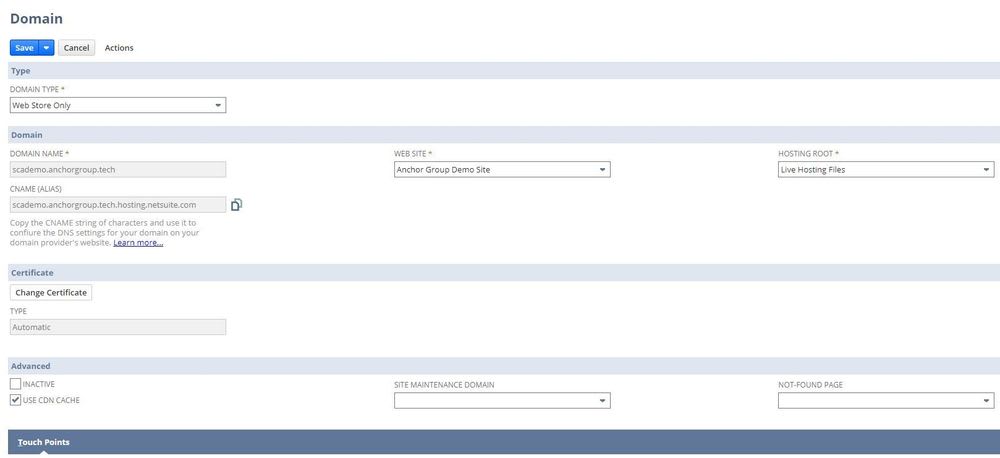

Changing the domain name of a SuiteCommerce website involves more than updating a URL.
Your storefront may also have domain-specific configuration records, active extensions, login-page branding, product content, and redirects that need attention.
For example, suppose your business is moving its SuiteCommerce storefront from old.example.com to new.example.com.
You'll need to configure the new domain in NetSuite, confirm that the storefront works correctly, and make sure customers and search engines can find the new website.
Here's a checklist of the areas to review when changing a domain in SuiteCommerce or SuiteCommerce Advanced.
Before making changes, document the current storefront configuration.
Identify:
Not every migration requires changes in every area. The goal is to identify which settings depend on the domain so they can be updated without disrupting the storefront.
If possible, prepare and test the new domain before redirecting visitors away from the existing one.
Start by configuring the new domain for your SuiteCommerce website.
NetSuite requires domain and DNS settings that allow traffic for the hostname to reach the appropriate storefront.
The exact DNS records and verification steps depend on the current NetSuite domain configuration requirements.
In the original implementation, configuring the new domain involved creating the required DNS records and associating the new domain record with the existing website and SSP application.

Review NetSuite's domain setup instructions and obtain the DNS values required for the new hostname.
Then:

Important: Don't remove the old domain simply because the new one has been configured. You'll still need the old hostname to handle redirects from existing URLs.
Next, review the storefront's Extension Manager configuration.
SuiteCommerce extension activations are associated with a specific website and domain configuration.
When moving to a new domain, you may need to activate the existing theme and required extensions for that domain.

Review the theme and extension activations on the old domain and compare them with the new configuration.
Pay particular attention to extensions responsible for:
The goal is to make sure the new domain has the same required functionality as the existing storefront.
Even after activating the correct extensions, custom code may contain references to the previous domain.
For example, an extension might reference an image, API endpoint, or internal page using an absolute URL such as:
https://old.example.com/some-page
If the old domain is retired or stops serving that resource, the reference may no longer work.
Review custom extensions and scripts for hardcoded URLs.
Where appropriate, use relative URLs for internal storefront resources rather than hardcoding the website's hostname.
Not every absolute URL needs to be changed. External services and intentionally fixed endpoints may require absolute URLs.
The important thing is to identify references to the old storefront domain and determine whether they should be updated.
SuiteCommerce website configuration records can also be associated with a particular domain.
In the original implementation, a new configuration record was created for the new domain, and the settings from the existing configuration were used as a starting point.
To review the configuration records, navigate to:
Commerce > Websites > Configuration
Select the existing website and the new domain.
Create the appropriate configuration record for the new domain, following the options available in your NetSuite environment.
Next, compare the new configuration with the previous domain's configuration.
If you're copying configuration JSON, review the settings before saving rather than assuming every value should remain unchanged.
Pay particular attention to domain-specific values, storefront URLs, and any custom configuration added by extensions.
After saving, verify that the storefront uses the intended configuration.
Your SuiteCommerce login and registration pages may display a store name configured in NetSuite.
If the domain change is part of a rebranding effort, review that name as well.
Navigate to:
Commerce > Websites > Website List
Open the Website Setup record associated with the storefront.
Review the website's display name and update it if necessary.

After saving, visit the storefront's login and registration pages to confirm the correct name appears.
A domain migration doesn't always require a display-name change, particularly if the business name is staying the same.
Product information can contain links to other pages, downloadable files, or external resources.
Review the item data used by your storefront for references to the previous domain.
Useful places to check include:
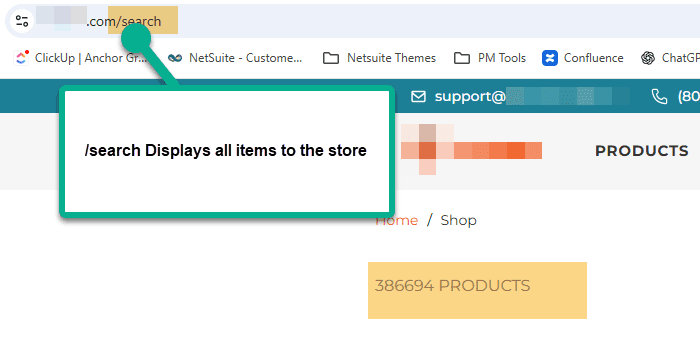
You can also review the products displayed on the storefront.
In the original implementation, the /search page was used as a convenient way to browse visible products.
However, the /search page shouldn't be treated as a complete inventory of every item or every field containing an old URL.
A NetSuite saved search or another structured review of relevant item fields may provide a more comprehensive audit.
Next, check content managed through SuiteCommerce Site Management Tools (SMT).
This may include:
Look for absolute URLs pointing to the old domain.
Update those references where appropriate, particularly when they should now point to pages on the new domain.
Also review any custom landing pages or content managed outside SMT that may contain old URLs.
Redirects are an important part of changing a website's domain.
They help customers who follow old links reach the corresponding pages on the new site. They also help search engines understand that the website has moved.
For example:
Old URL
https://old.example.com/products/example-product
New URL
https://new.example.com/products/example-product
Ideally, the old URL should return a permanent redirect directly to the corresponding new URL.
It's important to distinguish two different types of redirects.
Domain-level redirects send requests from the old hostname to the new hostname. These must be configured through infrastructure that can receive requests for the old domain.
SuiteCommerce website redirects manage supported URL redirects within the NetSuite website configuration.
NetSuite website redirect records may be useful for changes to individual paths, but they don't automatically guarantee that an old hostname will redirect to a new hostname.
For a domain migration, confirm that the old domain remains under your control and that its redirect configuration can send visitors to the correct pages on the new domain.
Whenever possible, preserve the original URL path rather than sending every old URL to the new homepage.
A domain change also affects how search engines and analytics platforms identify your website.
After configuring the new domain, review:
Canonical URLs
Confirm that pages on the new domain reference their correct canonical URLs rather than the previous domain.
XML Sitemap
Make sure the sitemap lists the intended URLs on the new domain.
Google Search Console
Verify the new domain or property and follow Google's applicable site-move guidance, including the Change of Address tool when appropriate.
Google Analytics and Google Tag Manager
Confirm that tracking works on the new hostname and review any hostname filters, referral settings, or conversion configurations affected by the migration.
Internal Links
Update navigation, footer links, product links, and other internal references to use the new domain where appropriate.
Before considering the migration complete, test the new storefront.
At a minimum, review:
Also test on mobile devices and check the browser console for missing resources or requests to the old domain.
After launch, monitor redirects, crawl errors, and storefront functionality for issues that weren't apparent during initial testing.
Changing a SuiteCommerce domain requires coordinating several parts of your storefront.
Beyond the domain record itself, you may need to review Extension Manager, website configuration records, custom code, login-page branding, product information, SMT content, and redirects.
A structured migration checklist helps reduce the risk of overlooking domain-specific settings.
By preparing the new domain, testing storefront functionality, and properly redirecting the old URLs, you can make the transition easier for both customers and search engines.
Related Articles