Native SuiteCommerce Store Locator Setup
Within lies the comprehensive guide to setting up the native Store Locator on a SuiteCommerce site.
Read the Article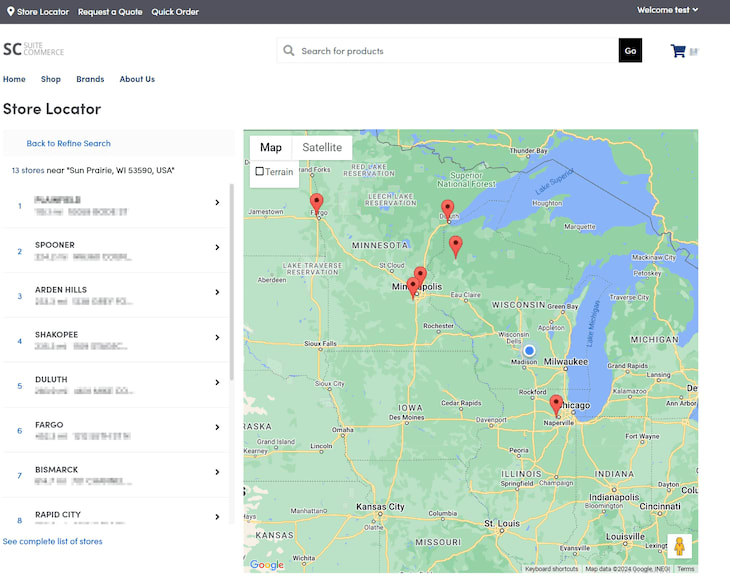

One of our SuiteCommerce customers was interested in learning more about a native feature called the Store Locator. Their stores were densely populated in one state, and they wanted the tool to display only the store areas rather than a full map of the United States. The Zoom Level setting narrows this map by default.

This guide walks through the prerequisites, NetSuite configuration settings, and Google Maps zoom levels to consider when adjusting the default view of your SuiteCommerce Store Locator.
Complete the following points before implementing the zoom function:
To navigate to the Store Locator Zoom Level in NetSuite and SuiteCommerce, the Administrator or Store Manager should complete the following steps:
Step 1: Navigate to the Configuration Record through this click path: Commerce > Websites > Configuration – Store Locator Tab – Store Locator Subtab.
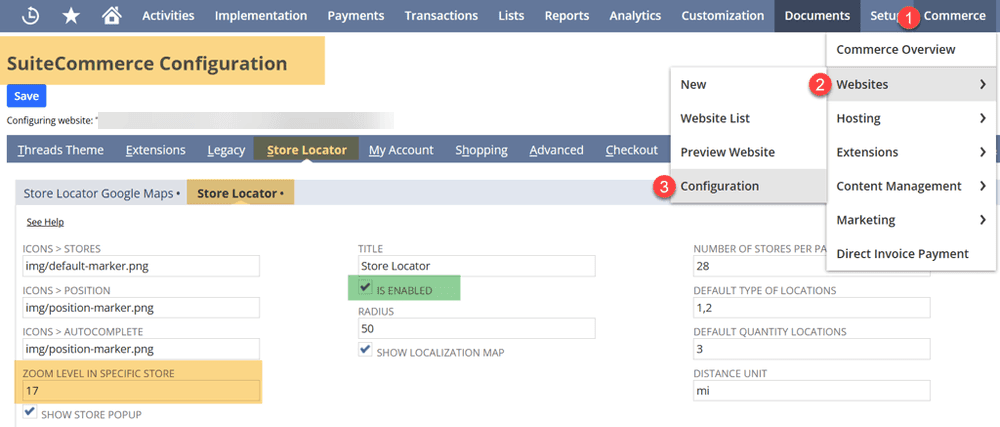
Step 2: The Zoom Level in Specific Store field is the Google Zoom Level that dictates the narrowness of your Store Locator Map.
Step 3: In SuiteCommerce, check the Is Enabled box to make the Store Locator surface. Most commonly, the Store Locator links to the header.
Step 4: If it is not linked to the header, the most common URL suffix is /stores. Append that suffix to your SuiteCommerce store, and you should navigate to the Store Locator.


This section will provide more information on how to implement a Specific Google Zoom Level through editing the Google Map URL. Find further details in Google Maps API documentation and NetSuite troubleshooting articles.

The xz/ section of the Google Maps URL represents the value of the user's scroll level. Here, x stands for a numerical value which represents the level of magnification. It can only take positive integers or decimals, and it is recommended to stay between a zoom level of 5 and 13.
To view this value on Google, go to Google Maps and add an address. In the middle of the URL, find the value: xxxx,3z. Change the number before the z to view different scroll levels. This is a good model of what your store locator would look like based on its zoom.

Note: This article references the 2025 version of Google Maps. Google Maps URLs and interface behavior may change over time.
Additional Google Maps Resources:
Related Articles
Tagged with Training