Customer Unable to Log In to SuiteCommerce (Access Given)
How to resolve "WARNING: This customer does not have access to a website. The subsidiary associated with the customer’s assigned web site is not online."
Read the Article

Commerce Categories require many steps to set up properly, so it is easy to make a mistake during the process and cause errors down the line. The following article will help you troubleshoot any "404 Page Not Found" error that might appear when landing on a Commerce Category page. Often, you will simply need to review previous configurations to ensure that they allow this tool to be active.

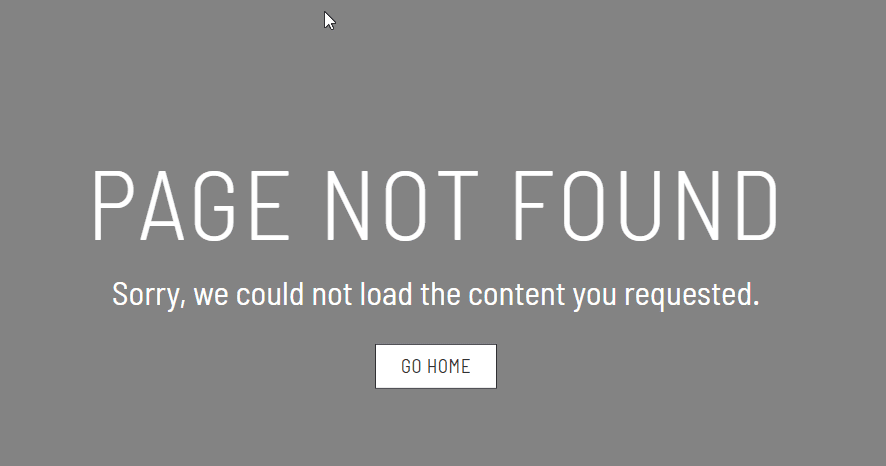
The following solutions are ordered from the most likely to the least likely NetSuite issues which may cause a Commerce Category error. Of course, there is value in reviewing all of these scenarios in case the final option just so happens to be your problem. However, once you find the culprit scenario, you do not need to keep going down the list except for educational purposes.
In the NetSuite UI, navigate to the Commerce Category in question and verify the following:
If you don’t see the Commerce Category, make sure to select "show inactives". If the category is set to inactive, make sure to clear the inactive checkbox on the commerce category record to allow it to appear on the site.

On each category, check the following fields:
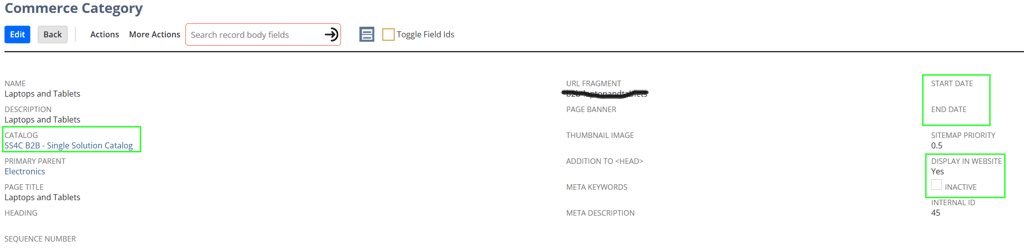
Select the Commerce Catalog that the category is associated with and confirm the following:

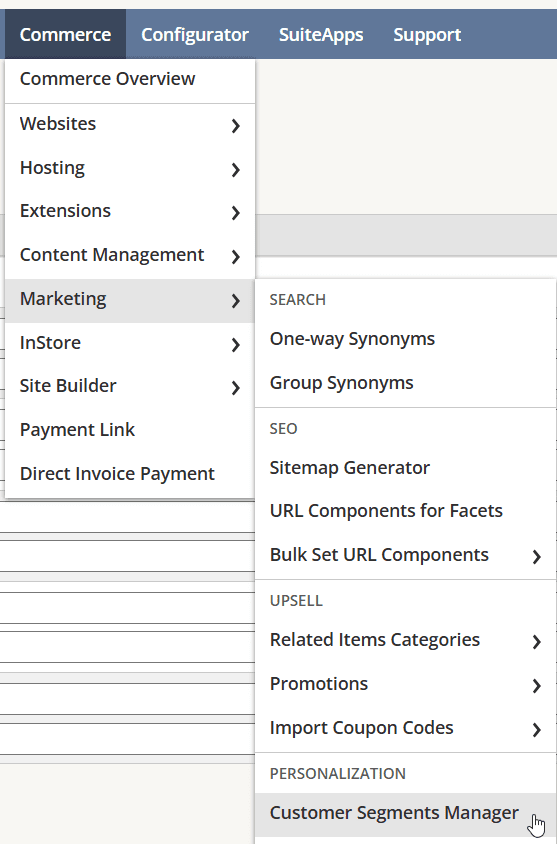
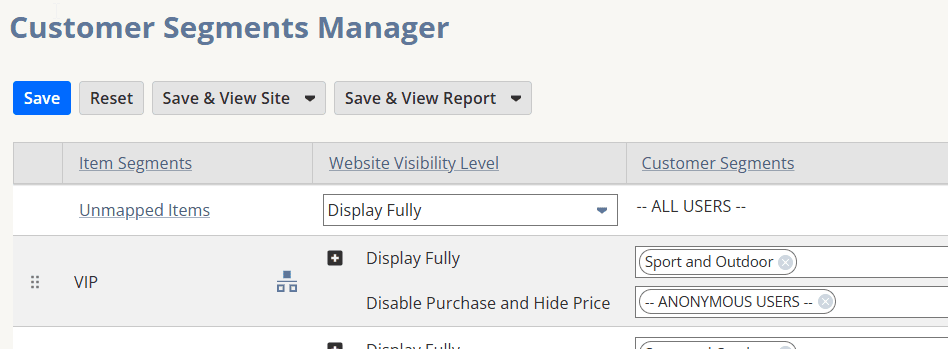
Are there any Personalized catalog views active for the commerce category?
Personalized Catalog views are a native feature that allows for limiting visibility of commerce categories or item collections to a specified group of users. See the below for how to navigate to this view.
Are the Website Setup Record sort fields updated to include the Commerce Category field?
Navigate to Websites > Website List > Your Website > Search Index Tab > Sort Fields.

Confirm that the “Commerce Categories” field is present in the Sort Fields List. If not, add the “Commerce Categories” field, then save the website setup record.

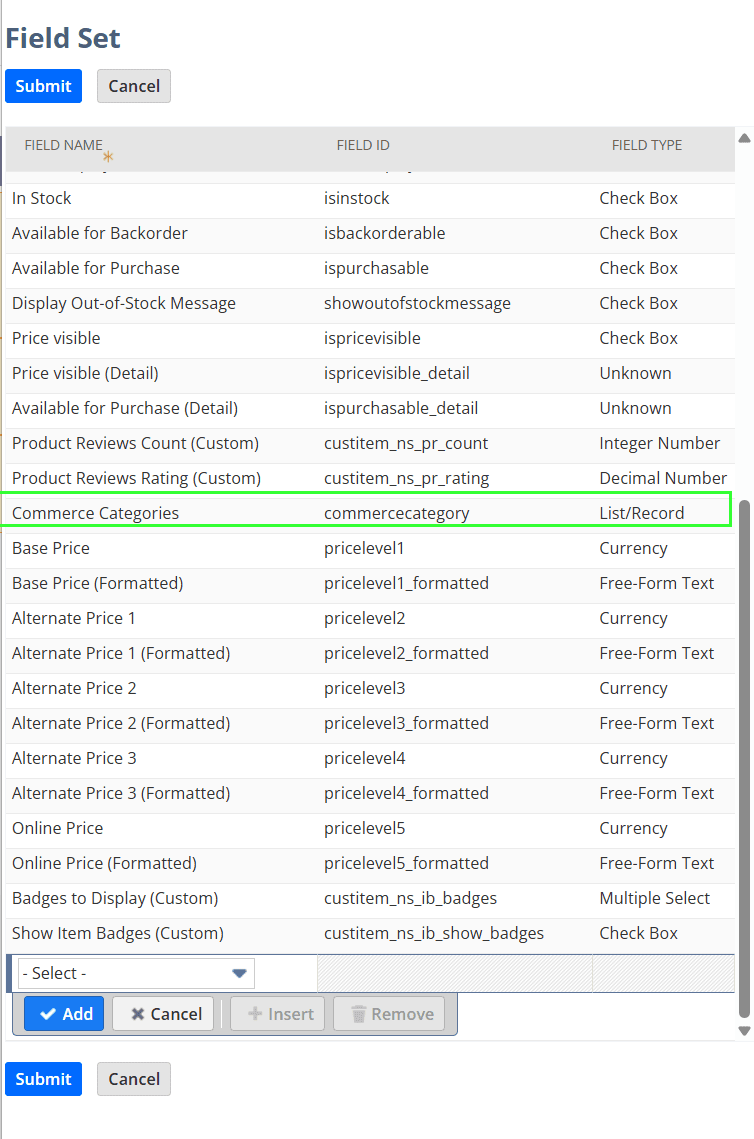
Are the Website Setup Record field sets updated to include the Commerce Category field?
Navigate to Websites > Website List > Your Website > Field Sets Tab.
Confirm that the “Commerce Categories” field is present in the Details and Search Fields Sets. If not, add the “Commerce Categories” field, save the field set(s), then save the website setup record.
Related Articles
Tagged with Training, Troubleshooting