CORS Configuration for Suitelets
Follow the steps in this article to configure CORS correctly for a request to a Suitelet by ensuring the correct headers and responses are in place.
Read the Article
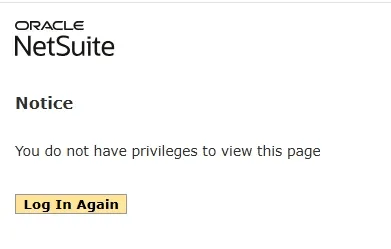
Are you receiving a "You do not have privileges to view this page" error when accessing a NetSuite Suitelet through its external URL? One possible cause is the access configuration on the Suitelet's script deployment record.
In the situation covered here, the error was associated with the Online Form User role not being selected in the deployment's External Roles settings. Here's where to check the configuration and what to do if that role isn't available.
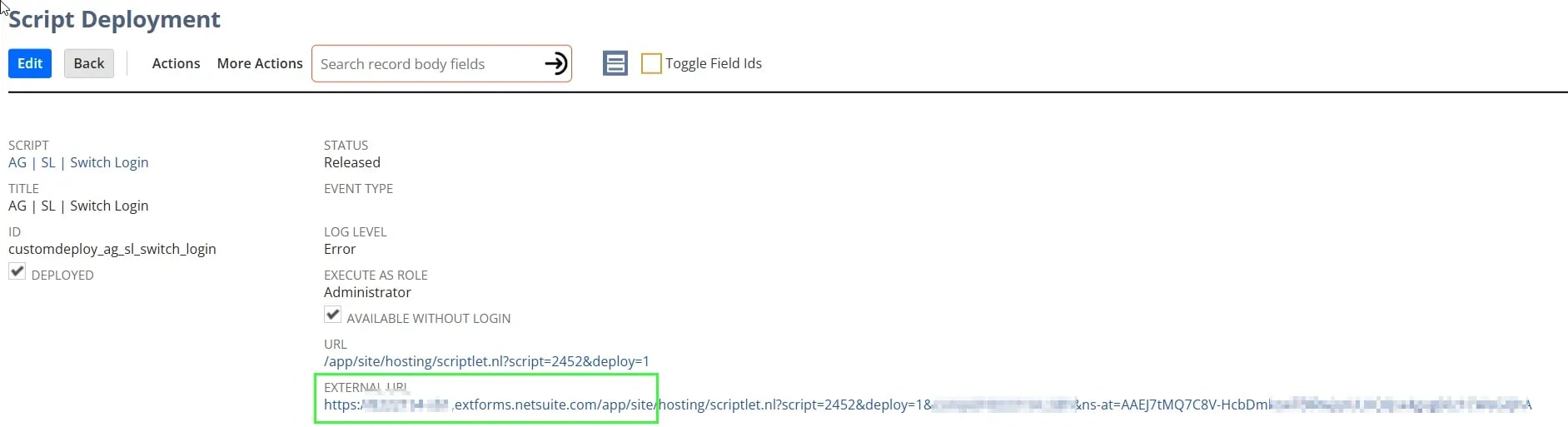
Open the Suitelet's script deployment record and review its access settings. For the configuration described in this article, check whether the Online Form User role is available and selected under External Roles.
Only grant access to the roles that require it. Selecting every internal and external role can expose the Suitelet more broadly than intended.
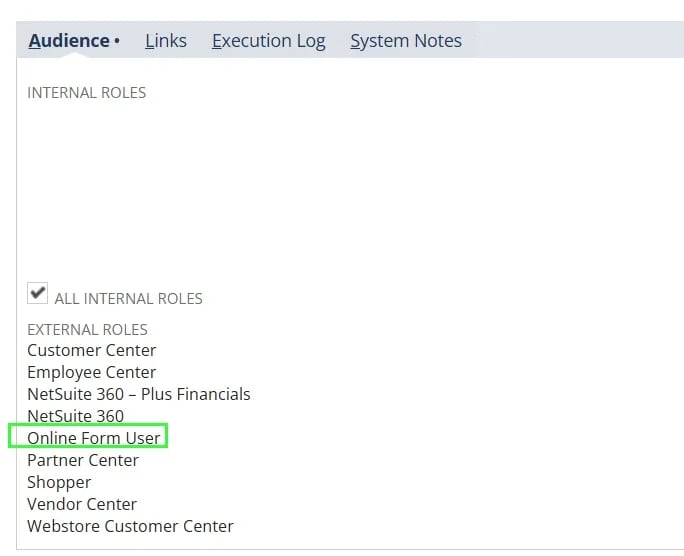
If the Online Form User role is not an option in the External Roles dropdown, the original troubleshooting case identified a missing enabled feature as the cause. The Online Form feature is required for the configuration described in this walkthrough. Note the “extforms” used in the URL, which is the standard URL structure used for Online Forms in NetSuite.
Example Script External URL:
https://accountname.extforms.netsuite.com/app/site/hosting/scriptlet.nl?script=1234&deploy=1&compid=1234567&ns-at=ABCDEFGHIJKLMNOPIf the Online Forms feature is needed for your deployment configuration, follow these steps:
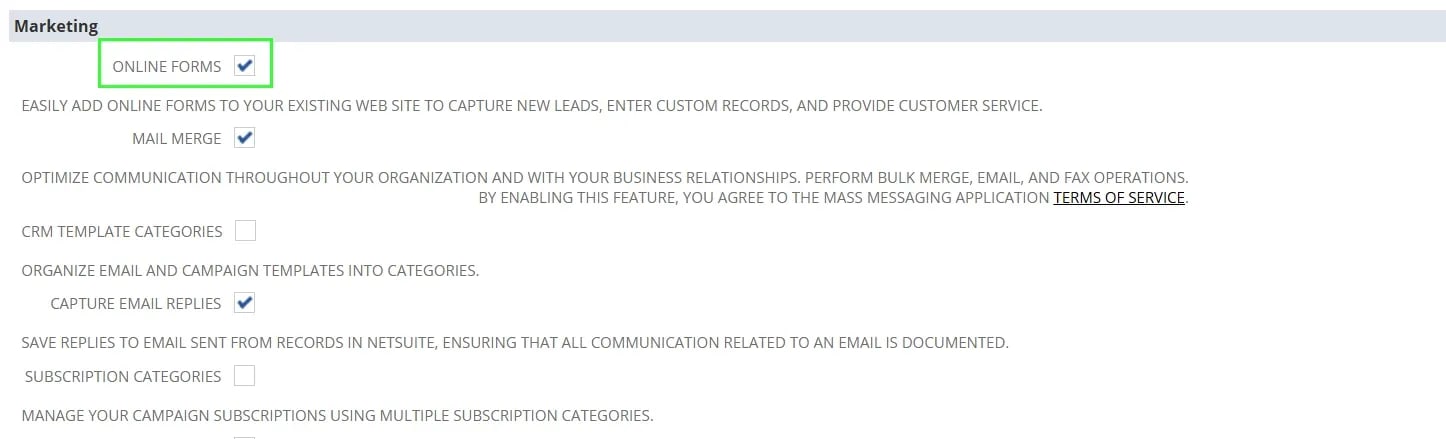
After saving, try accessing the Suitelet through its external URL again to determine whether the permission error has been resolved.
If the error continues, the cause may be elsewhere in the Suitelet's access configuration. Don't expand access to additional roles without confirming that they are required.
Related Articles
Tagged with Troubleshooting, Security & Permissions