Learn how to change page titles in SuiteCommerce and SuiteCommerce Advanced, including homepage, content, search results, Commerce Category, and Product Display Pages.
Date
October 28, 2026
Read
5 min
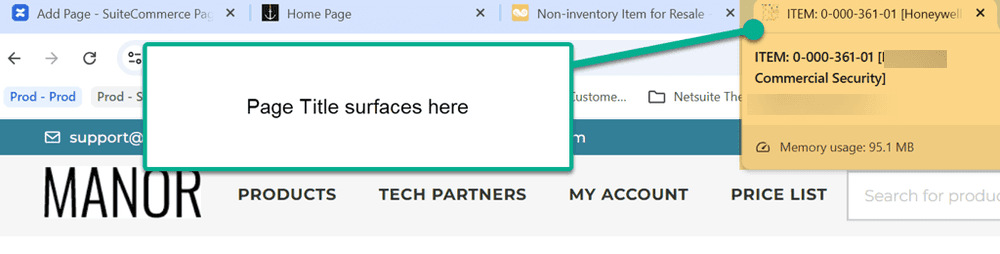
Page titles help identify individual pages on your SuiteCommerce website, including in browser tabs and search results. They are helpful to add to your SuiteCommerce store for the following reasons:
They help shoppers identify pages as they navigate your store.
They provide search engines with information about a page's content and can influence how it appears in search results.
They help determine which tab is which at the top of the screen, when multiple are open.
Recently, our SuiteCommerce customer asked where to add a page title on their site. If you have the same question, this article is for you!
The process depends on the type of page you're editing. Below, we'll cover homepage and content pages, search results pages, Commerce Category pages, and Product Display Pages (PDPs).
How to Change Homepage, Cart, and Content Page Titles in SuiteCommerce
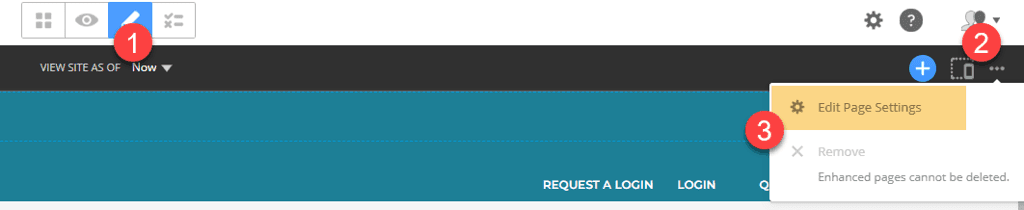
Step 1: Navigate to the SuiteCommerce store and hit the Escape key. Enter the Site Management Tools by adding your NetSuite credentials.
Step 2: Select the pencil icon to edit the page.
Step 3: On the far right, there is an ellipses of three dots. Hit this button and select Enter Page Settings.
Step 4: On the Metadata Tab, the Title Page will dictate the page title. Edit and save.
Step 5: Publish the Content on the right-most square in Site Management Tools. Select the blue dot and Publish.
Step 6: Return to the store on another page and see your changes live!
You may also edit this via the source code. However, for SuiteCommerce Admins, this is the simplest and most friendly path to change the page title.
How to Change the SuiteCommerce Search Results Page Title
The Search page displays all the products on the SuiteCommerce store. To change the title of this page, follow these steps:
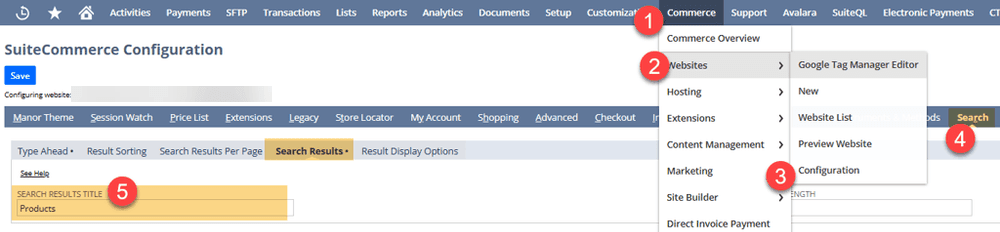
Step 1: The Admin role should navigate to the Configuration Record (Commerce > Websites > Configuration) for SuiteCommerce or SuiteCommerce Advanced sites.
Step 2: Enter the site and domain. The select Configure.
Step 3: Navigate to the Search tab and Search Results subtab.
Step 4: Edit the Search Results Title field with the desired page title.
Step 5: Save the Configuration Record.
Step 6: Commit a cache invalidation request and hard refresh the site. You should see your changes on the site!
This field is not importable via CSV, as it only applies to a single page and not multiple items.
How to Change Commerce Category and Product Listing Page (PLP) Titles
Step 1: In NetSuite, navigate to Commerce > Content Management > Commerce Categories.
Step 2: Edit the Commerce Category where you would like to see the page title.
Step 3: Find the field Page Title {field id= pagetitle}. Edit this to your desired page title.
Step 4: Save the record, hard refresh the site (Ctrl + Shift + R), and your page title should surface!
The Page Title is importable by CSV Import with the ‘Item’ type!
How to Change Product Display Page (PDP) Titles in SuiteCommerce
Page titles on the Product Display Page (PDP) are determined from the item record in the Webstore tab. To configure this, follow these steps:
Step 1: In NetSuite, navigate to the Item Record and go to the Webstore tab.
Step 2: Find the field titled, Page Title {pagetitle}.
Step 3: Save the Item Record.
Step 4: Hard refresh the site (Ctrl + Shift + R).
You should see your page title appear!
The Page Title is importable by CSV Import with the ‘Item’ type!
Whether you're updating a homepage, search results page, Commerce Category, or individual product page, knowing where SuiteCommerce stores its page title settings can make the process much easier. If you run into trouble making these changes, the Anchor Group team is happy to help you work through it.
You want to make sure you are effectively communicating stock levels to your customers on a PDP, because customers will often change their behavior based on stock availability. For example, seeing a low-stock message can encourage a customer to buy a product immediately, rather than abandoning their cart. The customer may even choose to buy a larger quantity since they know they are running out of chances to purchase the product in the near future.
Lindemann is an authentic, down-to-earth, American company that has become a true force to be reckoned with in the chimney supplies market. Although doubtless most of that success is due to their own hard work and innovation, they also attribute much to the benefits offered by SuiteCommerce.