Learn how to enable Maximum Shipping Price in ShipperHQ, configure the setting within a shipping rule, and test shipping rates for your BigCommerce store.
Date
October 26, 2026
Read
5 min
Offering free shipping can be an effective way to encourage online purchases, but shipping costs can become unpredictable when customers place large or heavy orders.
This is especially relevant for BigCommerce merchants selling to wholesalers and B2B customers, where a single order may contain dozens of items.
ShipperHQ provides shipping rules that let merchants control how shipping rates are calculated and displayed. One available setting is Maximum Shipping Price, which allows a maximum amount to be applied to a shipping rule.
In this tutorial, we'll walk through how to enable and configure that setting in ShipperHQ.
Why Set a Maximum Shipping Price?
Imagine offering free shipping on orders over $50.
For smaller orders, absorbing the shipping cost may be manageable. But a large wholesale order could generate a significantly higher carrier charge.
The goal is to configure shipping rules that support your free-shipping offer without exposing your business to unexpected shipping expenses.
Two values are important to distinguish:
Minimum order value: The amount a customer must spend to qualify for the offer, such as $50.
Maximum shipping price: A limit configured within the applicable shipping rule, such as $100.
These settings serve different purposes. The order-value condition determines when a rule applies, while the maximum shipping price affects the rate produced by that rule.
Before relying on the configuration to limit the amount your business absorbs, test how the maximum interacts with your free-shipping rule.
Before You Begin
You'll need:
Access to your ShipperHQ dashboard.
An active carrier and shipping method configured in ShipperHQ.
Permission to create or modify shipping rules.
A ShipperHQ plan that supports maximum and minimum shipping price settings.
According to ShipperHQ's documentation, the maximum and minimum shipping price feature is available on Advanced and Enterprise plans.
Step 1: Open Shipping Rules in ShipperHQ
Log in to your ShipperHQ account.
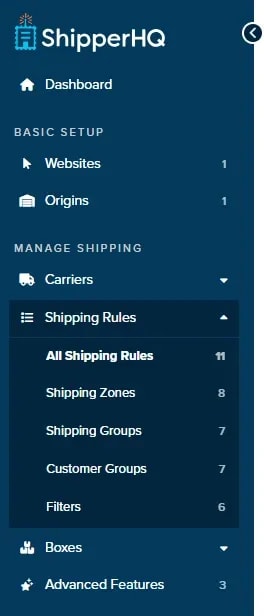
Navigate to Shipping Rules in the dashboard.
Shipping Rules section of Shipper HQ
Step 2: Enable the Maximum Price Setting
From the Shipping Rules page, select Settings near the upper-right corner.
Settings logo
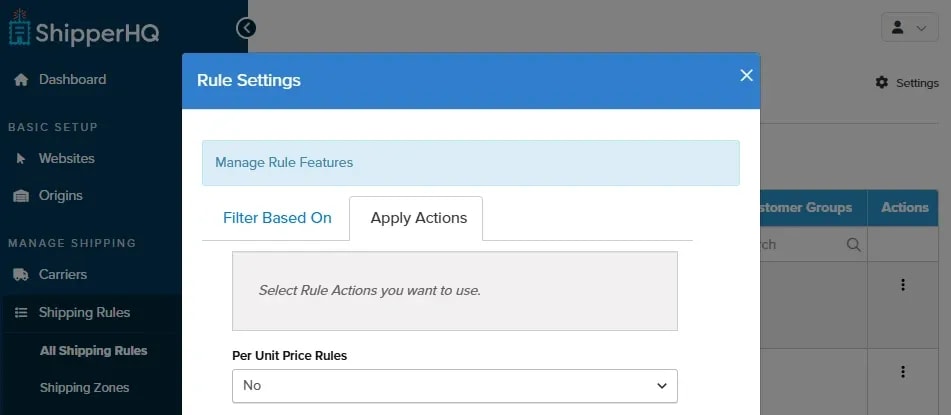
Open the Apply Actions tab.
Apply actions tab within Rule Settings
Find Maximum Price and change the setting to Yes.
Select Apply to save your changes.
This makes the maximum price field available within the advanced settings of applicable shipping rules.
Step 3: Create a Shipping Rule
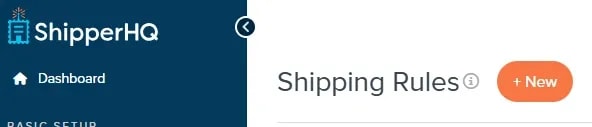
Return to Shipping Rules and select + New.
New Rule button
Configure the rule based on the shipping behavior you want.
For example, you may want to offer a particular shipping method for free when a customer's order reaches $50.
ShipperHQ supports price-based conditions for free-shipping rules, allowing you to specify the minimum order value and applicable shipping methods.
When creating a rule, review the selected action, shipping methods, and conditions before saving it.
Step 4: Configure the Maximum Shipping Price
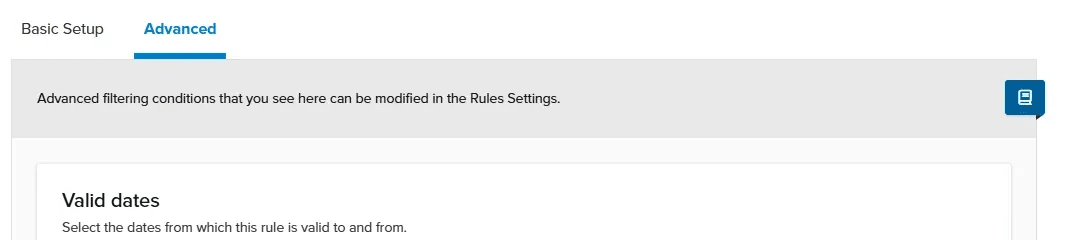
Open the applicable shipping rule and navigate to its Advanced settings.
Advanced settings of shipping rule
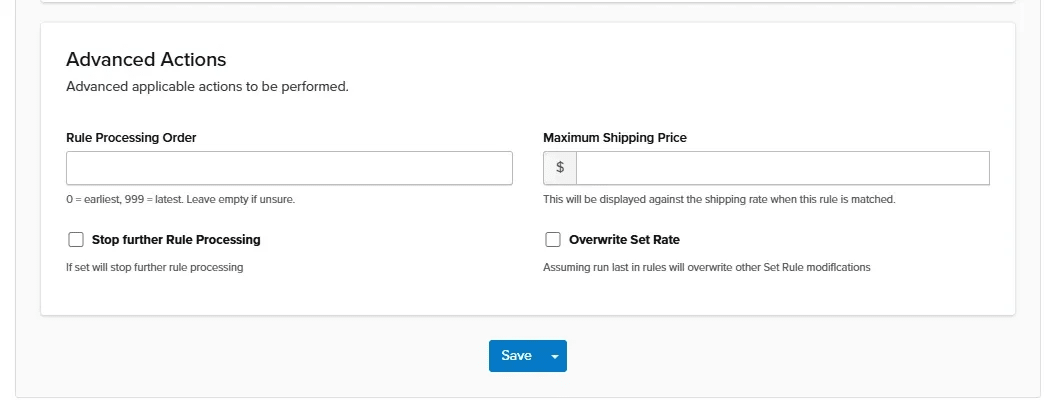
Find the Advanced Actions section and locate the Maximum Shipping Price field.
Maximum Shipping Price Field
Enter the maximum amount you want to use for the rule.
For example:
Maximum Shipping Price: $100
Select Save to apply the configuration.
Be aware that the maximum price setting controls a rate-related value within the rule. It should not be assumed to represent the merchant's maximum shipping expense without testing the complete rate calculation.
Step 5: Test the Shipping Rule
Before making the rule available to customers, use ShipperHQ's Test Your Rates feature.
Test several scenarios, including orders that:
Fall below the $50 free-shipping threshold.
Meet or exceed the $50 threshold.
Produce a calculated shipping rate below $100.
Produce a calculated shipping rate above $100.
For example, suppose an eligible order has a carrier-calculated shipping charge of $102 and you've configured a $100 maximum.
In the original implementation, the intended outcome was for the merchant to cover $100 and the customer to pay the remaining $2.
Confirm that the actual rule returns this result before relying on it. The Maximum Shipping Price setting alone does not establish that this cost-sharing behavior will occur in every configuration.
Also test the final shipping charge in your BigCommerce cart and checkout, not just in the ShipperHQ dashboard.
Additional Considerations for BigCommerce Merchants
Shipping rules can become more complex when your storefront serves both retail and wholesale customers.
For example, you may need different shipping behavior based on customer groups, destinations, products, or order values.
You should also consider whether handling fees, multiple shipping origins, or overlapping shipping rules affect the final rate.
ShipperHQ's rate-testing tools can help identify how different rules interact before customers encounter them at checkout.
Final Thoughts
ShipperHQ's Maximum Shipping Price setting gives merchants another way to control the rates produced by their shipping rules.
For BigCommerce businesses handling large or variable-sized orders, this can be useful when developing shipping policies that balance customer expectations with shipping costs.
The key is to configure the correct shipping rule, distinguish the order-value threshold from the shipping-price maximum, and test the resulting charges before publishing the changes.
BigCommerce fulfillment works well for growing stores that need flexible shipping, inventory tracking, and 3PL connections. It supports simple shipping rules and larger B2B setups with EDI workflows.
NetSuite shipping integration connects NetSuite ERP directly to shipping carriers, automating rate retrieval, label generation, and tracking updates from inside the ERP. As of 2026, Oracle's standard path for new implementations is NetSuite Ship Central, which connects carrier accounts through ShipEngine; the legacy Shipping Integration with FedEx, UPS, and USPS/Endicia is available only to existing customers with limited support before transition.
BigCommerce dropshipping works well for growing ecommerce businesses that want to test new products without holding inventory. It offers strong API access, multi-channel selling, and fee-free processing with supported payment providers.
A recent client had a highly structured, customer-centric order process that relied on employees manually recreating information already stored in NetSuite. Anchor Group transformed that process into an intelligent (automated) communication ecosystem spanning the entire customer journey—from order entry through production, fulfillment, change requests, samples, pro forma approvals, product reviews, and back orders—eliminating hours of repetitive work each day while improving customer visibility, consistency, and trust.