SCIS Standard Cash Drawer Operations | SuiteCommerce InStore
The SuiteCommerce InStore (SCIS) is a point-of-sale NetSuite product that uses a cash drawer (or cash register) or a device to capture credit card payments.
Read the Article

After installation of the required SuiteCommerce InStore (SCIS) bundles and enabling the proper features, the NetSuite Admin needs to create the Website Setup Record to continue the NetSuite configuration process. This record controls website settings and how the site searches, cart options, site images, and subsidiary information.
This creation process is similar to creating a Website Setup Record for a SuiteCommerce site. However, there are a few additional SCIS configuration steps and helpful hints from experience included in this article.

Website Setup Record in SCIS
This article assumes the user has already set up the Required Features and SCIS. Please follow these instructions if that has not been completed yet.
As mentioned above, the user needs to create a Website Setup Record to control and operate the SCIS site. To do so, follow these steps:
Step 1: Navigate to the Website Setup Record through the field path Commerce > Websites > Website Lists. Click New and select the button next to SuiteCommerce InStore.
Step 2: Set up the SuiteCommerce Instore Website Setup Record.
Important: Do not configure the Field Sets or Search Index tabs. You will complete this after creating the Website Setup Record.
Step 3: For SCIS specifically, navigate to the Shopping tab and check the Include Out of Stock Items in Webstore. If this is not checked, the SCIS Clerk cannot view out-of-stock items available in other stores.

Step 4: In the Touchpoints tab, only add the View Homepage touchpoint with the SuiteCommerce Instore application.

Step 5: Click Save on the Website Setup Record when complete.
SCIS documentation from NetSuite shows a path on describing how to run a script to update these tabs manually.
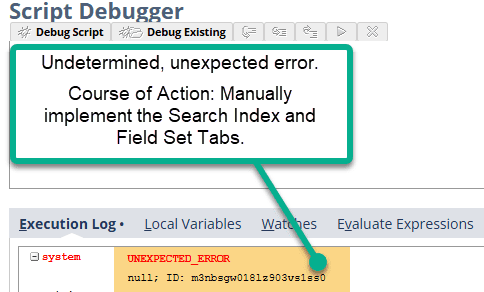
Upon following these steps according to the linked documentation above, the following error surfaced. It was more efficient to add the SCIS field sets manually from another functioning SCIS environment.
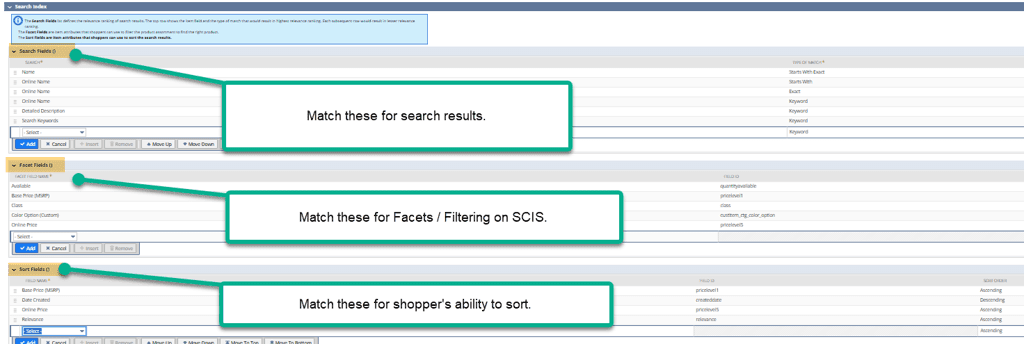
This process can be lengthy for normal SuiteCommerce sites, but since SCIS has limited customizability, this task only takes 20-30 minutes to complete. On your SCIS Website Setup Record, please copy the settings for the Search Index tab and Field Sets tab as shown below.
One example of a functioning SCIS Search Index tab is shown here:
One example of a functioning SCIS Field Sets tab is here:
If you need a refresher on adding or removing Field Sets on the website set up record, contact our team for support!
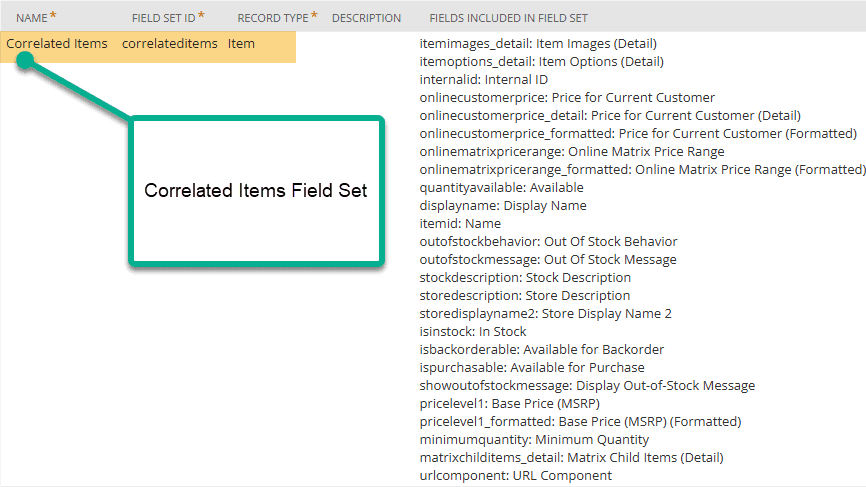
Correlated Items Field Set
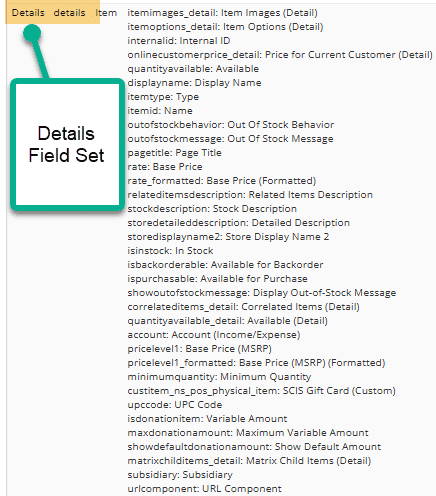
Details Field Set

Matrix Child Items and Related Item Field Set

Search Field Set
Upon completion, hit the Save button, and your website setup record should be ready to roll!
We like to update our blogs and articles to make sure they help resolve any troubleshooting difficulties you are having. Sometimes, there is a related feature to enable or a field to fill out that we miss during the instructions.
If this article didn't resolve the issue, please use the chat and let us know so that we can update this article!
If this walkthrough was useful, you can also order our free SuiteCommerce book. We’ll even cover the shipping.

If you have general questions about SuiteCommerce or more specific questions about how our team can support your business as you implement NetSuite or SuiteCommerce, feel free to contact us anytime. Anchor Group is a certified Oracle NetSuite Alliance Partner and Commerce Partner equipped to handle all kinds of NetSuite and SuiteCommerce projects, large or small!
We are a premium SuiteCommerce agency that creates powerful customer portals. Unlike our competitors, we have already solved your problems.
Related Articles
Tagged with Training