SuiteCommerce Website Setup Record Configuration Guide
Prepare a SuiteCommerce Website Setup Record in NetSuite by configuring the required site fields, populating initial Field Sets, setting up image resizing, and enabling JSON-LD structured data.
Date
October 23, 2026
Read
6 min
Preparing a SuiteCommerce Website Setup Record involves three main tasks:
Create the website record with the required field values.
Run the fieldset fill script in the script debugger.
Set Structured Data Markup Type in Configuration to JSON-LD.
Set Minimum Web Site Record Fields in NetSuite
Step 1: In NetSuite, go to Commerce > Websites > New to launch the New Web Site page.
This page describes each type of website available for you to set up. Your implementation only lets you select from options provisioned for your account.
You must have a license available to select a product. Contact your NetSuite administrator if you do not have a provisioned license for SuiteCommerce or SuiteCommerce Advanced.
Step 2: Click Select associated with your site:
SuiteCommerce
SuiteCommerce Advanced
Step 3: In the Display Name field, add a name that you desire to display in the heading of your site.
This name is exposed to your customers. Do not use the special character ‘ as part of the display name.
Step 4: In the Internal Name field, add a name for your site as you want it to appear in your NetSuite account.
This name is not exposed to customers. Fill in this field, even if the name is identical to your Display Name.
Step 5: On the Setup tab:
From the Default Hosting Root dropdown list (in the Home Page section), select the folder where you store HTML files for your website. This should be Website Hosting Files : Live Hosting Files.
Step 6: On the Shopping tab, Currency and Languages areas enable at least one currency and one language to be online as the default.
Step 7: To use the shipping feature on your website, check Shipping Information is Required. This applies to SuiteCommerce and SuiteCommerce Advanced releases 2020.1.2 and later.
Step 8: Establish an item image folder in the file cabinet. It should be Web Site Hosting File: Live Hosting Files: site: Item Images. Then make sure this is set as the Image Folder
NOTE: Must be completed after setting up the Domain record
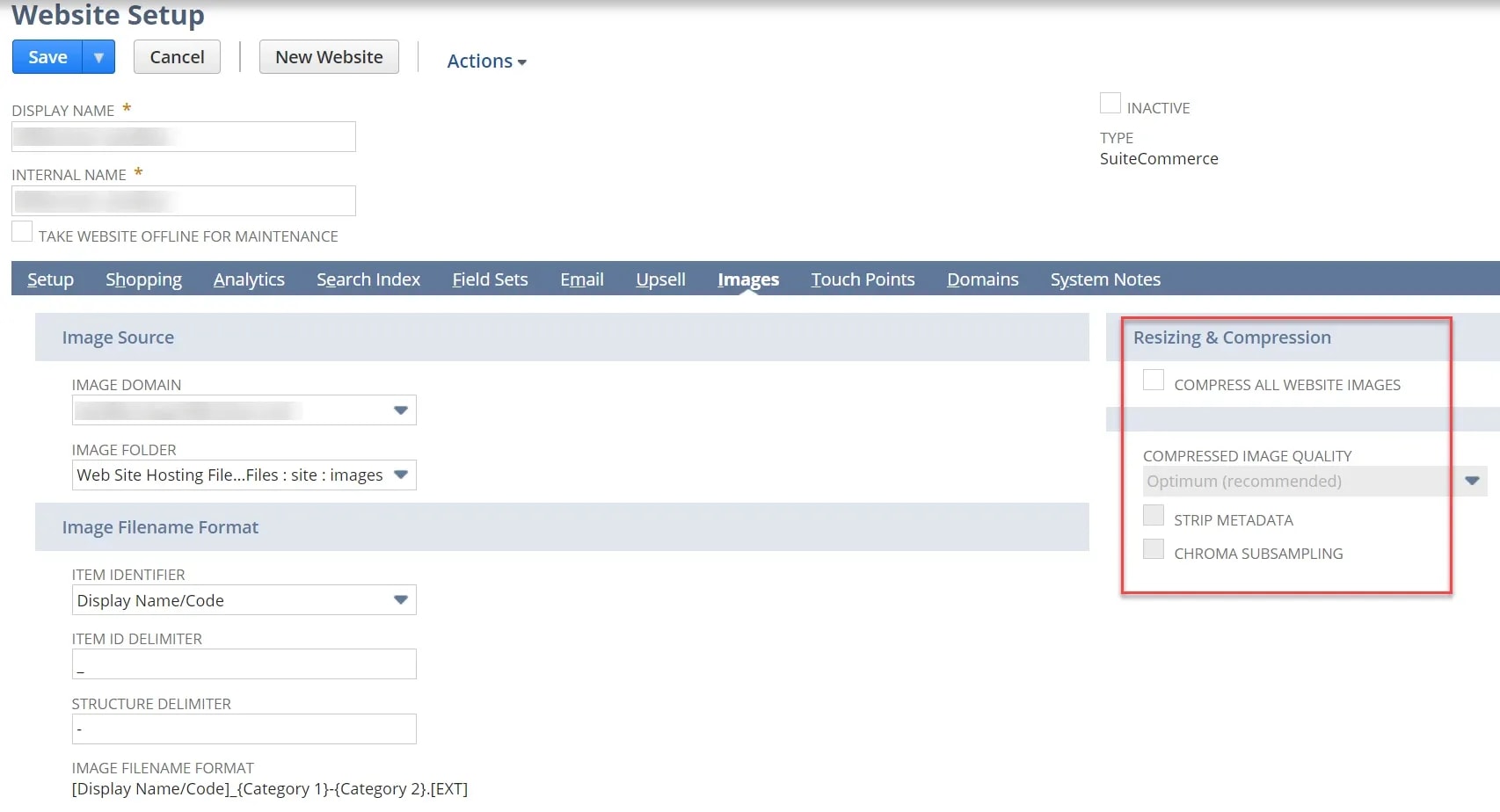
Step 9: While you are at it, set the site to Compress all images:
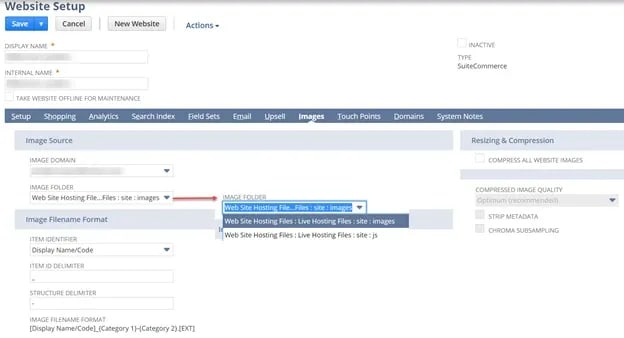
Step 10: Establish a general item image folder in the file cabinet. Web Site Hosting File: Live Hosting Files: site: images.
You can also do auto resizing of other images, but the PLP is most important.
Step 12: Save the Web Site Setup record.
Example Image Resizing:
Set Up Initial NetSuite Field Sets
Step 1: Copy the contents of the Field Set Script below to a text editor.
Step 2: Edit the siteID variable with the site ID you want to use. The site id is displayed in the website setup record URL after siteadmin.nl ?
The default value of 9999 fails, since no site is ever assigned an ID of 9999. In most cases, the site ID will be 2.
Step 3: Set the configurable options as required.
Each Field Set Setup Script includes a few options you can set. The default options add fields for using Product Reviews but not for Pickup In Store. Set the has_store_pickup flag to true if you intend to use Pickup In Store in your web store.
Step 4: Optionally, add any field set definitions as needed for your site.
Important: The Field Set to return item details is named details. If you decide to use a different name, you must configure that change. If you need assistance with this process, contact our team for support!
Step 5: Save your modified script.
Your modified script can be used to replicate a site setup during development quickly.
Step 6: Execute the script in the SuiteScript debugger.
Go to Customization > Scripting > Script Debugger.
Enter the SuiteScript Debugger domain (by clicking the link as indicated) and then re-enter your login credentials if prompted.
From the API Version dropdown, select 1.0. Important: This script can only be run in SuiteScript Version 1.0.
Copy and paste your modified script code into the debugger.
Click Debug Script and then hit the Continue button.
After the script has been executed, you can check that the field sets are properly populated in the Field Sets tab of the Web Site Setup record.
When you have completed this initial field set setup, you should now set up a rudimentary item search index for your web store. If you need assistance with this, contact our team!
Field Set Script
Click this link for the fieldset script to be run for the set up initial field sets task.
Configure JSON-LD Structured Data Markup in SuiteCommerce
Navigate to Commerce > Websites > Configuration. Click into the “Shopping Catalog” tab. The first sub-tab in that section is “Structured Data Markup”. Set “Markup Type” to JSON-LD. Save.
Got Stuck on a SuiteCommerce Setup Step?
We like to update our blogs and articles to make sure they help resolve any troubleshooting difficulties you are having. Sometimes, there is a related feature to enable or a field to fill out that we miss during the instructions. If this article didn't resolve the issue, please use the chat and let us know so that we can update this article!
Free SuiteCommerce Book
If this article was helpful, you can also order our free SuiteCommerce book. We’ll even cover the shipping.
If you have general questions about SuiteCommerce or more specific questions about how our team can support your business as you implement NetSuite or SuiteCommerce, feel free to contact us anytime. Anchor Group is a certified Oracle NetSuite Alliance Partner and Commerce Partner equipped to handle all kinds of NetSuite and SuiteCommerce projects, large or small!
You can have multiple domains on a single SuiteCommerce license. Since there are key functionality settings in the website setup record for B2B or B2C, you may need to select an option that affects both domains.
Lindemann is an authentic, down-to-earth, American company that has become a true force to be reckoned with in the chimney supplies market. Although doubtless most of that success is due to their own hard work and innovation, they also attribute much to the benefits offered by SuiteCommerce.
Comprehensive data compiled from industry research on B2B e-commerce market trends, portal adoption rates, and performance metrics.
Organizations implementing SuiteCommerce portals achieve significant competitive advantages in today's rapidly expanding digital commerce landscape. Expert implementation partners provide industry-specific knowledge, proven methodologies, and optimization expertise that reduce risk and accelerate time-to-value for portal deployments.