How to Set Up Back In Stock Notifications for SuiteCommerce
The back in stock notification bundle for SuiteCommerce allows the customer to be notified via email when the product is available again!
Read the Article

If you had a website hosted with a previous provider and are now migrating your content to SuiteCommerce, you will likely need to restructure several URLs. In this tutorial, we'll walk you through one of the most critical components of migrating your website: setting up redirects. If you don't have redirects and your URLs change, they'll return 404 errors. If you don't resolve that and Google has already crawled your website, your SEO will be damaged.
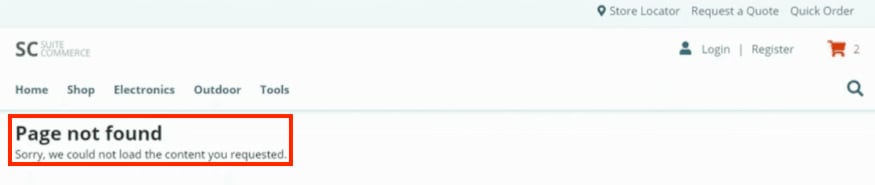
Always make sure that you're keeping up to date on your redirects. If you have Google Search Console already set up on your existing website domain, it'll catch any 404 pages, so you can export from Google Search Console and then import it into NetSuite.
Best Practice: Make sure you're updating your redirects during implementation and whenever you change a URL while managing your website post-go-live.
So let's go through what a redirect is inside of NetSuite. To begin with, we'll go to Commerce > Hosting > Redirects.
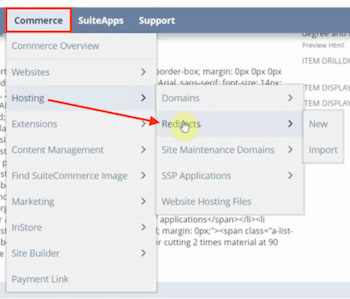
This will open a list page showing all your redirects, if you already have any in your account. In our demo account, there are no redirect records to show yet.

You'll notice an Import option on this page. If you're in the middle of a website migration and change a lot of URLs, you can use the CSV import tool to bring in all the redirects from what you had before.
Note: Unfortunately, you cannot do a mass export of redirects from NetSuite. However, you can bulk delete redirects if needed.
We will walk through the step-by-step process of importing redirects later in the tutorial, but first, we'll look at how to setup redirects individually.
The simplest way to set up redirects, if you only have a couple, is to enter them individually. To do this, you will navigate to Commerce > Hosting > Redirects > New.
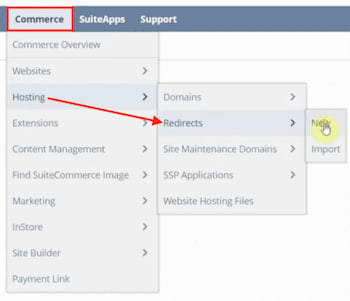
All you need to do is select what Domain Name you're using for the website, what the old relative URL is, and what the new relative URL is.

Click Save, and be sure to test the redirect by typing the old URL into your browser and checking whether it redirects to the new URL. If the redirect doesn't work, you will need to check whether you entered the information correctly.
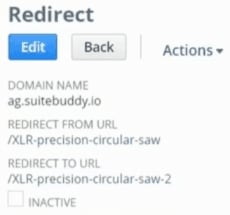
If any mistakes were made, click 'Edit' and make the necessary changes to the redirect record. When you are finished, save it and test the URL again to confirm it is working.
Now that we've covered how to create individual redirects, it's time to look at bulk importing redirects. To begin the process, we will navigate back to Commerce > Hosting > Redirects and click 'Import' this time.
If you don't already have a CSV file, you will need to prepare it at this point. All you need in your import file are your relative from URL and relative to URL, because you can add the domain later as a static option during the mapping process.
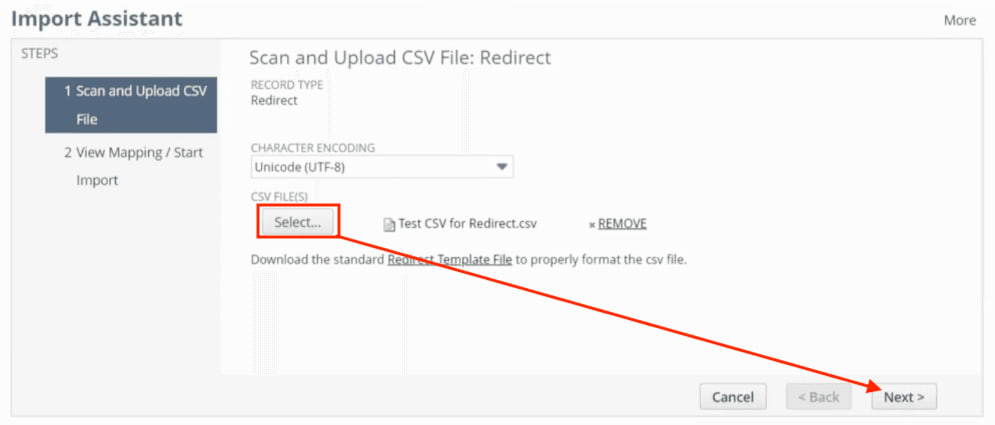
Having prepared our CSV file, we can now select it to upload, and once it is attached, click 'Next'.
At this point, we need to do our mapping. The options on the left are from your CSV file, and the options on the right are the fields to be mapped to in NetSuite.
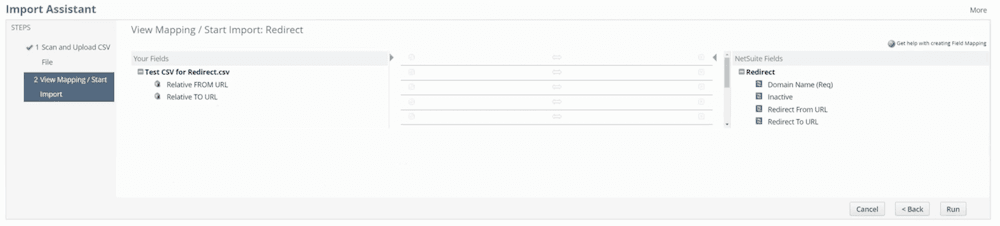
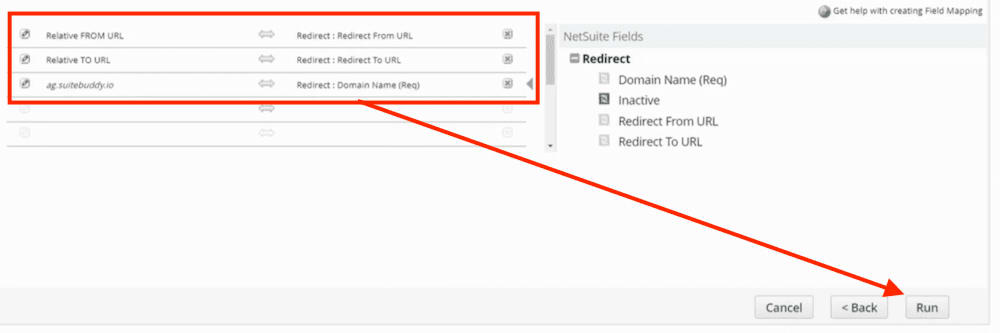
We're going to drag and drop the mapping options for "relative from URL" and "relative to URL" into the table. Then we can drag in the NetSuite domain field, but we have no more fields from our CSV file since we didn't add the domain. So, rather than dragging and dropping it in, we will map it to a static value. To do this, we'll start by clicking on the pencil icon next to the empty field.

This opens up a pop-up where we can either provide a default value or set it to null. For our example, we will select 'Provide a Default Value' and enter our demo site domain.
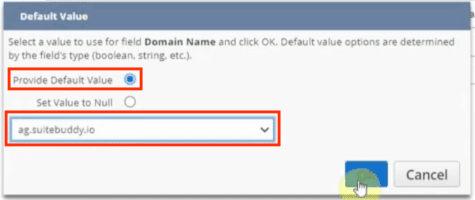
When those settings are in place, click 'OK,' and it will close the pop-up and map the field. Now that the field mapping is complete, we will click 'Run.'
If you are importing a large number of redirects, it may take a little while. As with any CSV Import in NetSuite, you can click 'Refresh' on the Job Status page to see if the import has been completed.

Once our import is finished, we can navigate back to the redirects list page again to see the SuiteCommerce redirects associated with our account.
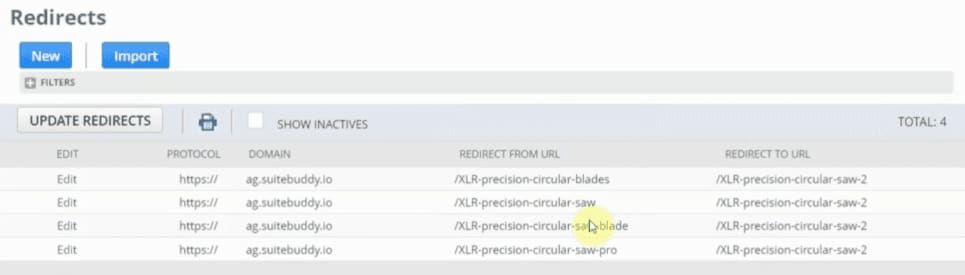
Double-check that the redirects you performed are now displaying on this page. Remember to also test your redirects to ensure your import didn't contain any errors.
That's all for now! Hopefully, this post gives you something to work with as you try to understand NetSuite and what it can do for your business!
We like to update our blog posts and articles to ensure they help resolve any troubleshooting issues you are having. Sometimes, there is a related feature to enable or a field to fill out that we miss during the instructions. If this article didn't resolve the issue, please use the chat to let us know so we can update it!
If you have general questions about SuiteCommerce or more specific questions about how our team can support your business as you implement NetSuite or SuiteCommerce, feel free to contact us anytime. Anchor Group is a certified Oracle NetSuite Alliance Partner and Commerce Partner equipped to handle all kinds of NetSuite and SuiteCommerce projects, large or small!

We are a premium SuiteCommerce agency that creates powerful customer portals. Unlike our competitors, we have already solved your problems.
Related Articles
Tagged with Training