Set Up OAuth 2.0 M2M for Rest Web Services / RESTlets
This article provides instructions and clarity on setting up the OAuth 2.0 flow for integrations into NetSuite.
Read the Article

This article provides instructions and clarity on setting up the OAuth 2.0 flow for integrations into NetSuite using the browser code grant flow (i.e., the flow that has a user accept via an authenticated browser). If you need the machine-to-machine (M2M) flow, please see my previous article here.
As with that guide, this article strives to provide a simplified step-by-step guide summarizing the hard-to-follow documentation that NetSuite provides.
We'll walk through the required tools, integration role and record setup, authorization request, and token exchange using Postman.
Create the role at Setup > Users/Roles > Manage Roles > New.
Give the role the following permissions (at a minimum).
Reports
Setup
Note: You will need to add other roles as applicable (specific record access will need transaction permissions, etc). In addition, this list is subject to becoming out of date. If for whatever reason you cannot find certain permissions above, check to make sure OAuth related features are enabled in Company Features.
Setup > Integration > Manage Integration > New
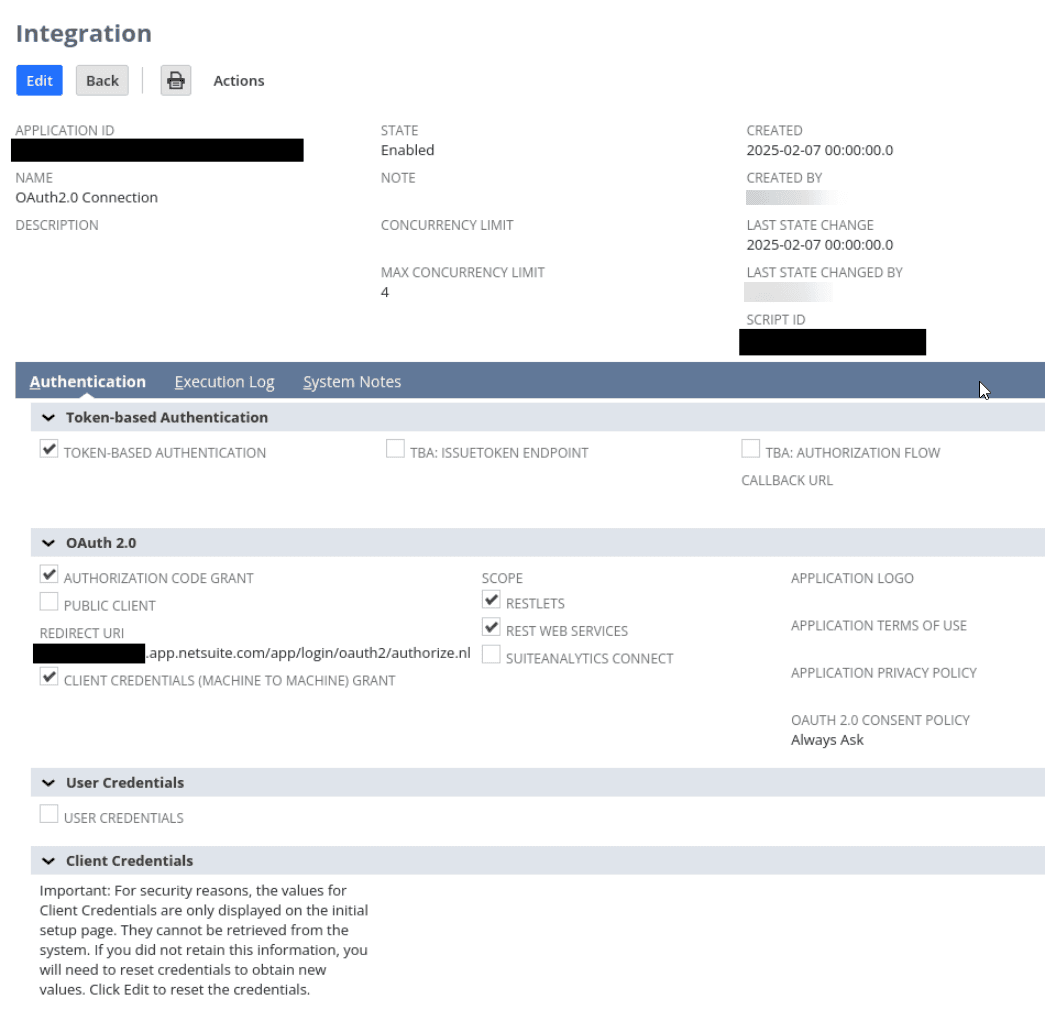
You will want to check the following:
Note: The client credentials are checked in the photo, but not required unless this record is also supporting Machine to Machine flow as well
Store these credentials securely rather than keeping them in an unprotected text document.
At this point, you have what you need and are ready for the Authorization Code Grant flow.
GET Request to Authorization Endpoint
Step one consists primarily of sending a GET request to the authorization endpoint, and grabbing the code provided. The code is short-lived, so the next step in this process (which leverages the code generated in this step) should be followed immediately. Reading this step and the next and doing the prep work will make this process relatively painless.
The URL should look like this:
https://<ACCOUNT_ID>.app.netsuite.com/app/login/oauth2/authorize.nl?scope=restlets+rest_webservices&redirect_uri=https%3A%2F%2F<ACCOUNT_ID>.app.netsuite.com%2Fapp%2Flogin%2Foauth2%2Fauthorize.nl&response_type=code&client_id=<CLIENT_ID_FROM_INTEGRATION>&state=ykv2XLx1BpT5Q0F3MRPHb94jThe parameters should be modified as follows:
You can review the link above for additional explanation of the request parameters, as well as ones left out (optional).
Once your URL is prepared, copy and paste it into a web browser and hit enter. You will be redirected to a page asking you to login (if you aren’t) and then confirm access for the integration. Upon allowing access, you will be redirected again.
The redirect URL will contain parameters similar to the following example:
https://<ACCOUNT_ID_REMOVED>.app.netsuite.com/app/login/oauth2/authorize.nl.?state=ykv2XLx1BpT5Q0F3MRPHb94j&role=3&entity=8177&company=<REMOVED>&code=4869204d6f6d214869204d6f6d21Grab that code, you will need it for step two!
POST Request to the Token Endpoint
In Postman, set up a new POST request with the following settings:
Authorization: Basic Auth. The username and password should match the client id and secret from the integration record.
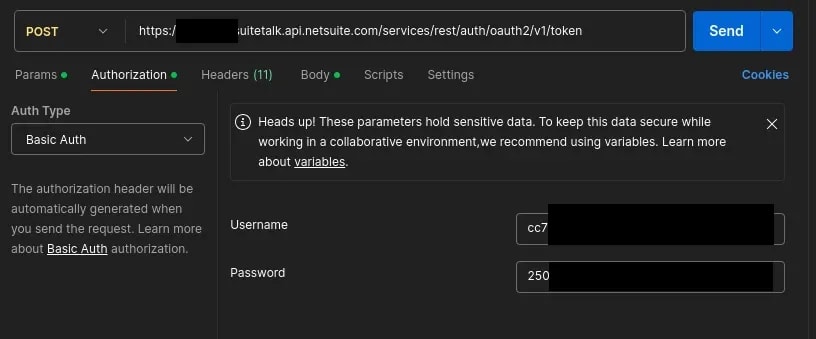
Headers: Content-Type: application/x-www-form-urlencoded (this may autofill from body settings)
Body: Type: x-www-form-urlencoded
| Key | Value |
| code | code generated above in Step 1 |
| redirect_uri | redirect URI from integration record |
| grant_type | authorization_code |
The URL is:
https://<ACCOUNT_ID>.suitetalk.api.netsuite.com/services/rest/auth/oauth2/v1/tokenUpon successful request, a response containing the refresh token and an access token will be returned.

If you need to get a new access token, you can send a POST request to the token endpoint. Details can be found here. The URL is the same as the endpoint in step 2, however, the grant_type is refresh_token and the code and redirect_uri fields are not needed. Instead, pass the refresh_token from step 2 as refresh_token.
The refresh token is good for 7 days.
We like to update our blogs and articles to make sure they help resolve any troubleshooting difficulties you are having. Sometimes, there is a related feature to enable or a field to fill out that we miss during the instructions. If this article didn't resolve the issue, please use the chat and let us know so that we can update this article!
If you have general questions about NetSuite or more specific questions about how our team can support your business, contact us! Anchor Group is a certified Oracle NetSuite Alliance Partner and Commerce Partner equipped to handle all kinds of NetSuite and SuiteCommerce projects, large or small.

Related Articles
Tagged with Training, Integration