Insufficient Permissions Error | User Event Script
Learn workarounds to resolve an "Insufficient Permissions" error will be thrown by a user event script in NetSuite, even though its deployment is set to run as administrator.
Read the Article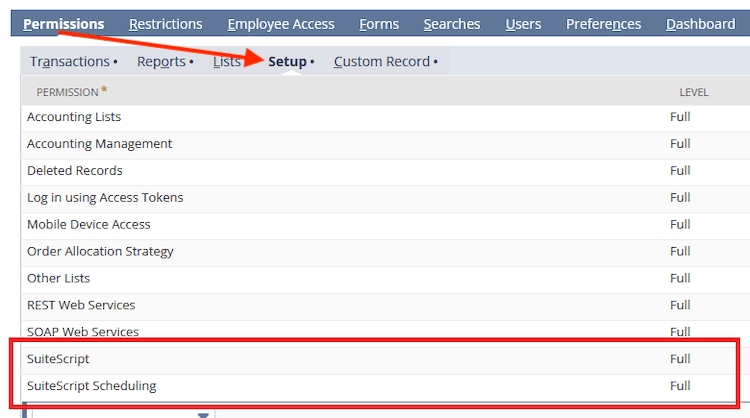

Natively, only the Administrator and SCDeployer roles have the necessary permissions to fetch and deploy code changes to a NetSuite environment. If you are using a custom role for fetching and deployment, ensure the following permissions are set.
Navigate to Setup > Users/Roles > Select your custom role.
Set at least the following permissions on the role:
Lists Subtab
| Permission | Level |
|---|---|
| Documents and Files | Full |
| Website (External) publisher | Full |
| Custom Record Entries | Full |
Setup Subtab
| Permission | Level |
|---|---|
| Allow JS/HTML Uploads | Full |
| Custom Lists | Full |
| Set Up Web Site | Full |
| SuiteScript | View |
| SOAP Web Services | Full |
| REST Web Services | Full |
| Access Token Management | Full |
| Log in using Access Tokens | Full |
| User Access Tokens | Full |
Save the Role.
Navigate to Customization > Scripting > Script Deployments.
Script deployment IDs:
customdeploy_ext_mech_deployer_restcustomdeploy_ns_sc_ext_mech_restletscustomdeploy_ext_mech_web_service_restcustomdeploy_ns_scs_deployer
For SCA, this would be customdeploy_ns_sca_deployer_MySCAVersion, with the ending matching your SCA version.
customdeploy_ns_sc_ext_mech_uicustomdeploy_ns_sc_ext_mech_servicesSearch the script deployment list for one of the above IDs and edit the script deployment record.
Update the Internal Roles List to include your custom role.
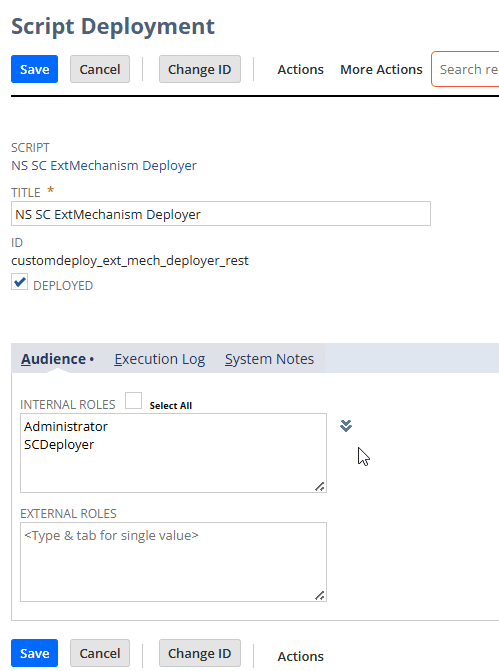
Save the Script Deployment record.
Repeat this process with the 6 different script deployments. Once done, follow the typical steps for code fetching and deployment.
Related Articles
Tagged with Training, Security & Permissions