Auto Notify Out of Stock Items in Ad Campaigns
Boost conversions and customer satisfaction by effectively managing your product ads. Learn how to optimize your ad campaigns with real-time stock
Read the Article

Want to spend less time manually sending past-due invoice reminders? NetSuite saved searches and workflows can help automate customer statement emails while giving your team control over who receives them.
One of our customers wanted to automate sending consolidated invoice emails to reduce the manual work involved in accounts receivable (AR).
The goal was to create a workflow that automatically sends customer statements on an adjustable schedule while allowing certain customers to be excluded.
We'll accomplish this using a custom customer checkbox, a saved search, and a scheduled customer workflow that sends an email with a statement attached.
First, create a custom entity checkbox field on customer records so your team can exclude specific customers from automated reminders.
Use the following configuration:
In this implementation, the checkbox was selected by default so newly created customers would not automatically receive reminders until the team was ready to include them.
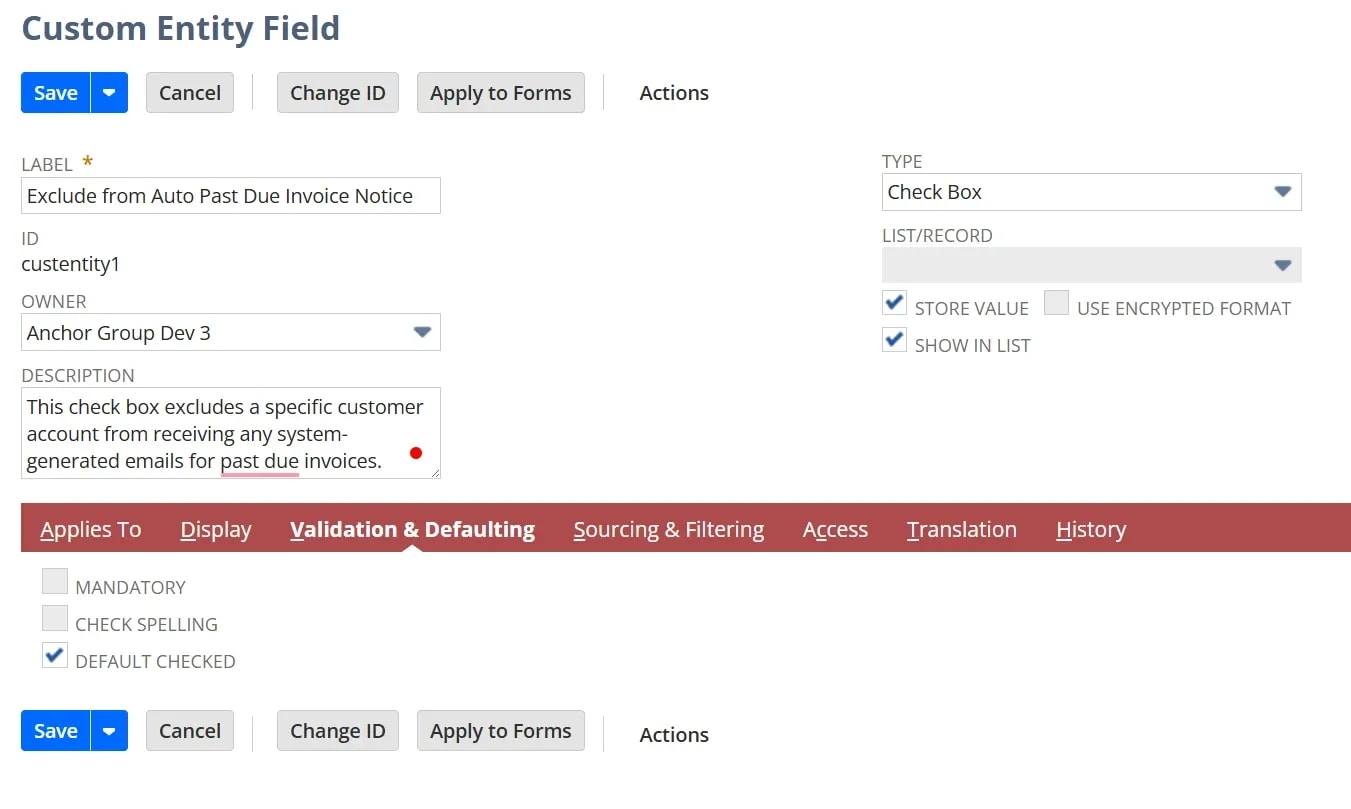
Make sure the saved search in the next step uses this checkbox to exclude customers who should not receive automated emails.
This saved search determines which customers are included in the workflow. It can also provide useful visibility into open accounts receivable.
Create a customer saved search with the following title:
Past Due Invoices Email
Set the following criteria:
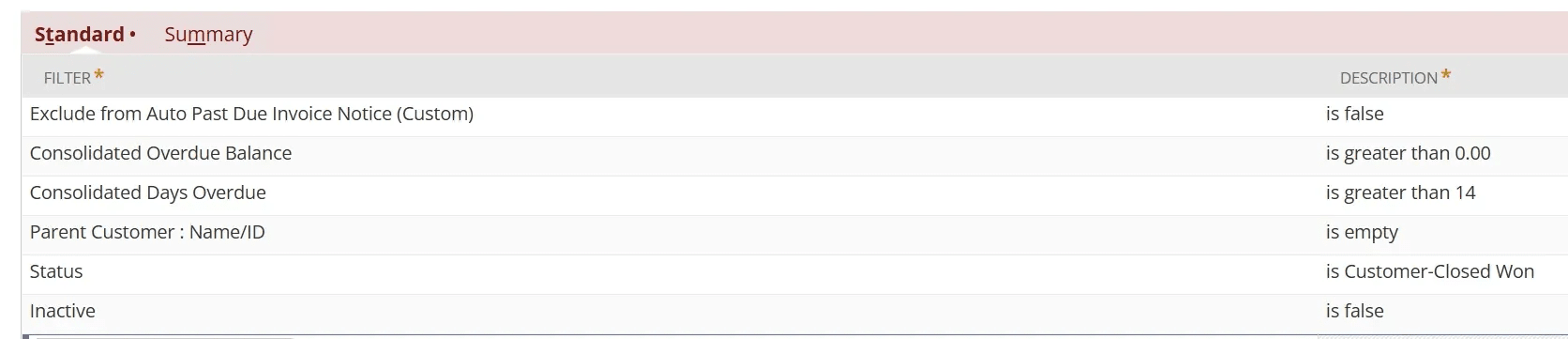
Set the following results:
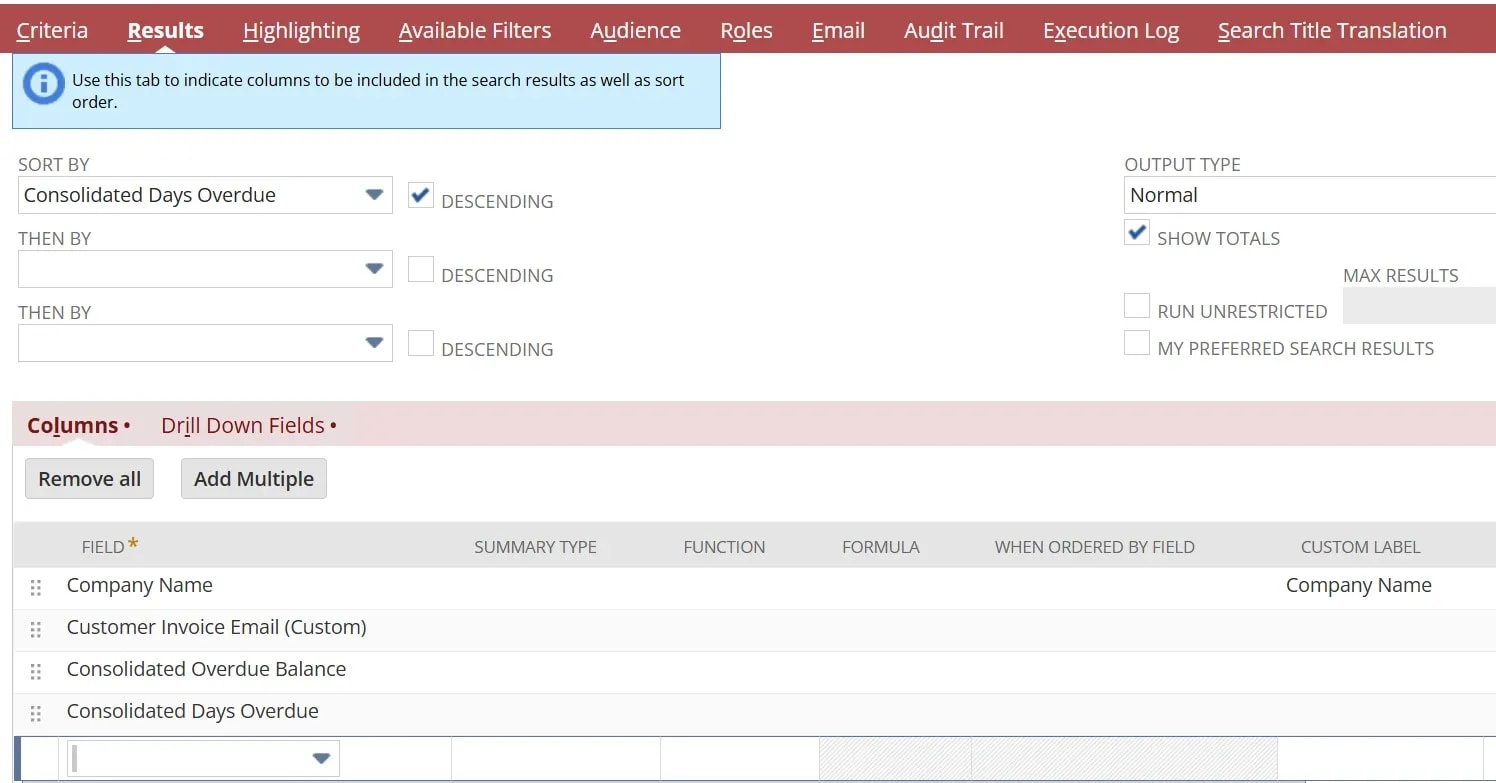
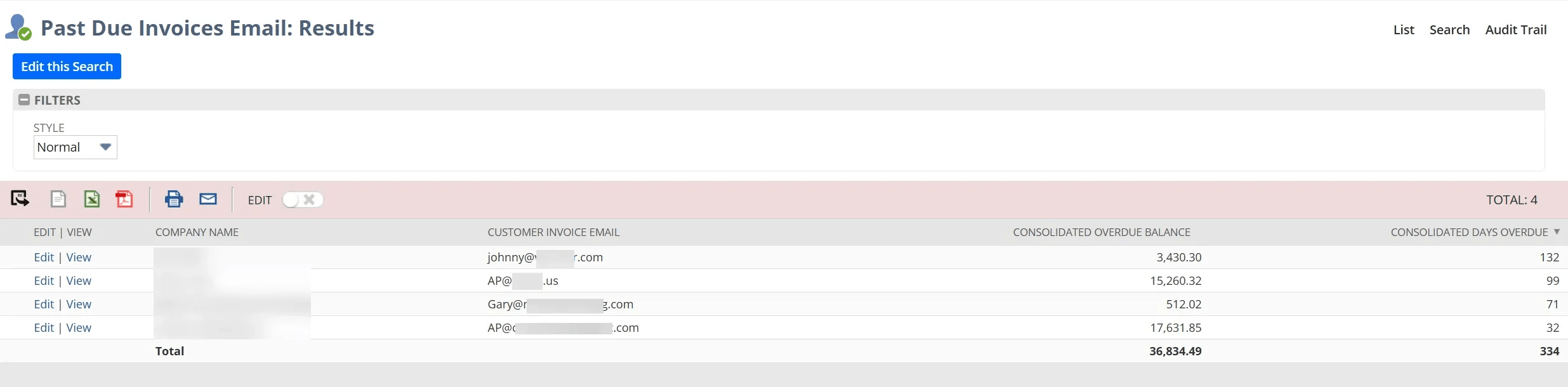
Review the final search results to confirm that the intended customers are included and customers marked for exclusion are filtered out.
Create a customer workflow using the following information:
_past_due_invoice_emails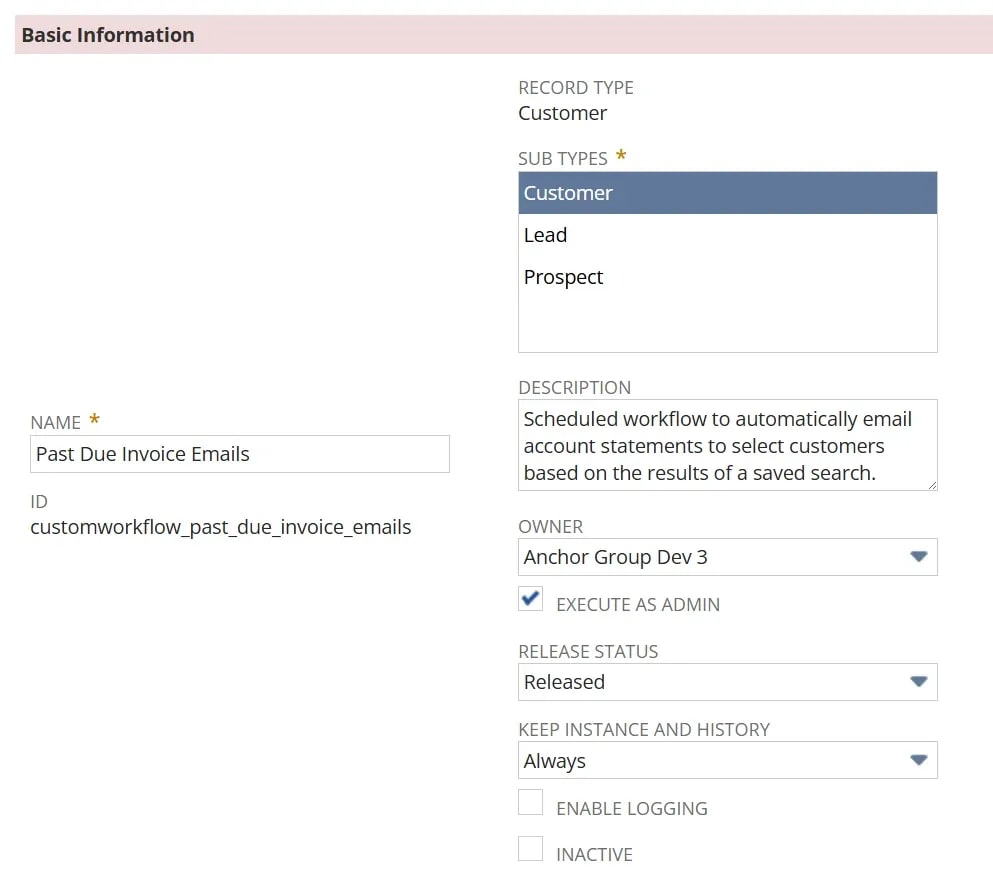
Set the Past Due Invoices Email saved search as the workflow's saved search filter.
Then configure the workflow schedule based on how often you want customer statements sent.
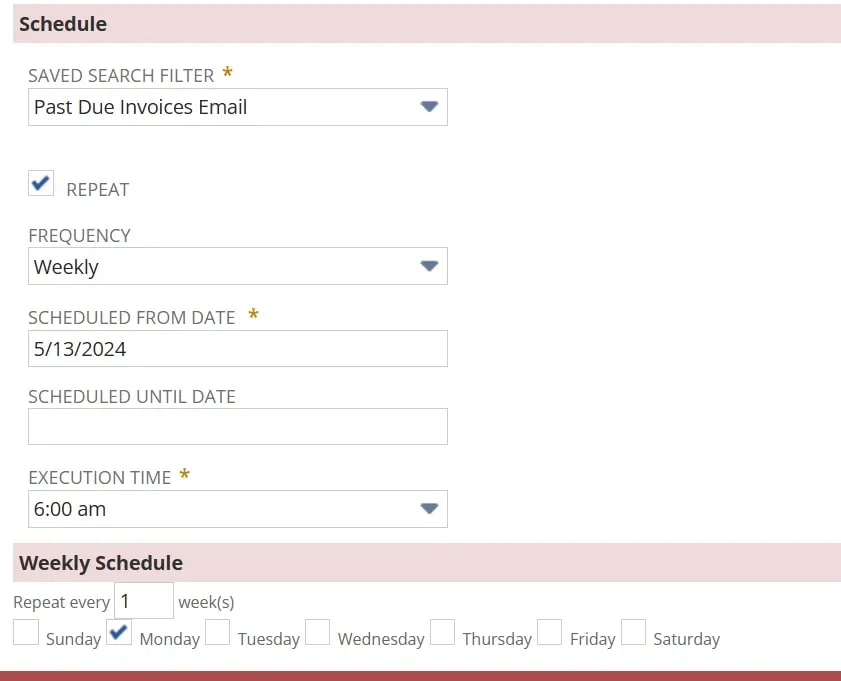
For monthly reminders, choose a schedule that aligns with your accounts receivable process.
Create a workflow state named:
Send Consolidated Statement via Email
Add a Send Email action that runs when the record enters the state.
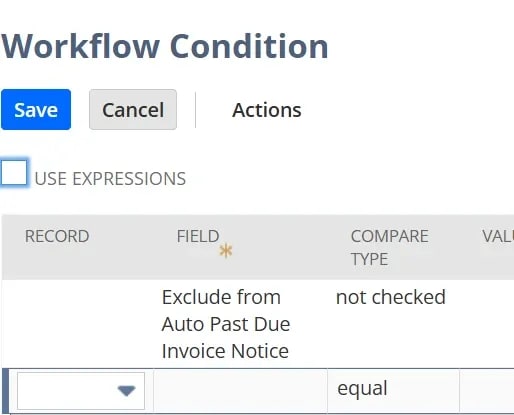
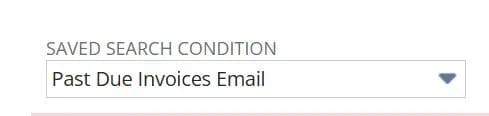
You can also add a condition based on the saved search. In the original implementation, the saved search was used both to filter workflow records and as an additional condition on the email action.
Select the employee who will appear as the sender of the reminder email.
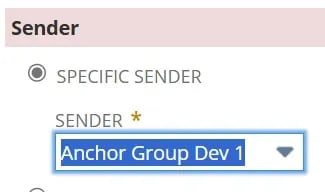
Pro tip: Consider using a dedicated accounts receivable sender address so the reminder process isn't dependent on an individual employee's email address. This can make the process easier to maintain when responsibilities change.
Select the email field that contains the customer's intended billing contact.
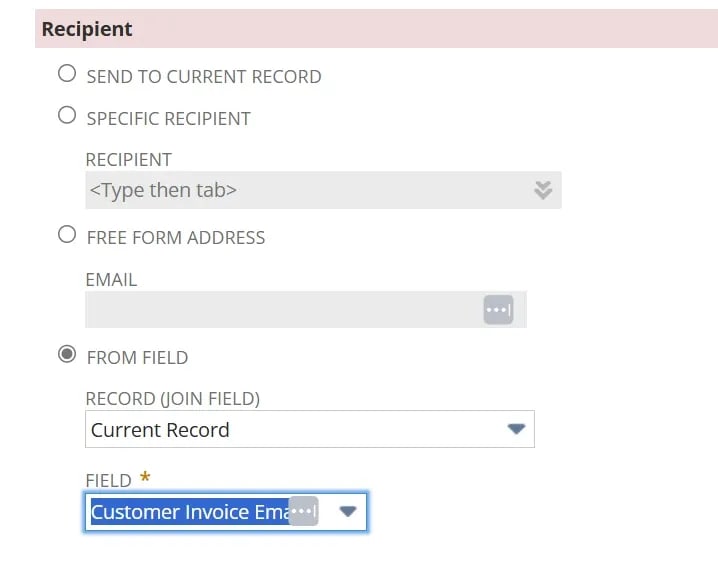
Pro tip: The main email address on a NetSuite customer record may not be the same as the customer's accounts payable contact. Verify that you're using the appropriate recipient field before activating the workflow.
Add the subject and body of the email.
Here's an example:
Subject: [Your Company Name] Monthly Statement for {companyname}
Body:
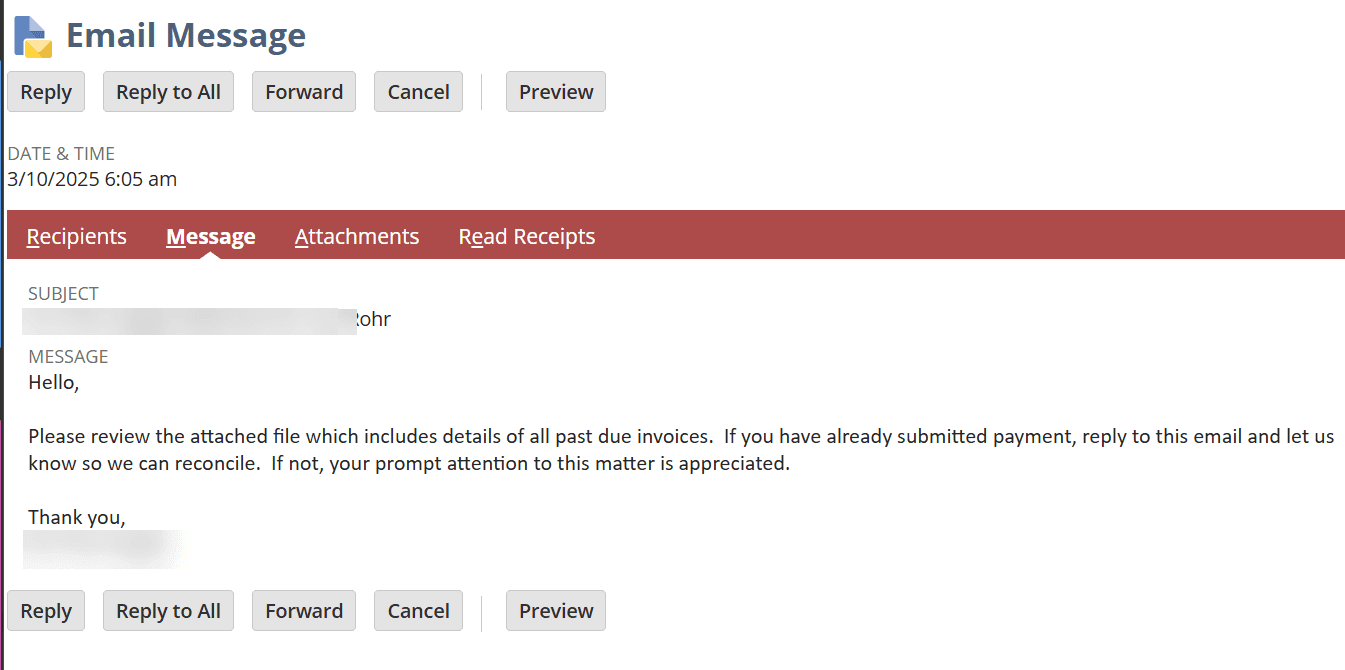
Hello,
Please review the attached file, which includes details of all past due invoices.
If you have already submitted payment, reply to this email and let us know so we can reconcile. If not, your prompt attention to this matter is appreciated.
Thank you,
[Your Company Name]
Before using this template, verify that the customer name field reference resolves correctly in the workflow email.
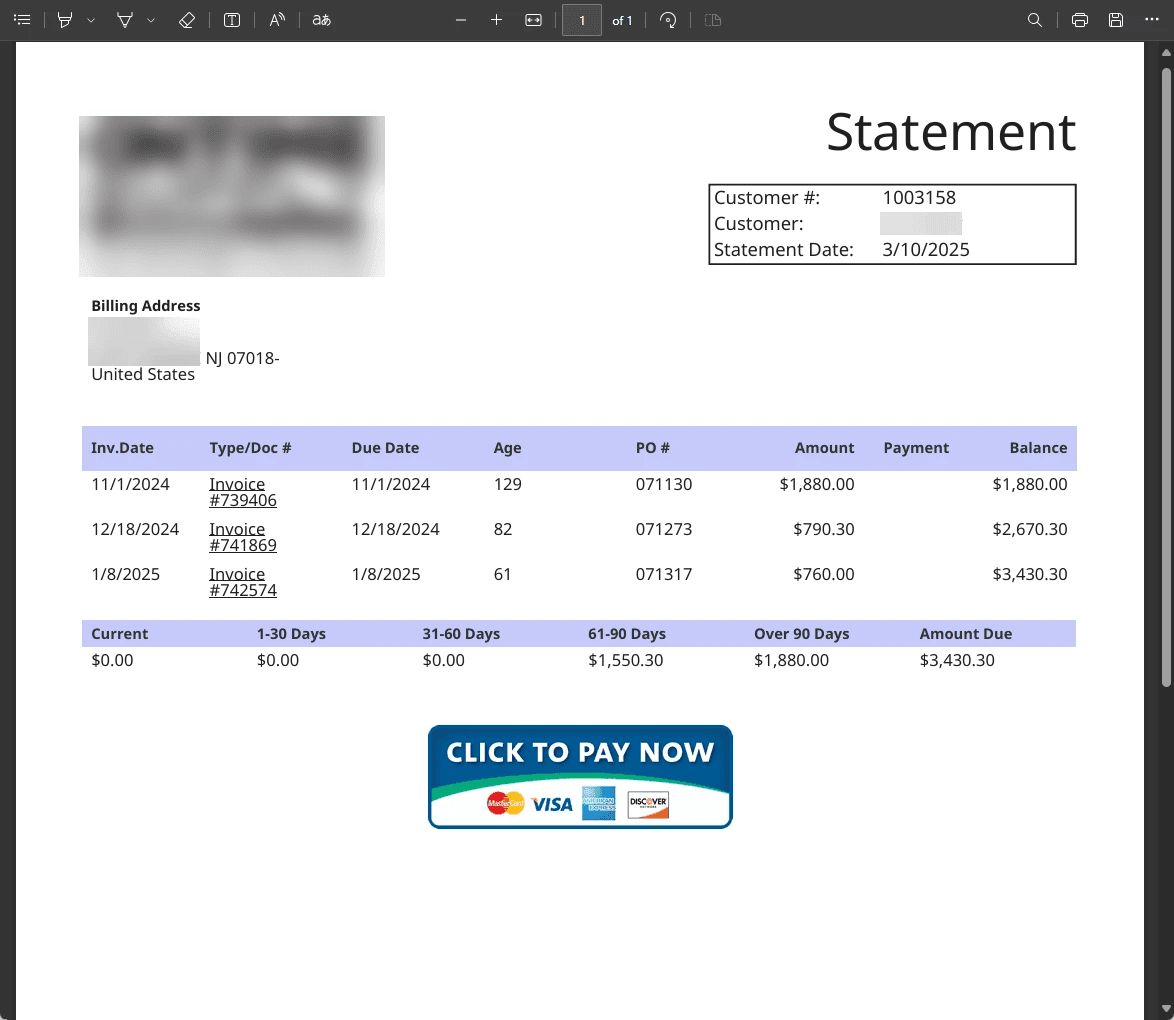
Configure the email action to include the customer's statement.
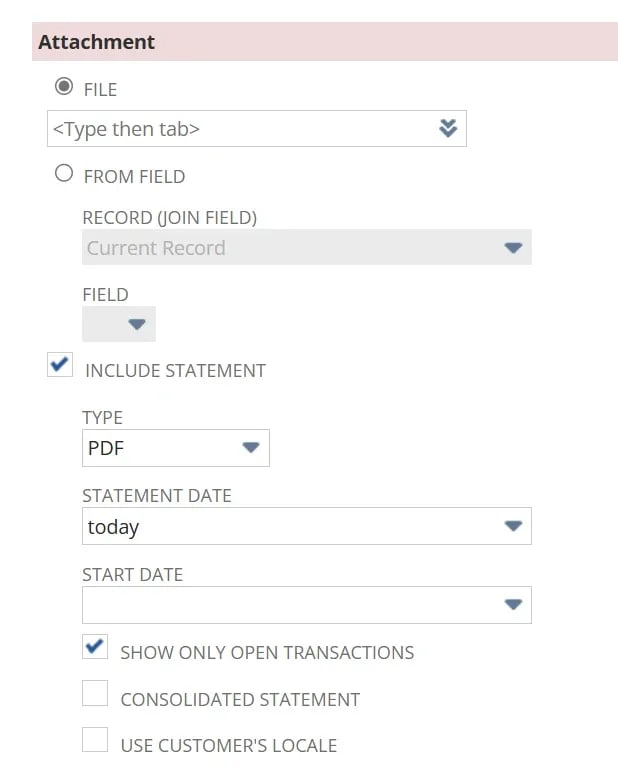
Pro tip: If you want all open invoices to appear on the statement, leave the statement start date empty, as shown in this configuration.
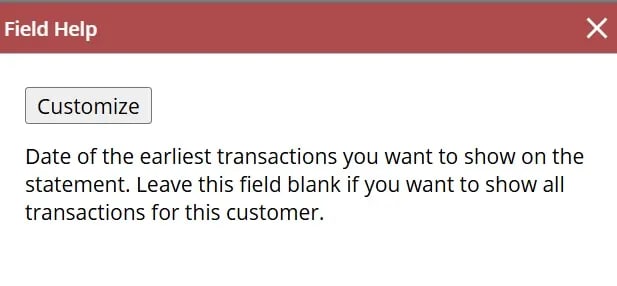
Review the statement PDF layout and update its configuration if needed.
Here's an example of what the email and statement will look like:
Run the workflow in a NetSuite sandbox before releasing it to production.
The original implementation notes a 20-record limit when testing scheduled workflows. Verify the current testing behavior in your NetSuite environment before relying on that limit.
Run the workflow on a test schedule and confirm that:
Once testing is complete, configure the intended production schedule.
Bounced or undeliverable emails: Review NetSuite's email delivery and bounce information to identify reminders that did not reach their intended recipients.
Missing recipient email addresses: If the workflow uses a custom email field and that field is empty, the reminder may not be delivered.
Unintended reminders: Review the saved search criteria, customer exclusion field, and schedule to reduce the risk of sending reminders to the wrong customers or sending unnecessary duplicate emails.
Consider pairing automated customer statement reminders with a Days Open custom field.
This may provide additional visibility into how long invoices have remained outstanding and help your team prioritize accounts receivable follow-up.
With the right saved search criteria, workflow configuration, and testing, automated customer statement reminders can reduce repetitive work while giving your team control over which customers receive billing communications.
Related Articles
Tagged with Training, Automation


