Learn how to prepare NetSuite 1099-NEC and 1099-MISC forms using Yearli, from vendor setup and saved search exports to importing, reviewing, and filing forms.
Date
October 26, 2026
Read
8 min
Preparing 1099 forms is an annual responsibility for many businesses that work with independent contractors, service providers, and other vendors.
If your business uses NetSuite, you can organize vendor payment information through saved searches and export that data to Yearli, a third-party tax reporting platform.
This guide walks through a NetSuite-to-Yearli workflow for preparing Forms 1099-NEC and 1099-MISC, from reviewing vendor records and saved searches to importing payment data and submitting forms for filing.
Understanding Forms 1099-NEC and 1099-MISC
Two common forms used for reporting payments to vendors and contractors are Form 1099-NEC and Form 1099-MISC.
Form 1099-NEC (Nonemployee Compensation) is generally used to report qualifying payments for services performed by independent contractors and other nonemployees.
Form 1099-MISC (Miscellaneous Information) is used for certain other reportable payments, such as rents, royalties, and qualifying medical or healthcare payments.
The appropriate form depends on the nature of the payment, the recipient, and the applicable IRS reporting rules.
Not every vendor payment belongs on a 1099. Payment method, vendor tax classification, reporting thresholds, and other factors can affect whether a payment is reportable.
Step 1: Prepare NetSuite for 1099 Reporting
Before exporting information to Yearli, review the NetSuite records that supply your 1099 data.
Install the Yearli Reporting Bundle
The original NetSuite-to-Yearli workflow uses a bundle named:
1099 Vendor Payment Report - Yearli
This bundle provides saved searches designed to help organize vendor payment information for import into Yearli.
The two primary searches used in this process are:
1099 Vendor Payment Report - Yearli MISC
1099 Vendor Payment Report - Yearli NEC
These searches provide separate starting points for the two types of 1099 reporting.
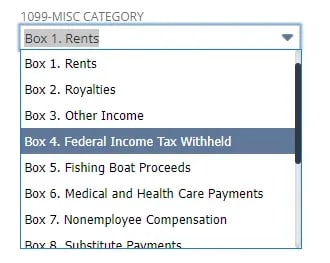
Review Expense Account Categories
Next, review the expense accounts associated with potentially reportable vendor payments.
NetSuite supports 1099 categories that help classify transactions for tax reporting.
Make sure the relevant accounts use the appropriate categories for the payments being reported.
Correct account classification is important because the saved searches rely on transaction and account information to organize payments.
Review Vendor Records
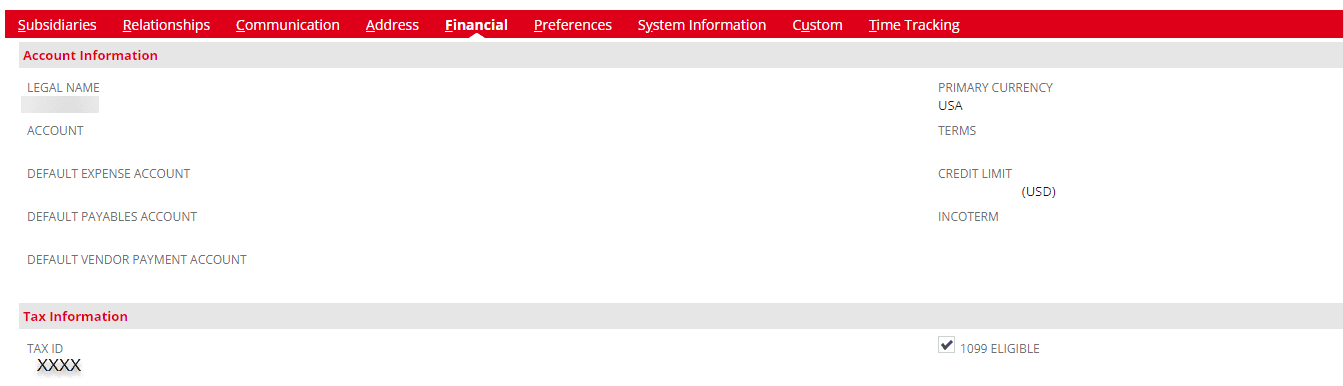
Open the vendor records for the recipients who may require a 1099.
Review the information used for tax reporting, including:
Vendor name.
Mailing address.
Taxpayer identification information.
1099 eligibility.
Applicable tax classification.
A vendor's 1099 eligibility setting is useful for reporting, but it doesn't replace determining whether the vendor's payments are reportable under IRS rules.
Step 2: Review the Yearli Saved Search Criteria
After preparing the vendor and expense account records, open the Yearli saved searches in NetSuite.
Start with:
1099 Vendor Payment Report - Yearli MISC
Then repeat the process for:
1099 Vendor Payment Report - Yearli NEC
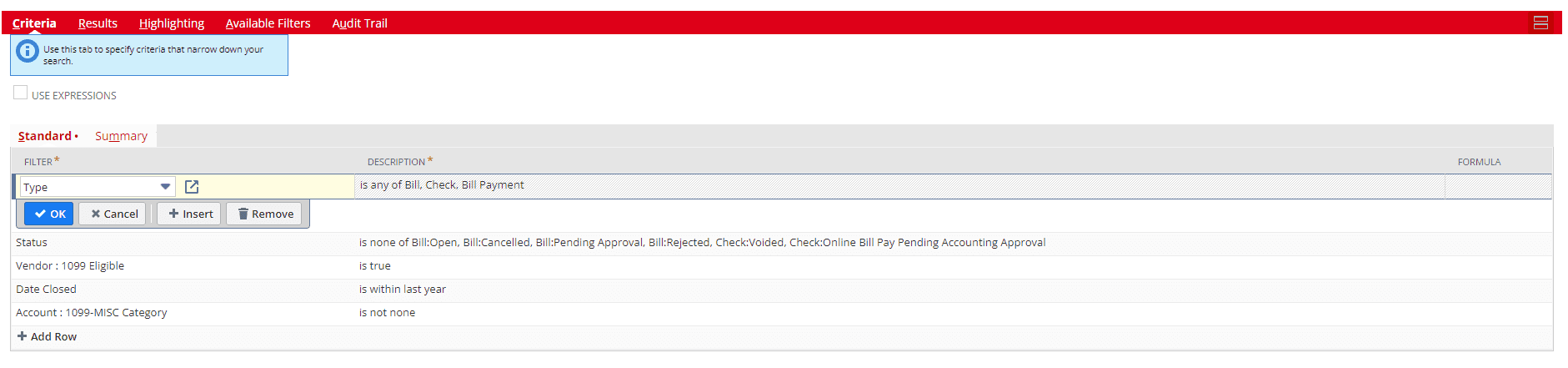
The searches should return payments relevant to the tax year and form being prepared.
Review the Date Criteria
The original implementation changed the search's Date Closed criterion to Date.
However, these fields can represent different events depending on the underlying transaction.
For 1099 reporting, the objective is to identify reportable payments made during the applicable calendar year, rather than simply identifying expenses or bills recorded during that period.
The saved search should use transaction and date criteria that accurately reflect the reportable payments.
Review Transaction Types
The original implementation also reviewed the transaction types included in the saved search.
Payment method matters for 1099 reporting.
For example, qualifying payments made directly by check or certain electronic payment methods may be reportable by the business, while payments made through credit cards or certain third-party payment networks are generally subject to different reporting rules.
Review the transaction types and payment methods included in the search to avoid omitting reportable payments or including payments that should be reported by another party.
Step 3: Configure the Saved Search Results
Once the search criteria are established, open the Results tab.
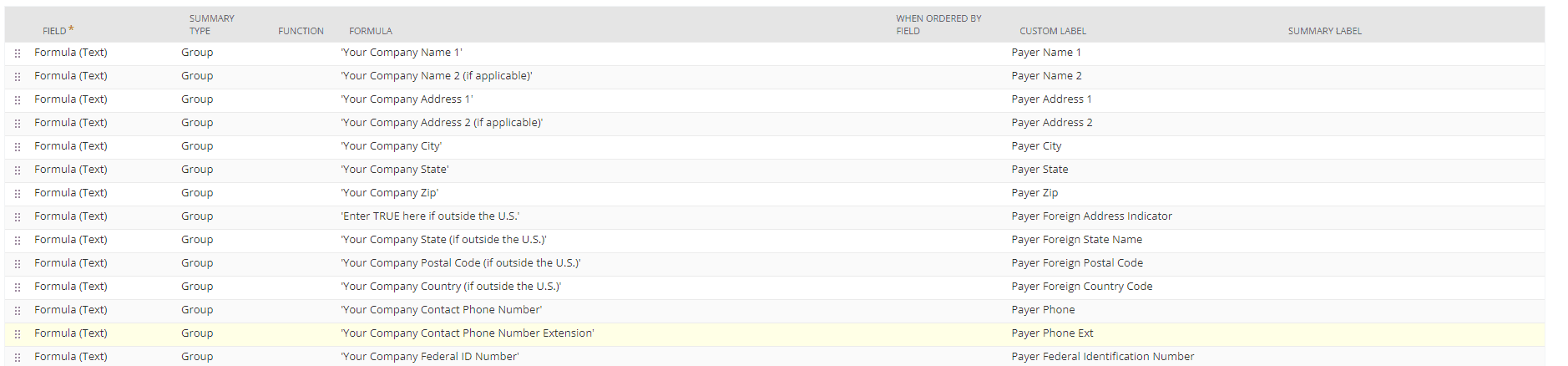
The Yearli saved searches contain fields and formulas used to organize the exported information.
In the original implementation, several payer-related formula fields were updated to reflect the business's information.
These fields may include details such as the payer's name and other identifying information required for the import.
Review the output fields against the Yearli import requirements.
The exported data needs to identify the correct payer, recipient, form type, reporting amounts, and other required information.
Step 4: Review and Export the NetSuite Data
Run each saved search for the applicable reporting year.
Review the results before exporting them.
Compare the totals with your accounting records and investigate unexpected amounts or missing vendors.
Pay particular attention to:
Payments made during the reporting year.
Vendor tax classifications.
Payments assigned to the wrong 1099 category.
Credit card and third-party network payments.
Credits, voided transactions, and adjustments.
Vendors appearing more than once.
Differences between 1099-NEC and 1099-MISC amounts.
Once the results are reconciled, export the saved search data as a CSV file.
Prepare separate exports for the 1099-NEC and 1099-MISC workflows, using the format required by Yearli.
Step 5: Import the CSV into Yearli
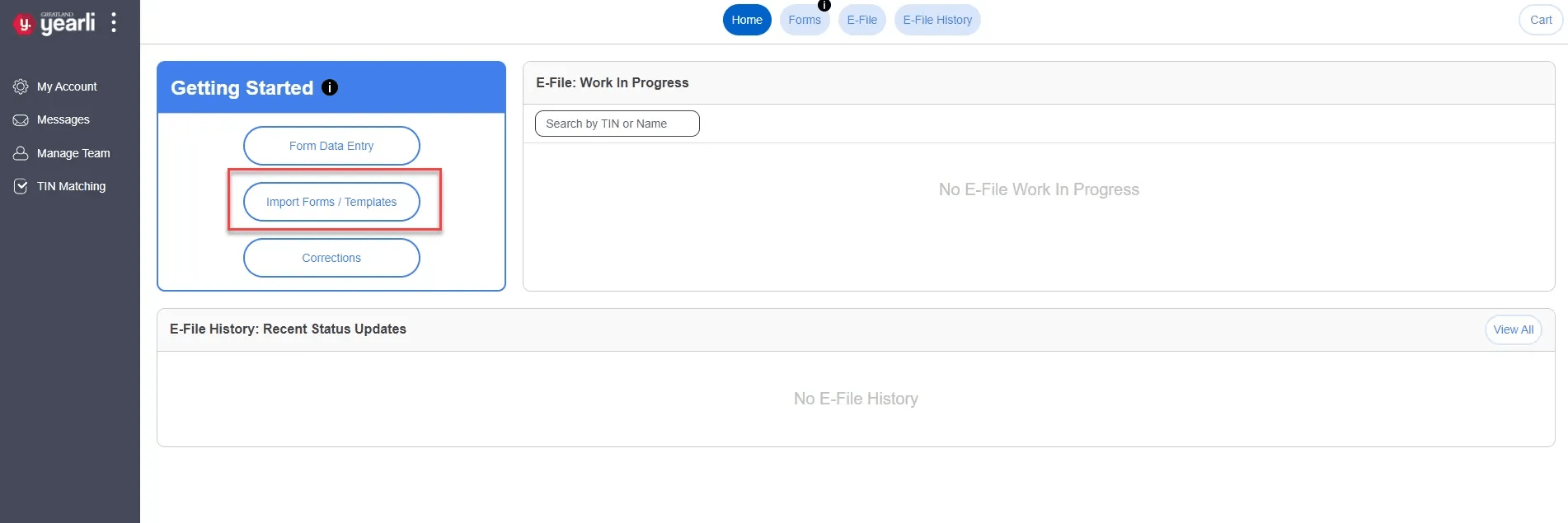
Sign in to Yearli.
From the homepage, select Import Forms/Templates.
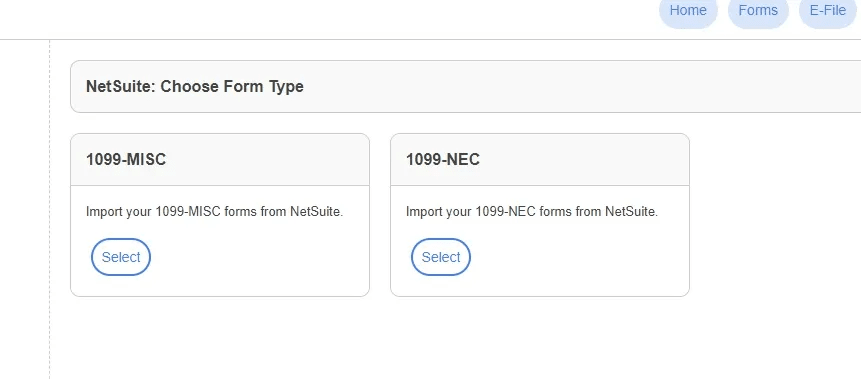
In the original workflow, NetSuite was available as an import template.
Select the NetSuite template and choose the type of 1099 form you're preparing.
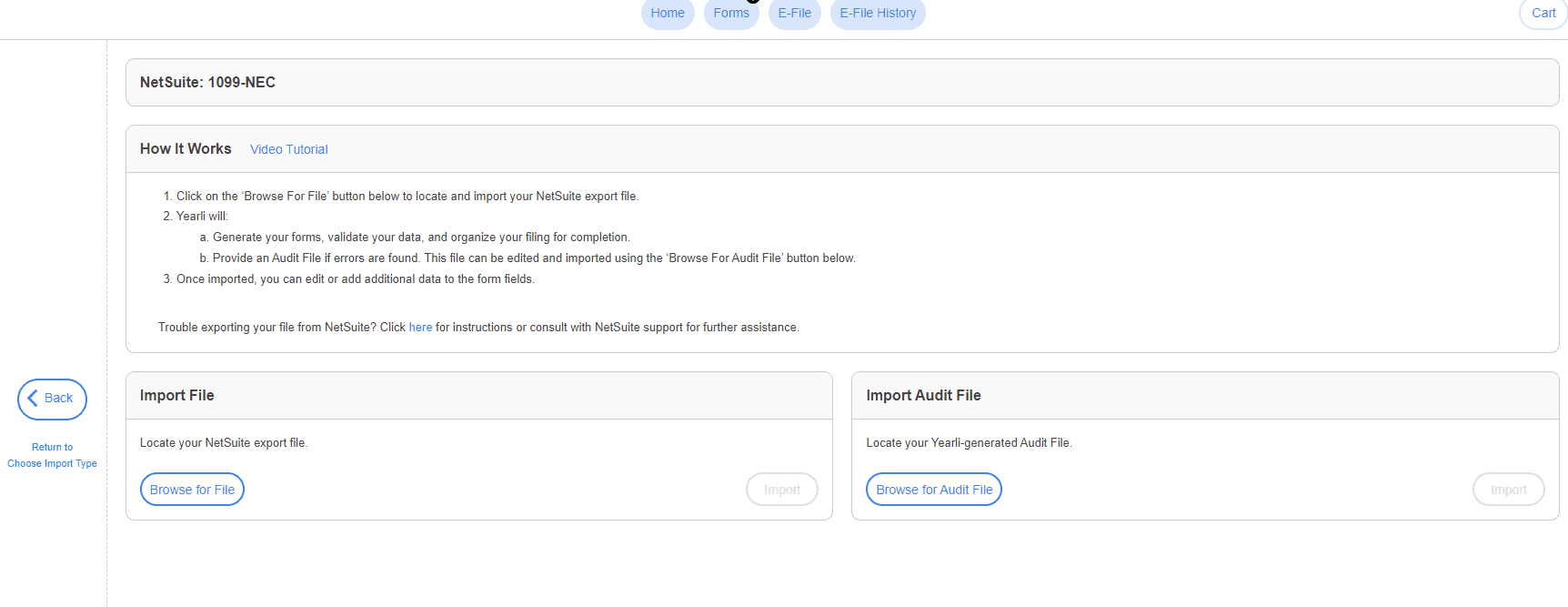
Next, select Browse for File and choose the CSV exported from NetSuite.
Select Start Import.
Yearli will process the file and identify any import errors.
If the import fails, review the error information and compare the CSV columns and values with the expected import format.
Correct the data and repeat the import as needed.
Step 6: Review the Imported 1099 Forms
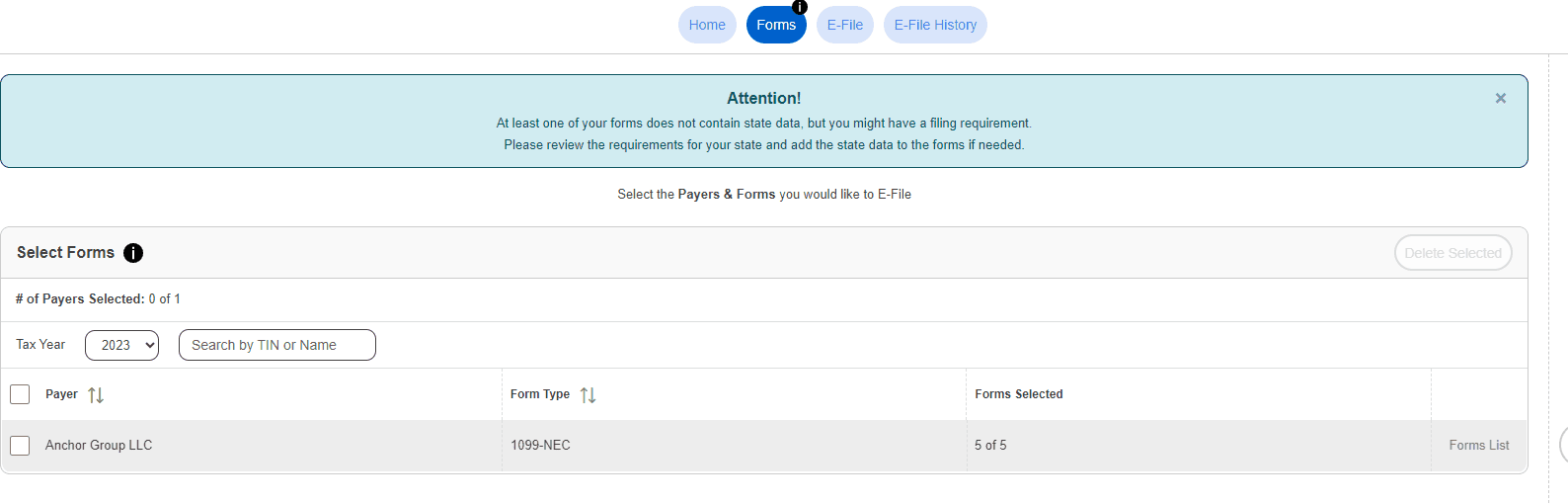
After importing the data, navigate to the Forms section in Yearli.
Select the appropriate payer and review the imported forms.
Review the payer and recipient information, including names, addresses, tax identification details, form types, and reportable amounts.
Confirm that the imported totals match the reconciled NetSuite data.
This review helps identify errors before forms are submitted for filing.
Step 7: Select the Filing Options
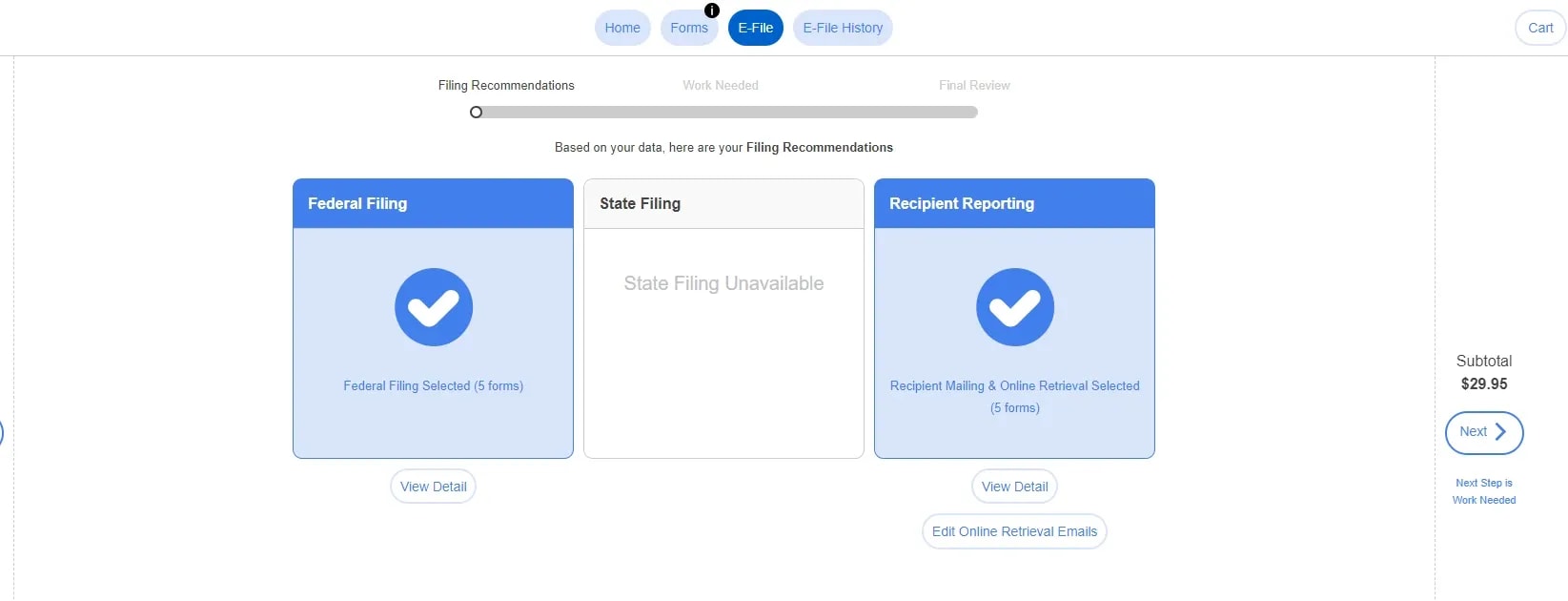
In the original Yearli workflow, the next step was to select Start E-File.
Yearli then displayed the available filing options.
The filing options may include federal filing, state filing, and recipient delivery services, depending on the form type, reporting year, and services selected.
State reporting requirements can differ from federal requirements.
Some states participate in combined federal/state reporting programs, while others require additional or separate filings.
The available Yearli options should be considered alongside the requirements for each applicable jurisdiction.
Step 8: Complete the Final Review
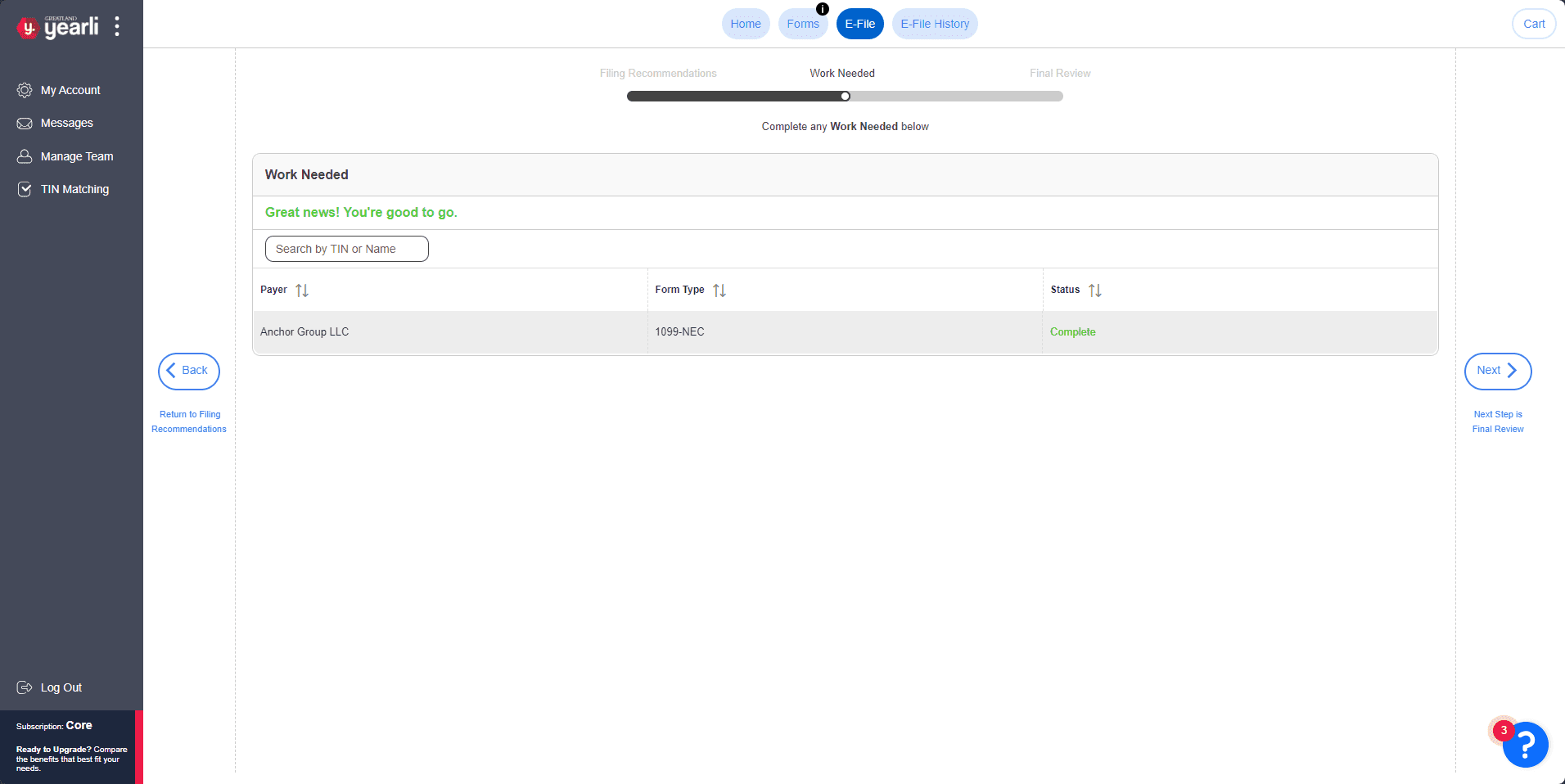
After selecting the filing options, Yearli may identify items that need attention before submission.
These could include missing recipient information, invalid values, or other issues affecting the forms.
Resolve any identified issues and proceed to the final review.
The original workflow allowed users to download preview copies of the 1099 forms before completing the filing process.
Review the previews carefully, particularly the recipient information and amounts reported in each box.
Once the forms are accurate, complete the applicable payment and submission steps in Yearli.
Step 9: Confirm Filing and Recipient Delivery
Submitting forms and receiving confirmation of acceptance are separate parts of the filing process.
After submission, review the filing status in Yearli and retain the available confirmation records.
Depending on the selected services, Yearli may also provide electronic or physical recipient delivery.
Confirm the delivery methods selected for your filing and retain copies of the forms and relevant payer reports.
These records can be useful for future reference, corrections, and reconciliation.
Common NetSuite-to-Yearli 1099 Issues
A Vendor Is Missing from the Export
Review the vendor's 1099 eligibility, tax information, relevant transactions, and the saved search criteria.
The Reported Amount Is Incorrect
Review the underlying payments, transaction dates, account categories, credits, and payment methods.
The CSV Import Fails
Compare the exported file with the Yearli import template, including required columns, field formats, and values.
A Payment Appears on the Wrong Form
Review the expense account's 1099 category and the classification of the underlying payment.
The Yearli Total Doesn't Match NetSuite
Reconcile the exported transactions against the NetSuite payment records and confirm that the correct reporting period and payment methods were included.
Final Thoughts
Preparing Forms 1099-NEC and 1099-MISC using NetSuite and Yearli involves several stages: organizing vendor information, reviewing reportable payments, configuring saved searches, importing the data, and completing the filing process.
The saved searches can reduce the manual work involved in collecting payment information, while Yearli provides a way to prepare and submit the resulting forms.
The most important part of the process is validating the data before filing. Accurate vendor records, payment classifications, and reconciled totals help reduce reporting errors and the need for corrections later.
NetSuite SuiteTax is best for mid-market businesses that operate across several US states or countries. It automates tax calculation and supports clear tax reporting.
Deciding the right ERP system to use is a challenging task, but once you decide to purchase it, you will need to know some key details to get moving. Here are 13 things you need to know about NetSuite before or after you purchase the system.
In this episode, Michael and Caleb break down the three most important things NetSuite users should be doing to start 2026 strong. From auditing your processes and leveraging integrations to implementing customer portals that actually save time.
Medical Innovations built the operational foundation to scale without adding headcount—and they're using automation, integrations, and AI to move faster than competitors hundreds of times their size. (Yes, really.)