How to Build NetSuite Financial Reports with Claude and MCP
See how Anchor Group used Claude, the NetSuite AI Connector Service, and MCP report tools to turn three native financial statements into a polished, multi-tab HTML reporting package.
Date
November 20, 2026
Read
7 min
What if you could pull three financial statements directly from NetSuite and turn them into a polished, interactive reporting package with a single AI prompt?
Using Claude, the NetSuite AI Connector Service, and the MCP Standard Tools SuiteApp, we created an HTML financial package containing an income statement, balance sheet, and statement of cash flows. The result was a downloadable, multi-tab report with financial KPIs, organized account hierarchies, and print-friendly formatting.
Here's how we built it and the prompt you can adapt for your own NetSuite account.
What We Built
We connected Claude to NetSuite through the NetSuite AI Connector Service and used MCP tools to retrieve three native financial reports for the consolidated parent subsidiary. The reporting period was March 2025. The package included:
Income Statement: March 1–31, 2025
Balance Sheet: As of March 31, 2025
Statement of Cash Flows: March 1–31, 2025
Claude organized the retrieved data into a single HTML file with:
A persistent KPI strip displaying Revenue, Gross Profit, Net Income, Total Assets, and Ending Cash.
Three navigable tabs: P&L, B/S, and C/F.
Color-coded amounts, account hierarchy indentation, and section subtotals.
Print-friendly formatting with page breaks.
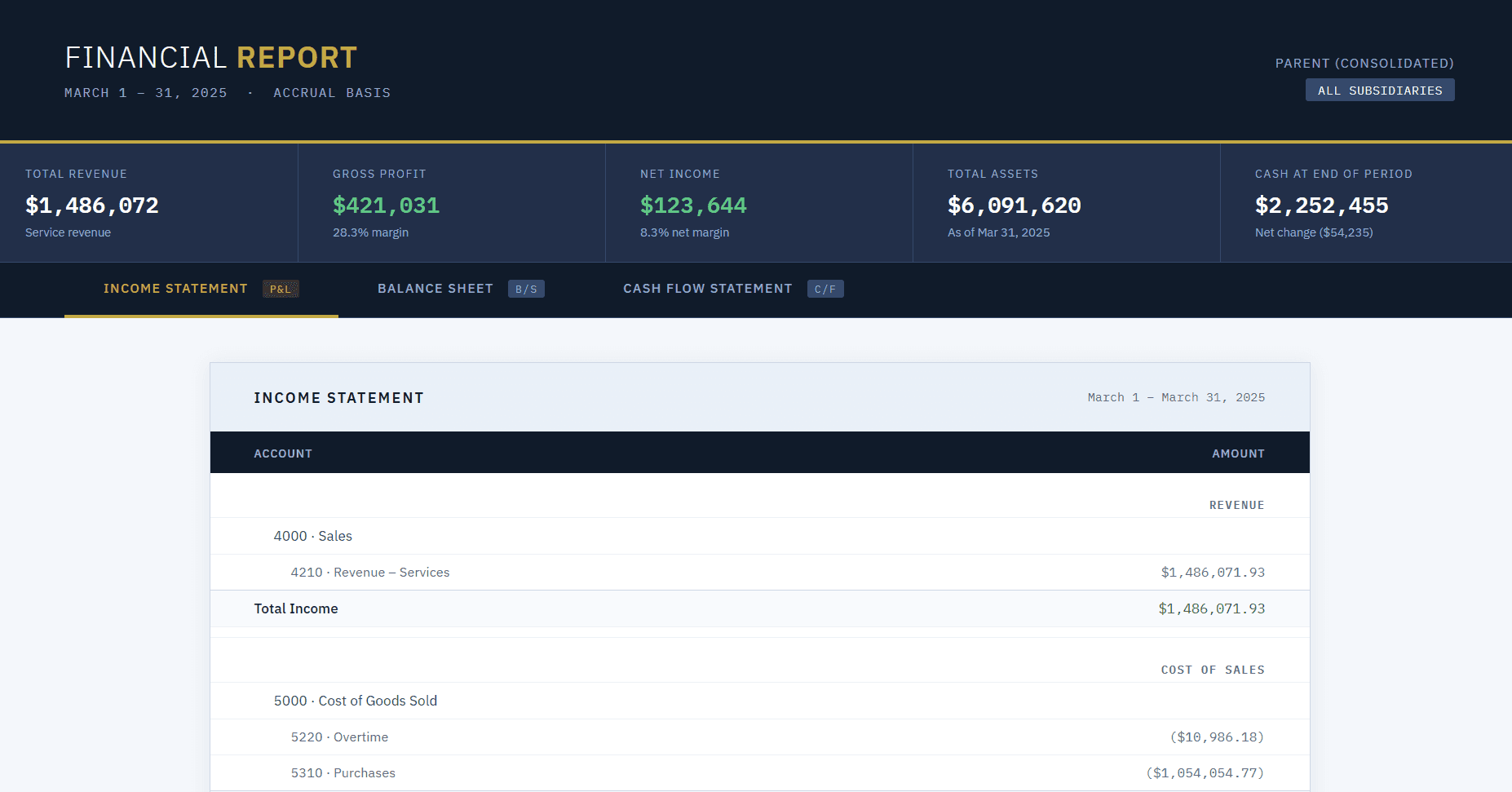
Income Statement
The income statement tab displays revenue, expenses, and profitability for the selected reporting period.
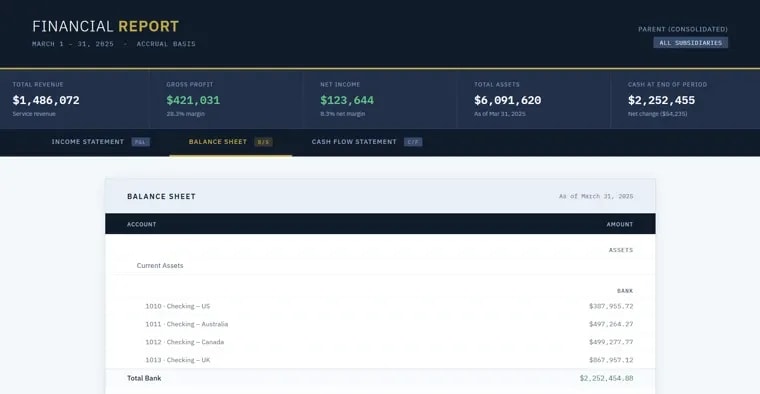
Balance Sheet
The balance sheet tab presents assets, liabilities, and equity as of the selected date.
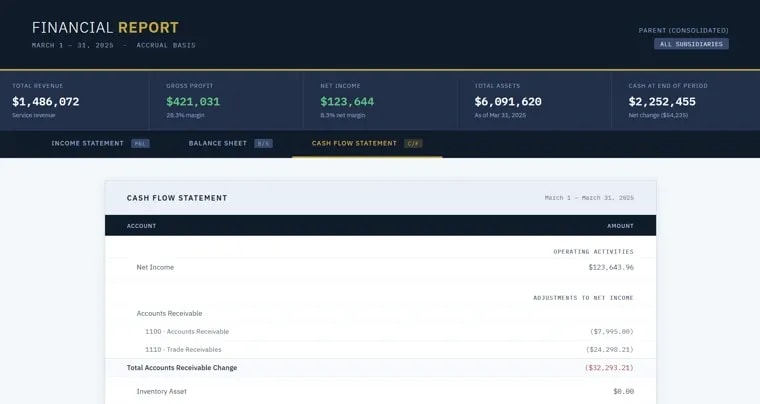
Statement of Cash Flows
The cash flow tab organizes the statement of cash flows into the same reporting package.
Prerequisites: Connecting Claude to NetSuite
Before generating the reports, you'll need to connect a supported AI client to NetSuite. Our example uses Claude, but the NetSuite AI Connector Service supports other compatible clients.
1. Enable the NetSuite AI Connector Service Requirements
Your NetSuite account needs the appropriate features enabled, including Server SuiteScript and OAuth 2.0. The MCP Standard Tools SuiteApp also requires REST Web Services to be enabled. Use a non-administrator NetSuite role with the permissions required for the connector and the report tools. These include MCP Server Connection and OAuth 2.0 Access Tokens, along with any additional permissions needed for the tools you intend to use.
2. Install the MCP Standard Tools SuiteApp
Install the MCP Standard Tools SuiteApp from the NetSuite SuiteApp Marketplace. This SuiteApp provides the tools Claude can use to interact with supported NetSuite records, saved searches, SuiteQL queries, and reports.
For this example, the relevant tools are:
ns_listAllReports — Lists available standard and custom reports.
ns_getSubsidiaries — Retrieves subsidiaries available for report filtering.
ns_runReport — Runs a NetSuite report and returns its results.
3. Connect Claude to NetSuite
In Claude, add the NetSuite AI Connector as a connector and provide the appropriate NetSuite MCP server URL.
Complete the authorization process using your permitted NetSuite role.
Once connected, verify that Claude can access the report tools. The available tools and data depend on the permissions assigned to your NetSuite role.
The Prompt: Generate a Three-Statement Financial Package
The original conversation required several rounds of prompting to refine the final output.
The following prompt consolidates those instructions into a more complete starting point. Replace the report IDs, subsidiary, and reporting dates with the appropriate values for your NetSuite account.
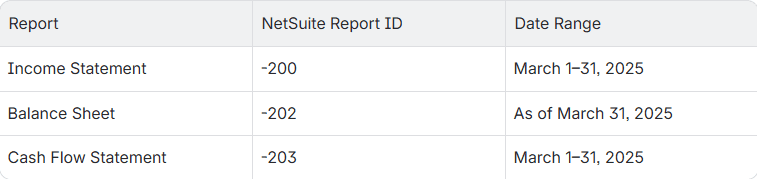
1. Run these three NetSuite reports for subsidiary Parent (Consolidated) leveraging ns_listAllReports and ns_runReport:
   - Income Statement (ID -200): 2025-03-01 to 2025-03-31
   - Balance Sheet (ID -202): as of 2025-03-31
   - Cash Flow Statement (ID -203): 2025-03-01 to 2025-03-31
2. Once all three are retrieved, create a polished downloadable HTML financial report
   package with:
   - KPI strip: Total Revenue, Gross Profit, Net Income, Total Assets, Ending Cash
   - Tab navigation with one full-page report per tab (P&L | B/S | C/F)
The report IDs above are from our example. Verify them before running the prompt in another NetSuite environment.
Report filters also vary by report. Claude may need to retrieve available filter options or ask for additional information before running a statement.
Why HTML Works Well for This
HTML gives Claude a flexible way to organize financial information into a format that's easier to navigate than three separate report exports. With HTML and CSS, you can create:
Tabs for switching between statements.
Persistent summary metrics.
Consistent formatting across reports.
Indented account hierarchies.
Print layouts for sharing or review.
The reporting package can also be refined through follow-up prompts without changing the underlying NetSuite reports. For example, you could ask Claude to adjust column widths, improve print formatting, or change how negative amounts appear. The important distinction is that HTML controls the presentation; NetSuite remains the source of the financial data.
Why Use MCP Instead of SuiteScript or SuiteQL?
SuiteScript and SuiteQL are useful for retrieving and processing NetSuite data.
SuiteScript can work with records, saved searches, and supported SuiteAnalytics functionality. SuiteQL provides SQL-style access to supported NetSuite data. However, retrieving individual transactions or account balances is different from executing a native NetSuite financial report. Native reports use NetSuite's reporting configuration and calculation logic, including the report's supported filters and financial statement structure.
The MCP Standard Tools SuiteApp exposes ns_runReport, which allows a connected AI client to execute supported NetSuite reports. For this use case, that means Claude can work with the output of the native Income Statement, Balance Sheet, and Statement of Cash Flows rather than attempting to reconstruct them through custom queries.
Validate the Financial Results Before Sharing
Although the report data comes from NetSuite, the finished HTML package is generated by an AI client. That introduces a separate validation step. Before sharing the package, compare it against the original NetSuite reports.
In particular, verify:
Revenue, Gross Profit, and Net Income.
Total Assets and the balance sheet totals.
Ending Cash and the cash flow statement totals.
Subsidiary, consolidation context, and reporting dates.
Account labels, subtotals, and statement hierarchy.
Any amounts transformed or summarized for the KPI strip.
Also confirm that the report retrieval was complete. Large reports may encounter response-size, token, or execution limits. An attractive report is useful, but its numbers still need to tie back to NetSuite.
Consider Permissions and Financial Data Security
The NetSuite AI Connector Service uses existing NetSuite role permissions to control access to supported tools and data. That means Claude cannot automatically retrieve every record or report in your account simply because the connector is enabled. However, connecting an external AI client also means authorized data may be transmitted outside NetSuite.
Before using the connector with financial information, confirm that the AI client is approved for your organization's data and that the connected role has only the permissions it needs. The resulting HTML file should also be handled according to your organization's financial reporting and data-sharing policies.
Key Takeaways
This example demonstrates a practical way to combine native NetSuite reporting with AI-generated presentation.
Use native reports as the data source. The ns_runReport tool retrieves supported NetSuite reports without requiring you to recreate their calculations in SuiteQL.
Be specific in your prompt. Report IDs, subsidiary, reporting dates, and formatting instructions help Claude produce a more consistent result.
Use HTML for presentation. Tabs, KPI summaries, account hierarchy formatting, and print layouts make the statements easier to review.
Validate the output. Reconcile the generated package against NetSuite before relying on it for financial reporting.
With the appropriate permissions and a well-structured prompt, Claude and NetSuite MCP can reduce the manual formatting involved in assembling a financial reporting package.
Your business doesn't need another experimental AI pilot program—you need AI systems that deliver measurable results. With AI adoption growing and 55% of organizations now using AI in at least one business function, the window for competitive advantage is closing. Organizations that integrate AI strategically into their ERP automation workflows achieve significant operational improvements—but only if they choose the right development approach.
Oracle's NetSuite AI Connector Service lets Claude access live NetSuite data through simple questions. It works well for finance and operations teams that want faster reports without building them by hand.
Medical Innovations built the operational foundation to scale without adding headcount—and they're using automation, integrations, and AI to move faster than competitors hundreds of times their size. (Yes, really.)