Prevent NetSuite Contacts from Auto-Populating Email and Phone
To solve this problem for our client, we implemented a NetSuite workflow to set the field values for new contacts to blank. Here is how we did it.
Read the Article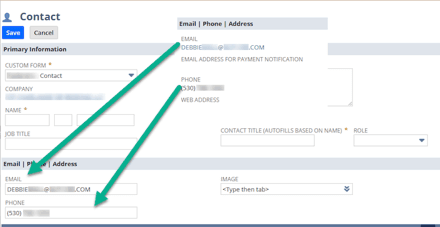

When customers need to access their estimates, orders, invoices, and other account information in NetSuite, you can provide access through the Customer Center.
For businesses with many customer contacts, enabling access one record at a time can be time-consuming.
Fortunately, NetSuite supports granting access to existing customer contacts through a CSV import, allowing you to update multiple records in one process.
In this tutorial, we'll walk through how to enable Customer Access, prepare a CSV file, map the Contact Access fields, and verify that contacts have the intended permissions.
NetSuite's Customer Center role provides customers with access to certain account-related records and activities.
Depending on the permissions assigned to the role, customers may be able to review estimates, sales orders, invoices, and payments.
You can grant access directly to a customer or to individual contacts associated with that customer.
For example, a business customer may have several employees who need separate logins to review their company's transactions.
The process described here focuses on existing contacts already associated with existing customer records.
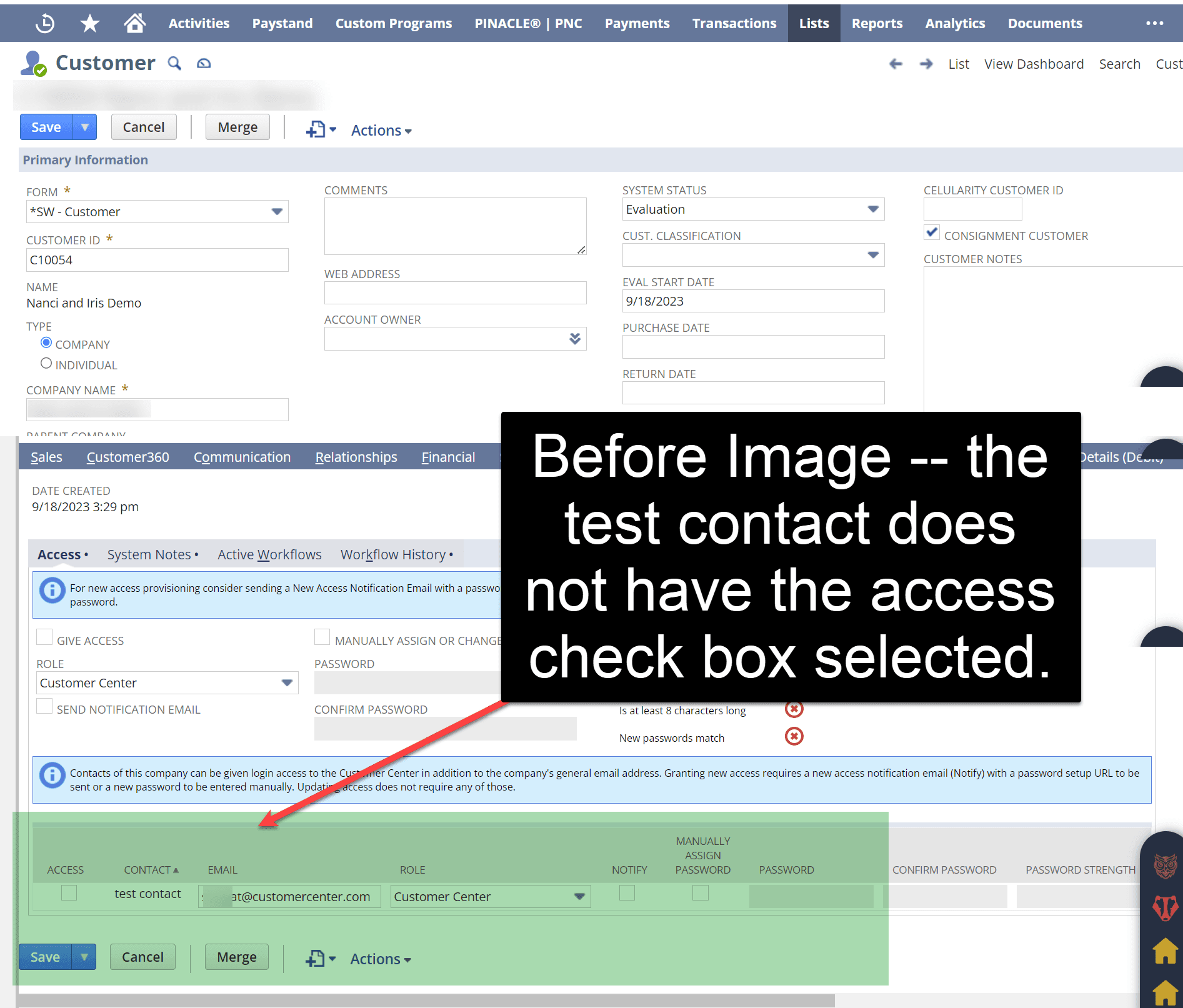
BEFORE
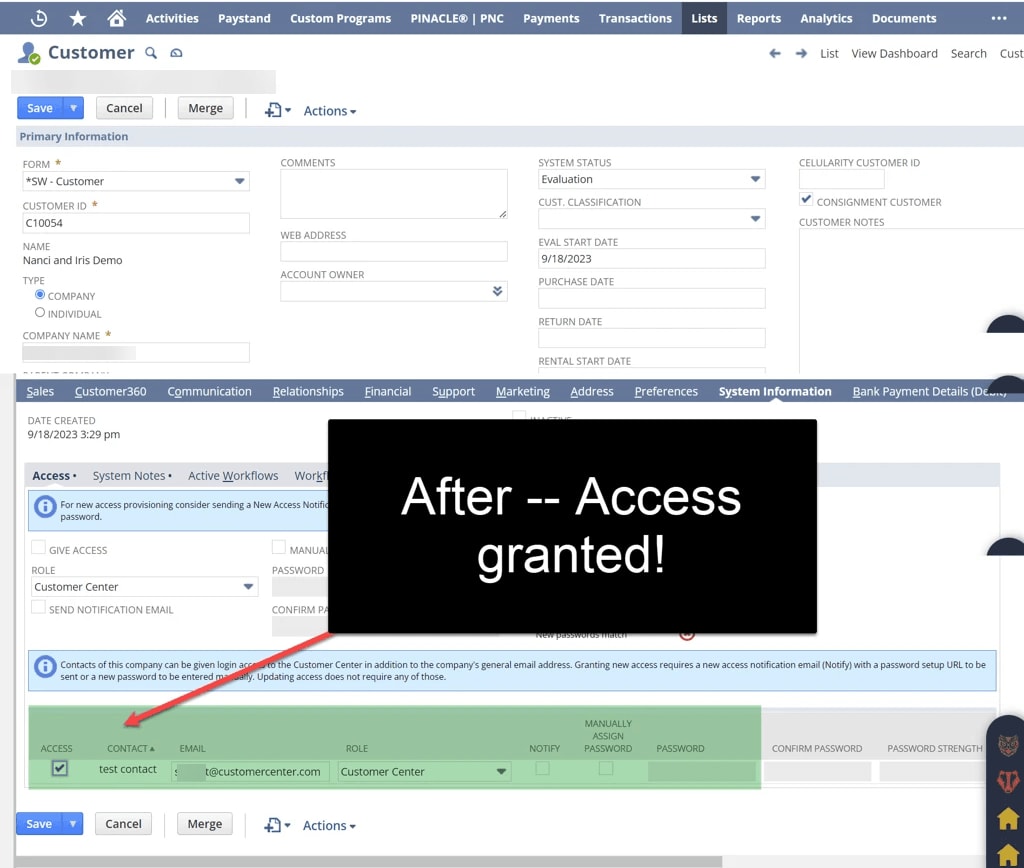
AFTER
Make sure the following requirements are met:
NetSuite doesn't support creating new customer records, creating their contacts, and granting those contacts access in the same Customers Only CSV import.
If the contacts don't exist yet, create and associate them with their customers first. Then perform a separate import to grant access.
Before granting contacts access, confirm that the Customer Access feature is enabled.
Using an Administrator role, navigate to:
Setup > Company > Setup Tasks > Enable Features
Open the Web Presence subtab.
Find Customer Access, check the box, and select Save.
Once the feature is enabled, customer records can display the access settings needed to manage customer and contact logins.
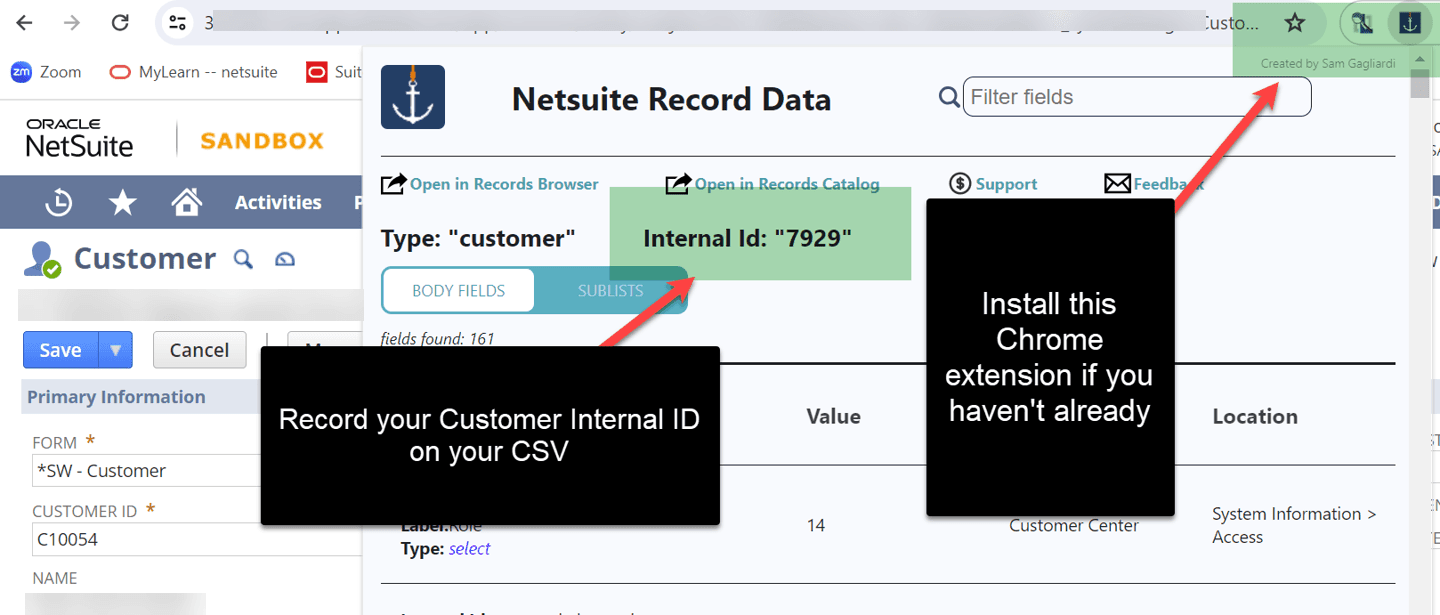
Before preparing the CSV, open one of the customer records you want to update.
Locate the customer's Internal ID.
This is an important distinction: although you're granting access to contacts, the import updates the Customer record.
The Customer Internal ID is therefore used to identify the record being updated.
Don't accidentally substitute the Contact Internal ID for the Customer Internal ID.
Next, open the customer record's System Information > Access area, or the equivalent Access subtab in your NetSuite interface.
Review the existing contact access settings.
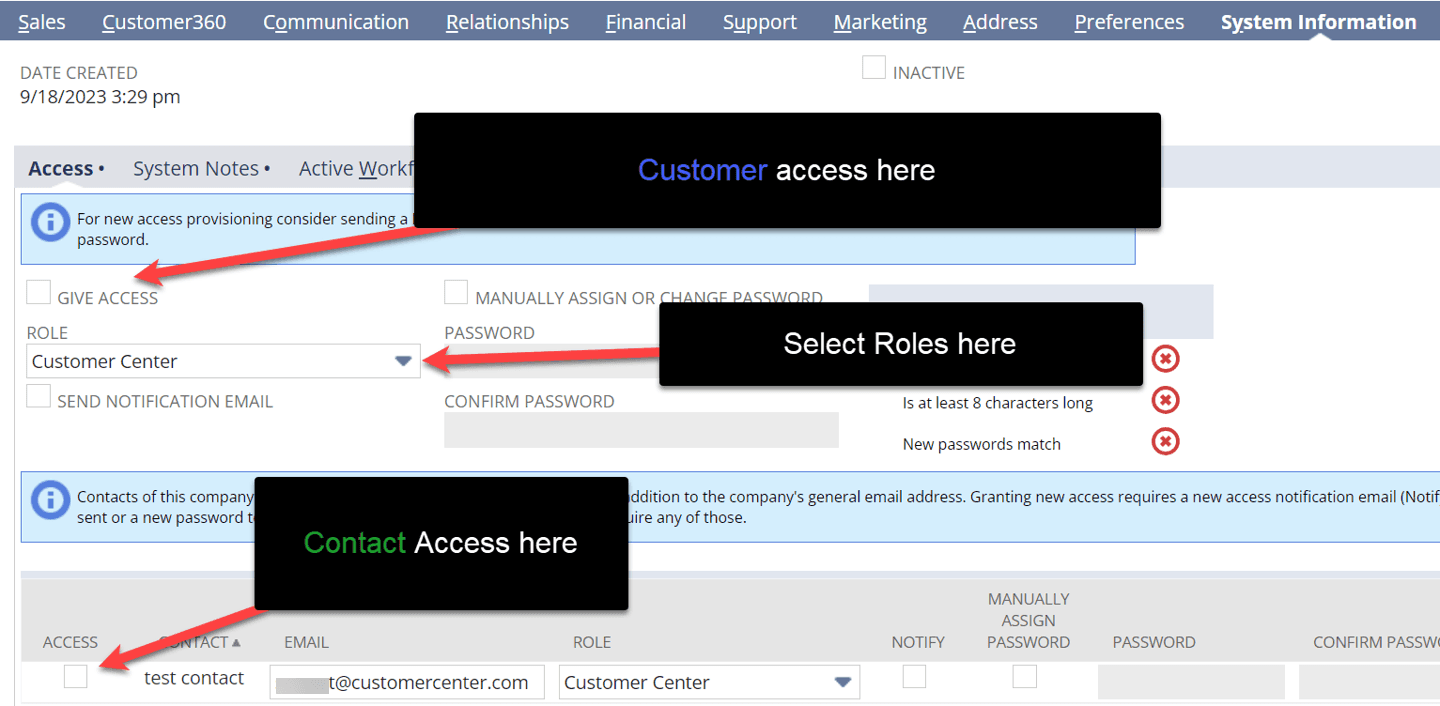
Confirm that the contacts are already associated with the customer and that their email addresses are correct.
Also review the available roles. The standard Customer Center role is commonly used, although some organizations use a customized version with different permissions.
Next, create a CSV file containing the customer and contact information you want to update.
The original implementation used columns for the Customer Internal ID, contact name, email, access status, password, and role.
For a new implementation, we recommend using NetSuite's access notification functionality instead of manually assigning passwords.
A starting CSV structure could look like this:
| CSV column | Example value |
|---|---|
| Customer Internal ID | 12345 |
| Contact Name | Jane Example |
| Contact Email | [email protected] |
| Contact Access | T |
| Notify | T |
| Customer Role | Customer Center |
These are illustrative values, not actual customer information.
Customer Internal ID
Identifies the existing customer record to update.
Contact Name
Identifies the existing contact associated with that customer. NetSuite uses the Contact field as the key for the Contact Access sublist.
Contact Email
The email address used for the contact's NetSuite login.
Contact Access
Controls whether access is granted or removed.
In the original implementation, the CSV used T for true and F for false.
Notify
Indicates whether NetSuite should send an access notification to the contact.
Using the notification workflow allows the contact to establish their own password.
Customer Role
Specifies the role assigned to the contact, typically Customer Center or an appropriate customized role.

Security note: Avoid placing manually assigned passwords in CSV files unless there's a specific, approved reason to use that workflow. Oracle recommends access notification emails so users can create their own passwords.
Once your CSV is ready, navigate to:
Setup > Import/Export > Import CSV Records
In the Import Assistant, select:
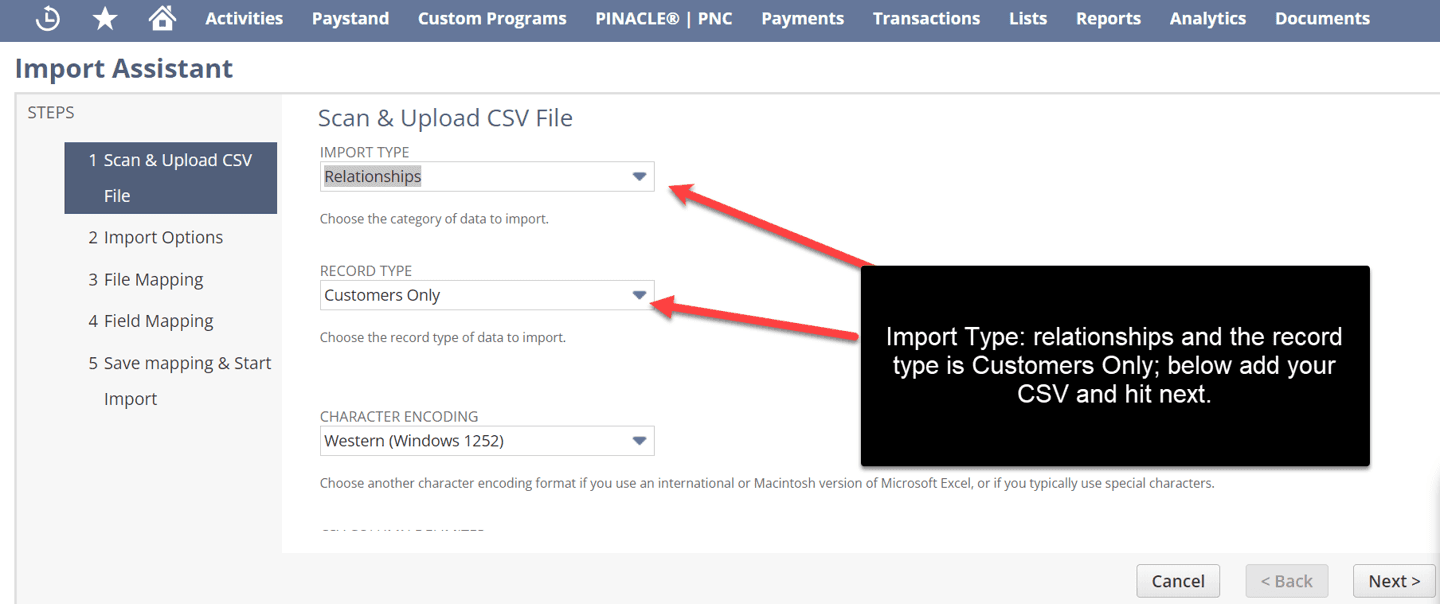
Upload the CSV file and continue to the next step.
When prompted to choose how NetSuite should handle the records, select:
Update
The contacts and customers already exist, so the purpose of this import is to modify their access information rather than create new records.
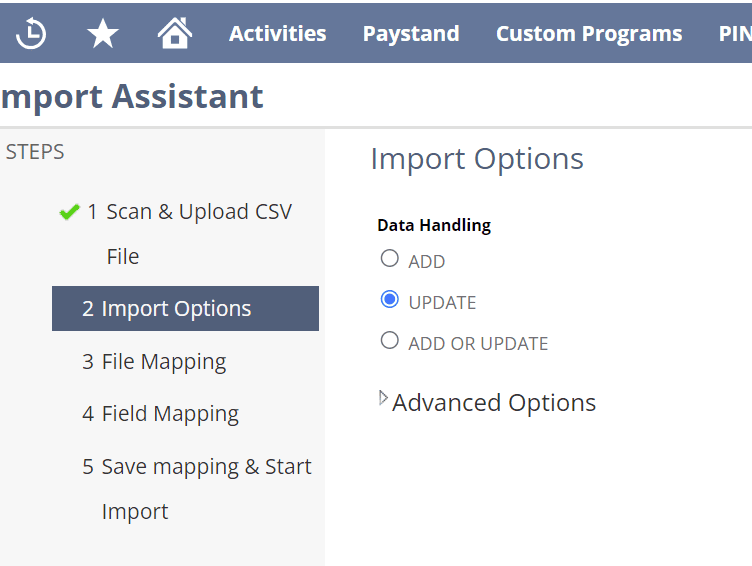
This is important because NetSuite supports Contact Access sublist imports when updating existing customer records.
In the Field Mapping step, map the CSV columns to the appropriate NetSuite fields.
The original implementation used the Contact Access sublist under the Customer record.
Look for the applicable fields, which may be displayed under labels similar to:
Map the Customer Internal ID to the customer record identifier.
Then map the remaining columns to the Contact Access sublist fields.
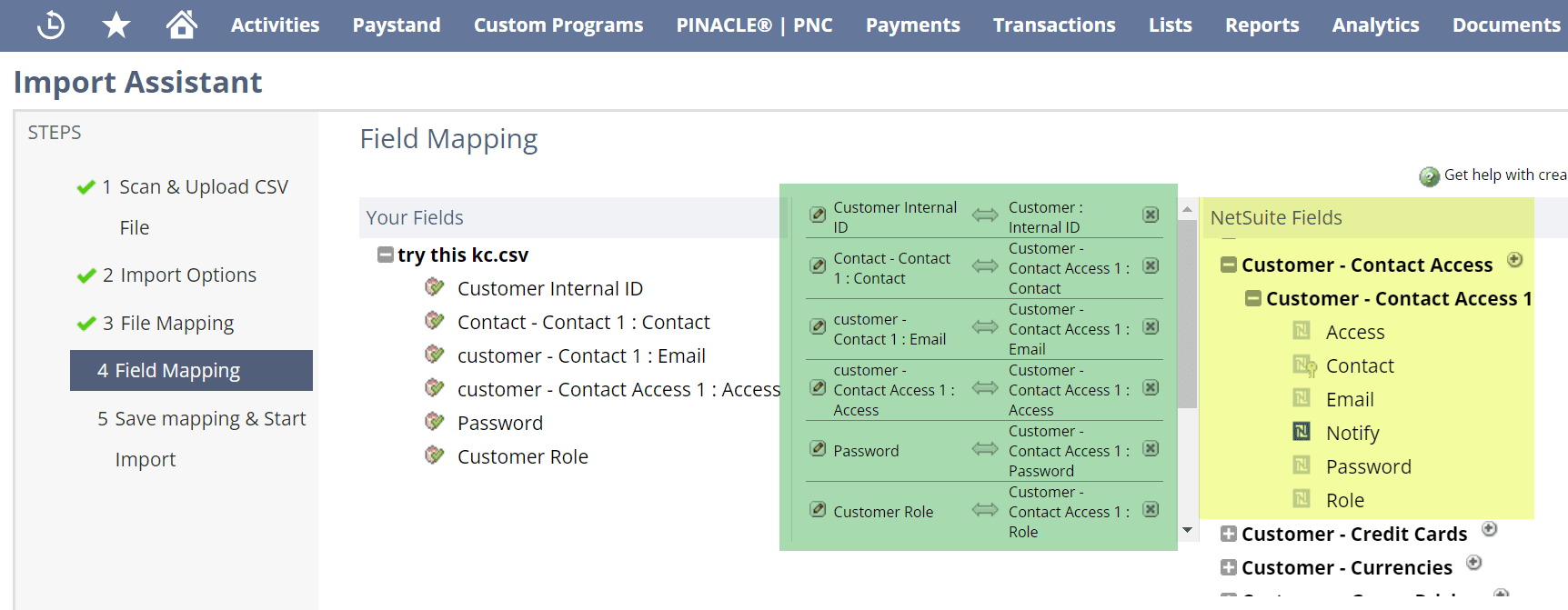
Review the mappings carefully before proceeding.
In particular, confirm that:
Incorrect mappings can cause import errors or grant access to unintended users.
After reviewing the field mappings, continue to the final Import Assistant step.
Give the import a descriptive name.
You may also add an import ID and description if appropriate for your process.
Select Save & Run to start the import.
NetSuite will process the records and provide an import status.
Review the results for errors or rejected records before assuming every contact was updated successfully.
After the import finishes, open a customer record included in the CSV.
Navigate to the Access settings and review the contact entries.
Confirm that the intended contacts have access and that the correct role has been assigned.
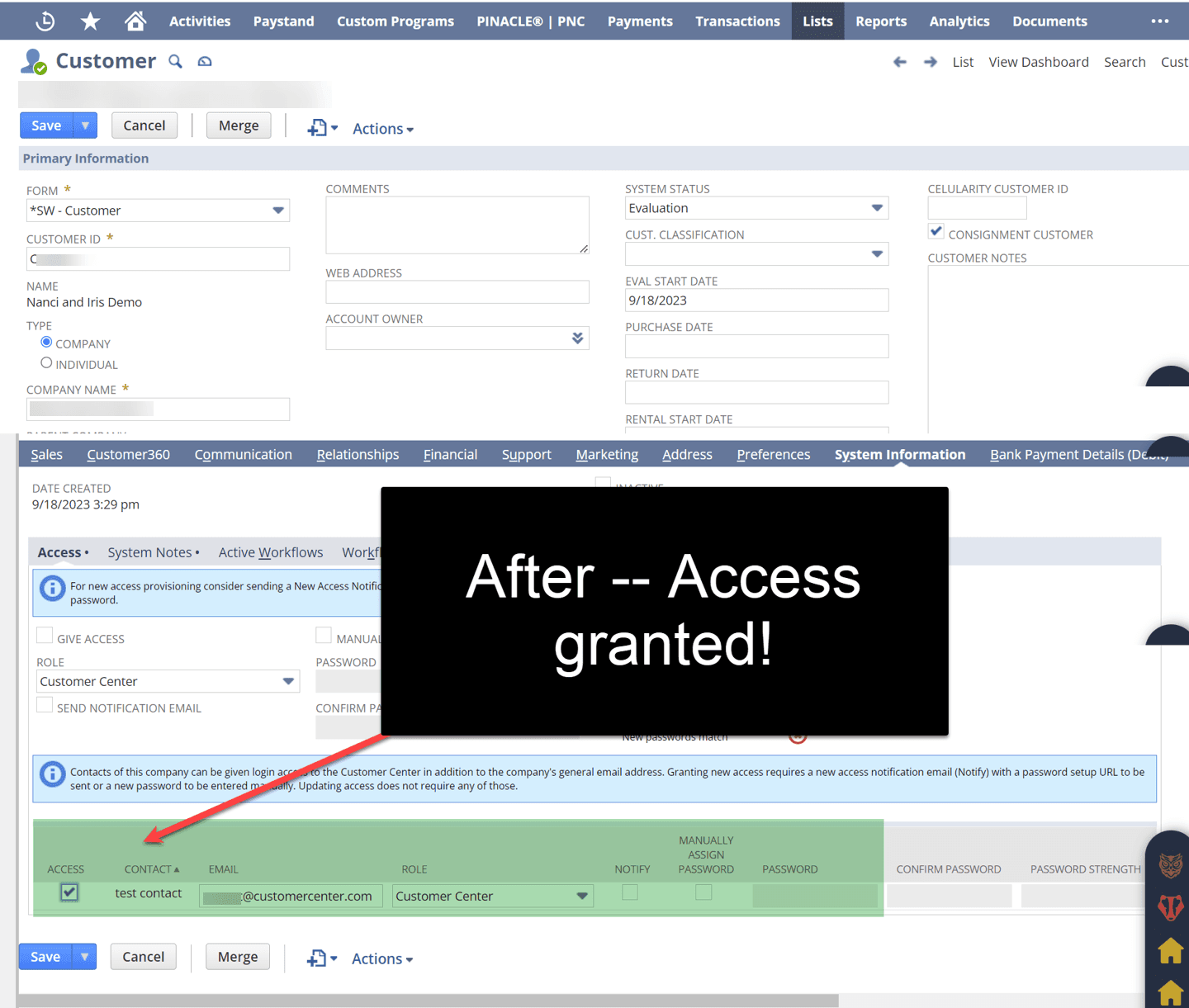
AFTER
If you enabled notifications, confirm that the intended recipients received their account setup instructions.
Finally, test the customer-facing experience with an authorized test contact.
Verify that the user can access the appropriate records and cannot access information outside their intended permissions.
If the CSV import doesn't produce the expected results, review the following:
The wrong Internal ID was used.
Remember that this is a Customers Only import. The customer identifier must refer to the Customer record.
The contact isn't associated with the customer.
The contact must already exist and be attached to the appropriate customer before access can be imported.
The email address is missing or incorrect.
Confirm that the contact has a valid email address for login.
The Contact Access fields aren't available.
Verify that Customer Access is enabled and that the import is configured to update existing customer records.
The assigned role doesn't provide the expected permissions.
Review the Customer Center role or customized role being assigned.
Granting NetSuite access to customer contacts doesn't have to involve manually updating every customer record.
For existing customers and contacts, a Customers Only CSV import can update Contact Access settings in bulk.
By preparing the correct customer identifiers, mapping the Contact Access fields, using an appropriate Customer Center role, and verifying the results, you can streamline the process while maintaining control over customer permissions.
Related Articles
Tagged with Training, Security & Permissions