Configuring the SuiteCommerce Logo List Bundle | NetSuite SMT
This article guides you through configuring the SuiteCommerce Logo List bundle in NetSuite and shares some insights gained from using it.
Read the Article

Want to highlight a particular product category on your SuiteCommerce storefront?
The Featured Category extension lets you display products from a selected commerce category in a customizable section of your website. You can add the section through Site Management Tools (SMT), choose which category to feature, and configure how the products appear.
This tutorial covers the prerequisites, installation, configuration, and publishing steps for the SuiteCommerce Featured Category extension.
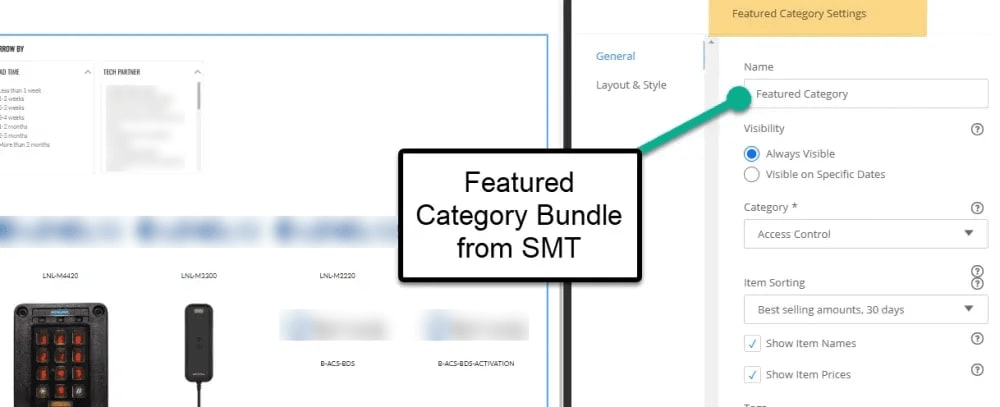
The Featured Category extension is a SuiteCommerce content component that displays products from a selected commerce category.
You can use it to highlight collections such as new arrivals, seasonal products, or a particular product line.
The extension is configured through Site Management Tools, allowing authorized storefront editors to place and customize the section without editing the site's source code.
Before configuring Featured Category, confirm that the necessary features are enabled in your NetSuite account.
Navigate to:
Setup > Company > Enable Features
Open the Web Presence tab and review the following features:
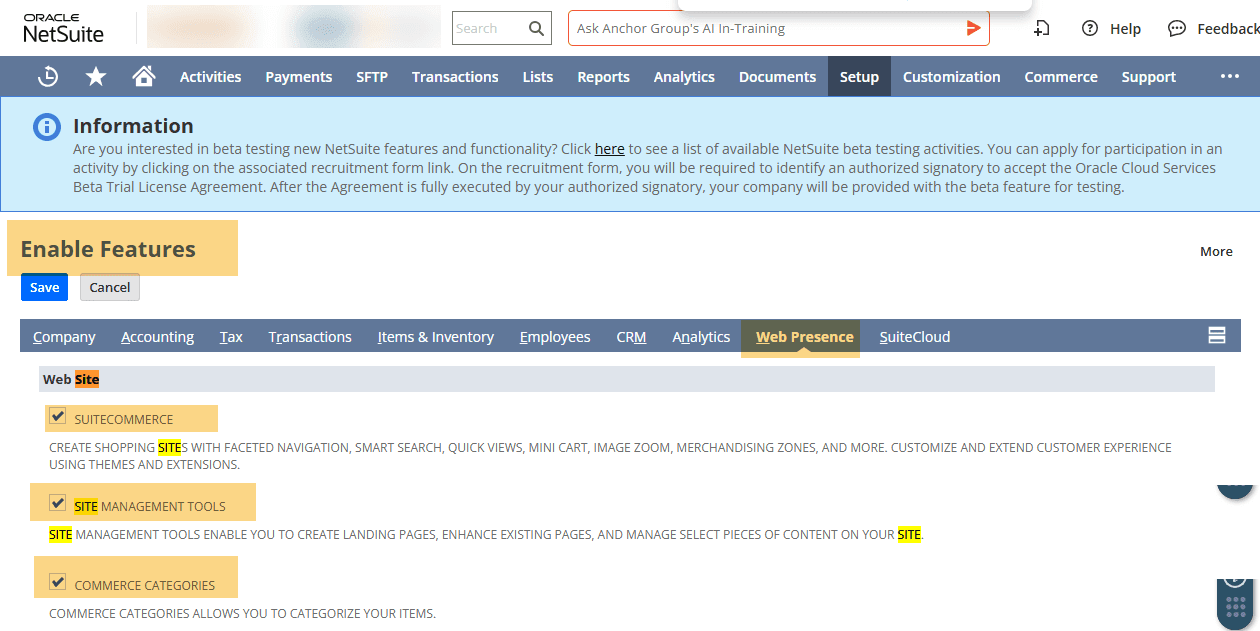
The relevant features must be available for the extension and commerce category configuration to work.
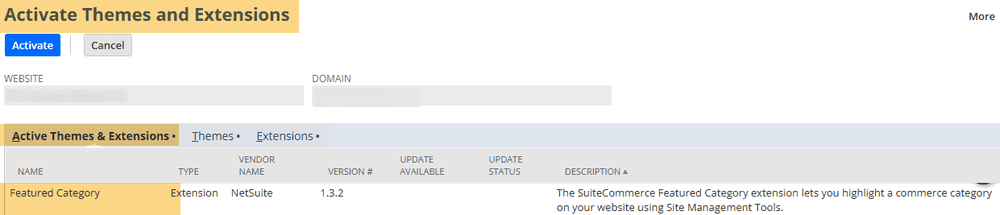
Next, confirm that the Featured Category extension is installed and activated for your website.
The installation process involves two parts:
After activation, the Featured Category element should be available in Site Management Tools.
The Featured Category extension needs a commerce category from which to display products.
To review your existing categories, navigate to:
Commerce > Content Management > Commerce Categories
Select an existing commerce category or create a new one.
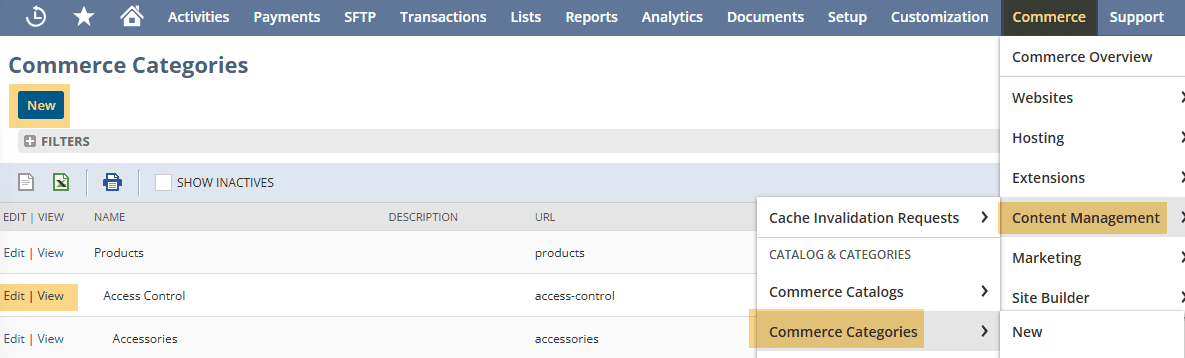
The selected category should contain the products you want to feature and be configured appropriately for your storefront.
Open the SuiteCommerce storefront where you want the featured products to appear.
In the original implementation, the available Featured Category element appeared in blue.
If the element is gray and cannot be dragged onto the page, review whether the extension has been activated for the correct website and domain.

After placing the element on the page, open its configuration options.
The main settings include:
Enter a descriptive name for the SMT element.
Using a clear name makes the section easier to identify when managing multiple content elements on your storefront.
Configure when the element should be visible on the website.
This is useful for promotions or featured collections that should appear only during a particular period.
Select the commerce category containing the products you want to display.
For example, you might choose a seasonal collection or a category containing a particular product line.
Choose how products should be ordered within the Featured Category section.
The available sorting options are based on the sort filters configured for your SuiteCommerce website.
This allows you to use the supported sorting behavior when displaying products from the selected category.
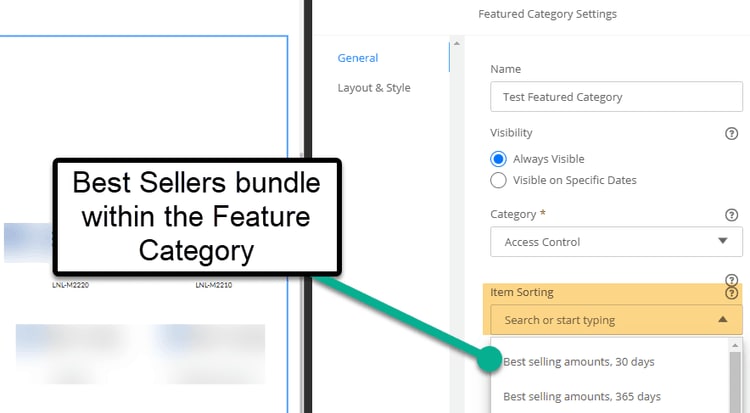
Open the Layout & Style tab to configure how the Featured Category section appears.
Available options include:
These settings let you adjust the presentation to fit the surrounding page content.
For example, you might use fewer columns for a compact homepage section or display more products when featuring a larger collection.

After configuring the section, click the blue Save button.
Then publish the content through Site Management Tools.
Saving the element alone does not necessarily make it visible to storefront visitors. The content must also be published.

Once published, open the storefront as a visitor and confirm that the Featured Category section displays correctly.
Check the product images, item order, heading, layout, and category link.
If the element appears unavailable, confirm that the extension is activated for the correct website and domain.
Also review whether the required SuiteCommerce features are enabled.
Check that the selected commerce category contains products available to the storefront.
Review the relevant item and category visibility settings.
Review the Item Sorting setting and the sorting options configured for the website.
The extension uses the available sorting configuration rather than automatically choosing which products should be featured.
Confirm that the SMT element has been published.
Also review its Visibility settings to ensure it should be displayed at the current time.
The SuiteCommerce Featured Category extension provides a way to highlight products from a selected commerce category without building a custom storefront component.
Once the extension is installed and activated, you can add it through Site Management Tools, choose a category, configure the product layout, and publish the section.
It's a useful option for bringing attention to specific product collections while keeping the content manageable through the storefront editing interface.
Related Articles
Tagged with Training