Bulk Transform Estimates Into Sales Orders | NetSuite
Here is how to create a tool that allows for the bulk transformation of estimates into sales orders in NetSuite using inline editing.
Read the Article

Keeping track of estimate expiration dates can be difficult when sales representatives manage multiple open proposals.
NetSuite estimates can include an expiration date, but checking individual records to identify upcoming deadlines takes time.
One way to simplify the process is to create a NetSuite saved search that automatically emails a list of estimates approaching their expiration dates.
In this example, we'll walk through a saved search configured to send a weekly reminder every Monday morning.
An estimate may need follow-up before it expires, particularly when a customer hasn't yet made a purchasing decision.
Without a consistent reminder process, sales representatives may overlook approaching expiration dates.
A scheduled saved search can help by:
The goal is to give the sales team a clear view of upcoming estimate deadlines without requiring everyone to run the report manually.
Start by creating a transaction saved search in NetSuite.
Navigate to:
Reports > Saved Searches > All Saved Searches > New
Select Transaction as the search type.
Give the saved search a descriptive name, such as:
Estimates Expiring This Week
The search should identify estimates whose expiration dates fall within the intended reporting period.
Open the Criteria tab.
In the original implementation, the date filter used the field:
Due Date/Receive By
The filter was configured as a rolling week, allowing the search to identify estimates expiring within the relevant date range each time it ran.

You'll also want to verify that the search includes the appropriate transaction type and statuses.
For example, if the goal is to remind representatives about estimates that still need attention, the search should avoid including estimates that have already been converted or are otherwise no longer actionable.
The exact status criteria will depend on your sales process.
Important: Verify that Due Date/Receive By represents the intended estimate expiration date in your NetSuite configuration. Don't assume every date field has the same meaning.
Next, open the Results tab.
Choose the fields you want included in the email.
Depending on your team's needs, these may include:
The original saved search sorted the results by Due Date/Receive By in descending order.

Descending order displays the later dates first.
For a reminder focused on upcoming deadlines, you may prefer ascending order, which places the soonest expiration dates at the top.
Either approach can work, but ascending order is generally easier when the goal is to prioritize urgent follow-up.
Once the search returns the expected results, configure its email settings.
In the Email tab, enable the option to send emails according to a schedule.
The original implementation used a custom email subject and message to explain the purpose of the report.
For example:
Subject: Estimates Expiring This Week
Message:
Here is the list of estimates scheduled to expire this week. Please review the upcoming expiration dates and follow up where needed.
The implementation also included links to the relevant records, allowing recipients to open estimates directly from the email.
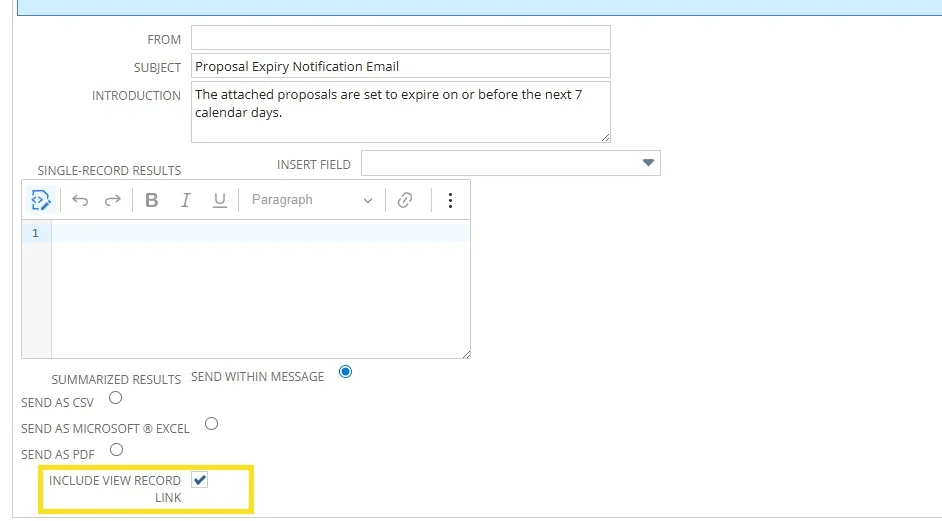
Use the Recipients subtab to select the people who should receive the scheduled report.
For example, you may send the list to:
Be aware that a shared saved search email may include results for multiple representatives.
If each sales representative should receive only their own estimates, the search and recipient configuration will need to support that requirement.
Open the saved search's scheduling settings.
In the original implementation, the email was scheduled to run every Monday morning.
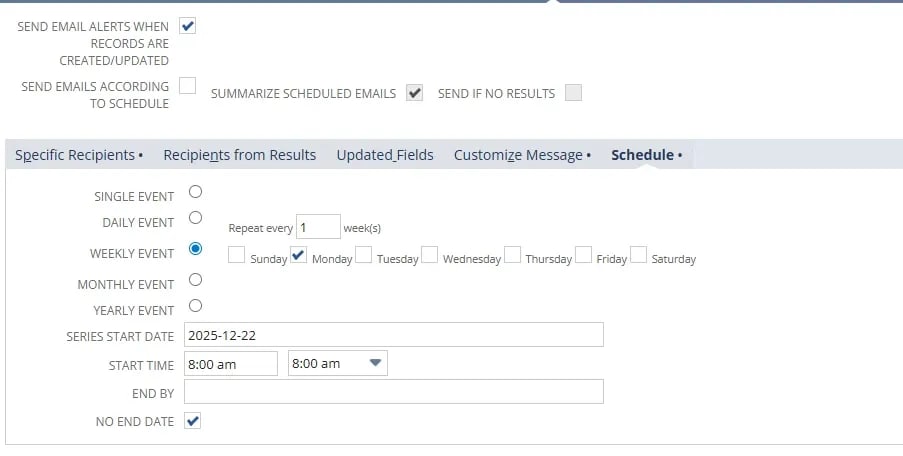
This timing gives the sales team an overview of estimates approaching expiration during the week.
Choose a schedule that aligns with your team's workflow.
For example, a weekly reminder may be sufficient for longer sales cycles, while a more frequent reminder may be useful when estimates expire quickly.
Before relying on the automated reminder, confirm that the saved search returns the correct estimates.
Check that:
Also verify how the date range behaves when the search runs on a different day.
For example, a rolling seven-day filter and a calendar-week filter may produce different results.
Testing the search before enabling the recurring email helps avoid sending incomplete or misleading reminders.
A scheduled NetSuite saved search can make it easier to keep track of estimates approaching their expiration dates.
By filtering estimates based on the relevant date, organizing the results, and scheduling an automated email, sales teams can receive regular reminders without manually checking every proposal.
In this example, the search was configured to send a weekly report every Monday morning, giving recipients a consistent view of upcoming estimate deadlines.
Related Articles
Tagged with Automation, Training