Add Fonts & Icons to SuiteCommerce and SCA
Adding new fonts and icons to SuiteCommerce is simple! Follow these steps and fine-tune your website theme by adding aesthetic fonts and icons.
Read the Article

Moving from SuiteCommerce Advanced (SCA) to SuiteCommerce (SC) involves more than installing a new storefront application.
Although both solutions support NetSuite ecommerce, they have different development and customization approaches. A business moving from SCA to SC needs to review its existing website configuration, extensions, payment methods, content, and product catalog to determine what can be carried over and what needs to be rebuilt.
In one Anchor Group implementation, the migration involved configuring a new SuiteCommerce website while using the existing SuiteCommerce Advanced storefront as a reference.
This article walks through the major steps and considerations involved in that process.
SuiteCommerce Advanced provides access to the storefront source code, allowing developers to make extensive changes to the application.
SuiteCommerce provides a more managed storefront experience, with customization generally handled through supported extensions, themes, configuration settings, and Site Management Tools (SMT).
Both approaches can support customized ecommerce experiences, but they differ in how those customizations are developed and maintained.
Before migrating, review any custom SCA functionality to determine whether it can be reproduced using SuiteCommerce extensions, configuration settings, or other supported approaches.
Not every SCA customization can be transferred directly to SuiteCommerce.
The implementation described in this article started with three assumptions:
You'll also need appropriate NetSuite permissions to configure the website, manage extensions, review payment settings, and work with item and commerce category records.
Before making changes, document the current SCA storefront's functionality, configuration, extensions, customizations, and integrations.
This provides a reference for evaluating the new SuiteCommerce website.
Start by reviewing the features required for the new SuiteCommerce website.
In NetSuite, navigate to:
Setup > Company > Enable Features
Review the relevant commerce and SuiteCloud settings.
The original implementation included enabling the functionality required for SuiteCommerce, Site Management Tools, and applicable client-side and server-side SuiteScripts.
The exact features depend on the SuiteCommerce release and the functionality your storefront requires.
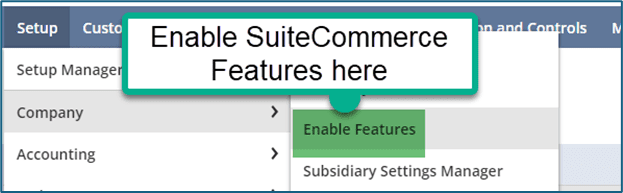
Set Up > Company > Enable Features
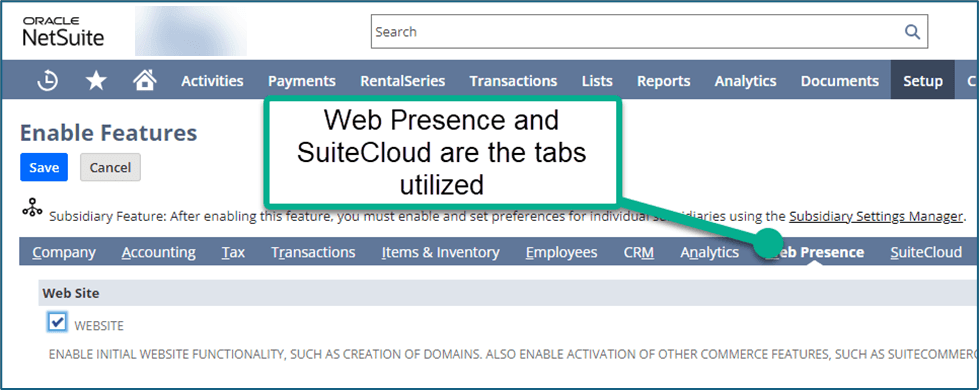
Next, confirm that the necessary SuiteCommerce applications and supporting components are installed.
In the original implementation, the team reviewed the following components:
The implementation used:
Customization > SuiteBundler > Search & Install Bundles

Installation requirements and delivery methods may differ by release. Confirm the current requirements before installing components.
Also review the extensions used by the existing SCA website.
In the original project, most extensions were replicated, while one loyalty rewards extension was excluded.
That illustrates an important point: not every extension or customization needs to move to the new storefront.
Evaluate each one based on compatibility, current business requirements, and whether its functionality is already available through SuiteCommerce.
The Website Setup record contains settings that influence storefront behavior.
To access it, navigate to:
Commerce > Websites > Website List
Open the existing SCA website and the new SuiteCommerce website.
Review the configuration tab by tab, comparing settings such as:
The goal is to reproduce the required behavior without assuming every setting should be identical.
Field sets determine which NetSuite record information is available to supported storefront components.
Custom field sets can be especially important when the existing SCA website includes additional product attributes or custom functionality.
In the original migration, the team compared the field sets between websites and verified that the required custom fields were included.
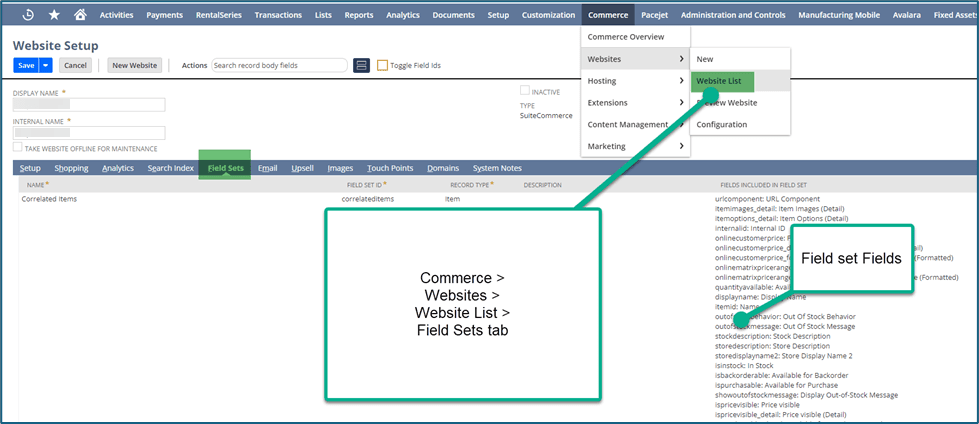
Commerce > Websites > Website List > Field Sets tab
If the new storefront is missing product information or other expected data, reviewing the field sets is an important troubleshooting step.
Next, configure the domain or subdomain that will be used by the new SuiteCommerce website.
In NetSuite, navigate to:
Commerce > Hosting > Domains
The original migration required coordinating DNS changes with the customer and creating a domain record in NetSuite.
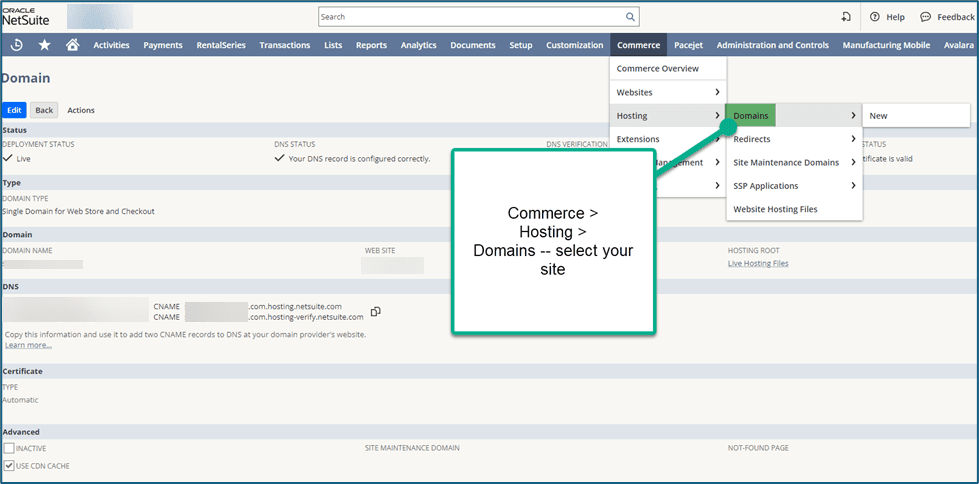
Commerce > Hosting > Domains
Follow the current NetSuite domain setup instructions to determine the required DNS records, domain associations, and HTTPS configuration.
If the new website will eventually replace the existing storefront at the same public domain, plan the domain transition carefully to minimize disruption.
SuiteCommerce uses SSP applications to support different areas of the storefront.
The original implementation included linking the appropriate applications for:
Navigate to:
Commerce > Hosting > SSP Applications
Review the relevant application records and confirm that they are associated with the correct website and domain.
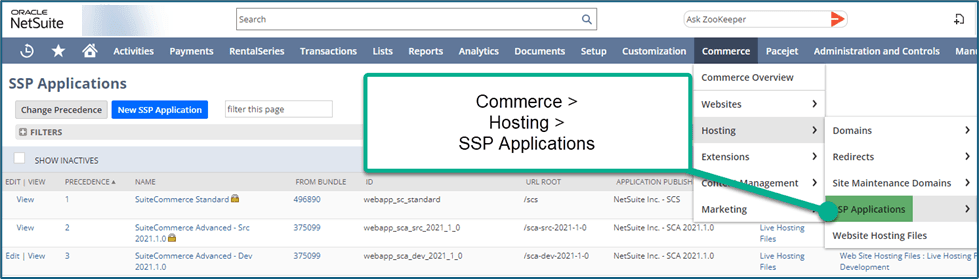
Commerce > Hosting > SSP Applications
Incorrect associations can affect storefront navigation, checkout, or customer account functionality.
Payment configuration is a critical part of the migration.
Review the payment methods and payment profiles used by the existing SuiteCommerce Advanced website.
Then configure the appropriate settings for the new SuiteCommerce storefront.
This may include reviewing:
Don't assume that payment functionality will work simply because the same NetSuite account is being used.
Test the complete checkout process before launching the new storefront.
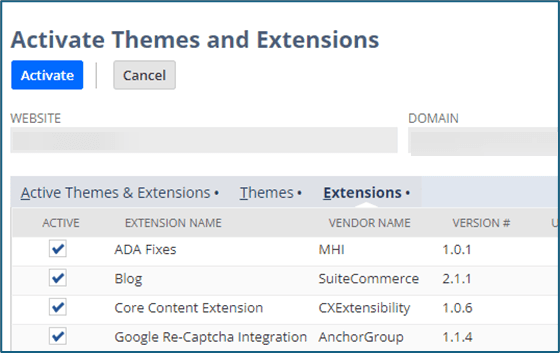
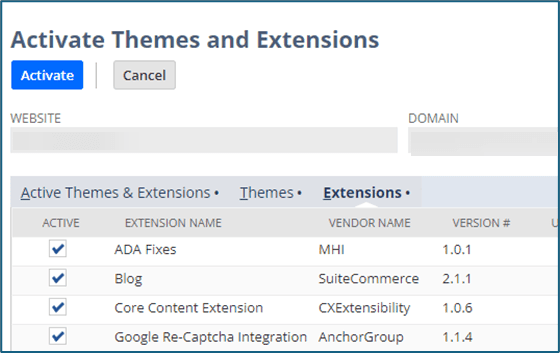
Once the website and domain are configured, review the Extension Manager.
For the original implementation, the team created a new activation by selecting the website and domain.
The required theme and extensions were then selected and activated.
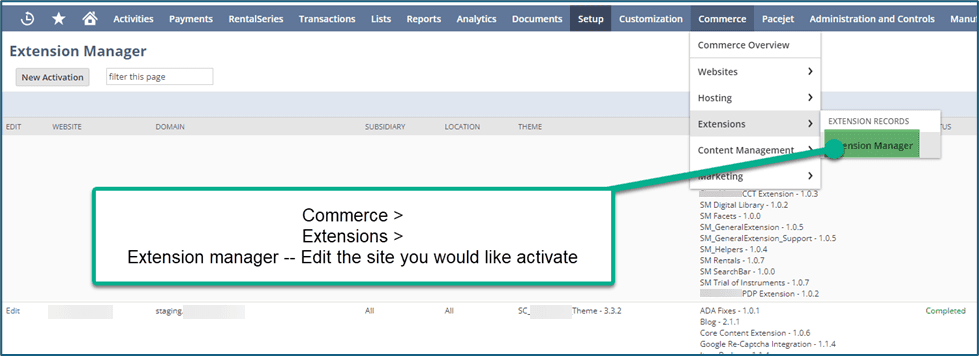
Configure the Extension Manager
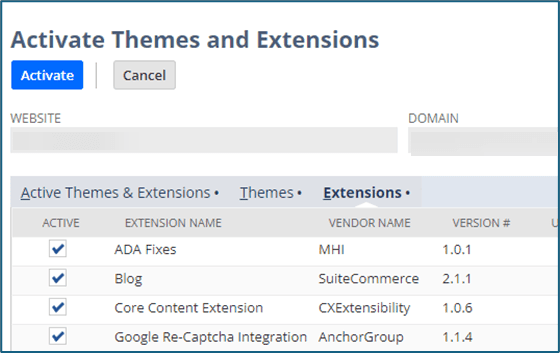
Compare the new activation with the existing SCA website.
Pay particular attention to functionality that depends on custom extensions.
If an extension isn't compatible with the new storefront, determine whether an alternative extension, configuration change, or development project is necessary.
SuiteCommerce configuration records control many aspects of the storefront experience.
The original migration involved copying configuration settings from the existing SCA website to the new SuiteCommerce website.
However, copying configuration JSON shouldn't be treated as a guaranteed one-step migration.
Different application versions, themes, and extensions may require different configuration values.
Review the configuration for:
After transferring or recreating the required settings, verify their behavior on the new storefront.
The original migration also included configuring the website favicon.
A favicon is the small image typically displayed in a browser tab.
While reviewing the favicon, also confirm that the new storefront uses the intended logos, colors, typography, and other branding elements.
These details may be controlled through the theme, configuration settings, or content management tools.
Content created through Site Management Tools may require separate attention during the migration.
This includes:
The original implementation identified this as a separate workstream, but its detailed migration instructions had not yet been documented.
For that reason, the specific transfer procedure should be determined based on the content types and SuiteCommerce versions involved.
Create an inventory of the existing pages and content, then verify that each required element appears correctly on the new storefront.
Also review page titles, descriptions, links, and other SEO-related content.
The next step is ensuring that the appropriate NetSuite items are available on the new SuiteCommerce storefront.
The original implementation used a saved search to identify active items marked for webstore display.
The saved search included information such as:
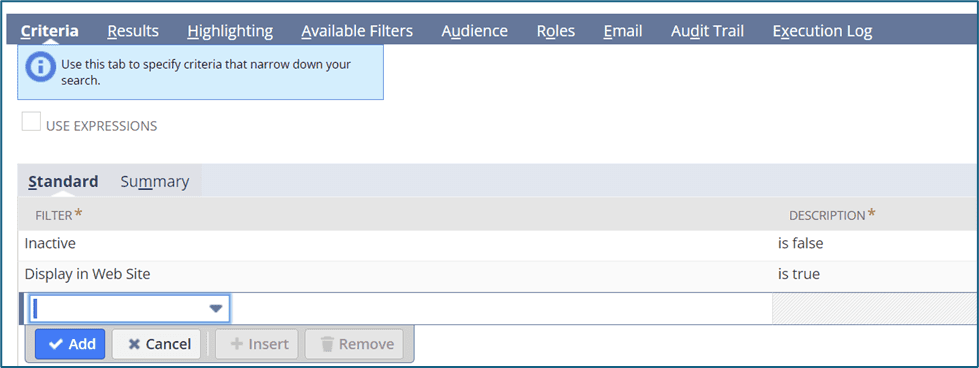
The Criteria for a Saved Search to Find all items in the SCA site (a above)
The results were exported for review and preparation.
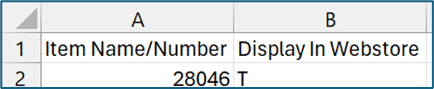
A CSV View of the Items and Display in Webstore (b above)
The original project used NetSuite's CSV import functionality to update relevant item information.
Navigate to:
Setup > Import/Export > Import CSV Records
Select the appropriate import type and item record type.
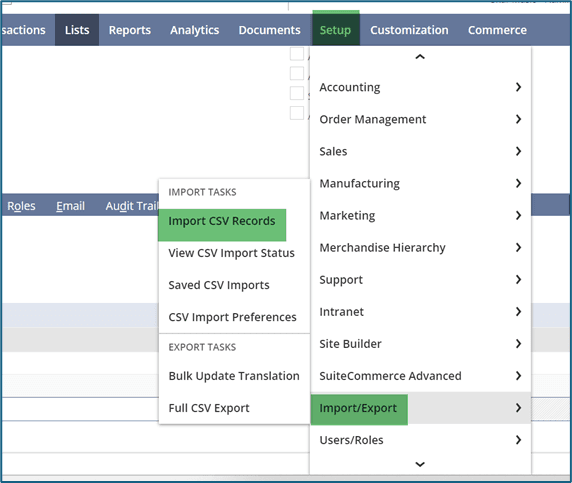
Set Up > Import / Export > Import CSV Records (c above)
Review the field mappings carefully before running the import.
Depending on the website configuration, making existing items available to a new storefront may require more than changing the Display in Web Store checkbox.
Verify the applicable website assignments, item fields, and visibility settings.
A mass update may also be an option for some changes.
Test the process with a small group of records before updating the full product catalog.
Commerce Categories determine how products are organized within the storefront's category structure.
To review them, navigate to:
Commerce > Content Management > Commerce Categories
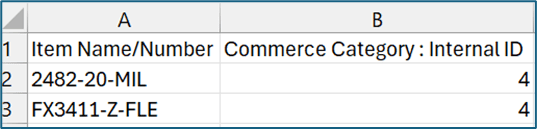
The original implementation used CSV imports to associate items with their intended commerce categories.
The process involved identifying the appropriate category records and preparing the item-to-category mappings.
Step 1 of the CSV Import (d above)
The original instructions also documented retrieving category internal IDs.

Step 4 of CSV Import (e above)
After preparing the mapping data, the team used NetSuite's CSV import functionality to update the category associations.
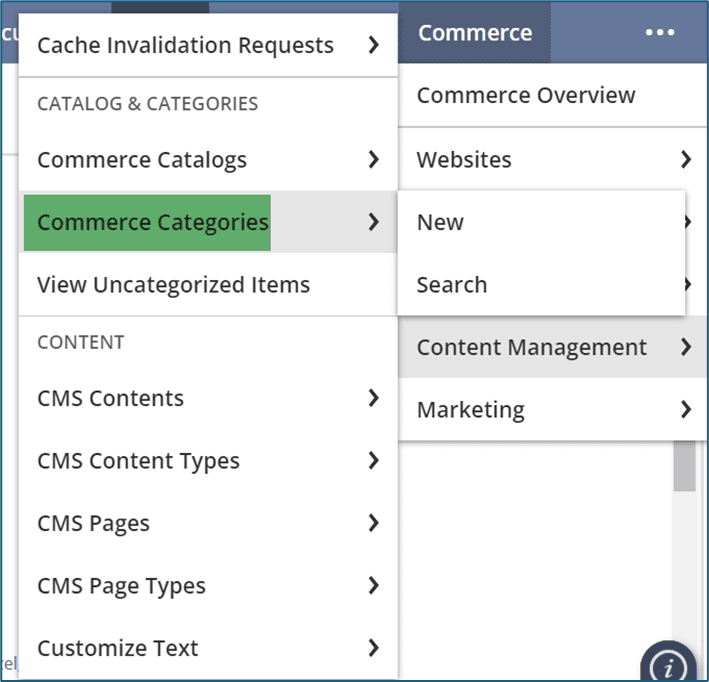
Commerce > Content Management > Commerce Categories (a above)
Finding the Internal ID on the Commerce Category (b above)
CSV Import (c above)
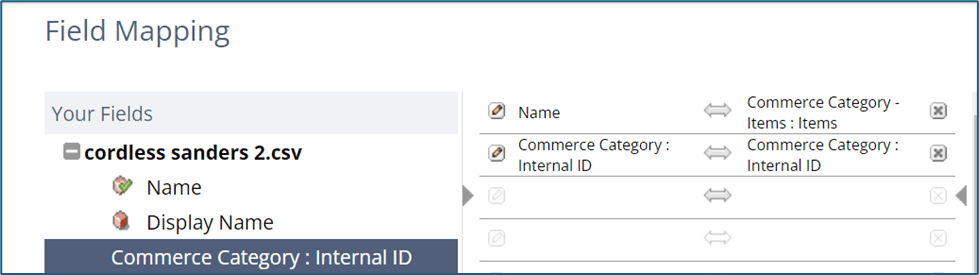
Field Mapping for Items to Commerce Categories
import requirements.
After importing, check that products appear under the correct categories on the new website.
Before launching the new website, compare its functionality with the existing SCA storefront.
Important areas to test include:
Also check for missing functionality previously provided by custom SCA code.
Any differences should be reviewed before the new storefront replaces the existing website.
If the migration involves changing the public domain or URL structure, plan the appropriate redirects.
Whenever possible, preserve existing URLs.
If URLs must change, configure permanent redirects from the old locations to the corresponding new pages.
Review canonical URLs, XML sitemaps, analytics settings, and search engine indexing after launch.
If the domain remains the same, a broad domain migration may not be necessary, but you should still check for changes to individual URLs.
Migrating from SuiteCommerce Advanced to SuiteCommerce involves coordinating multiple parts of the NetSuite ecommerce environment.
The process may include website configuration, domain setup, SSP applications, payment methods, extensions, themes, content, item visibility, and commerce categories.
The most important step is understanding how the existing storefront works before attempting to reproduce it.
A thorough review of current customizations, careful configuration of the new website, and comprehensive testing can help identify potential issues before the new SuiteCommerce storefront goes live.
Related Articles