
If you're customizing an Accounts Receivable (A/R) Aging report in NetSuite, you may notice that certain balances disappear when you apply an account filter.
One example is a balance categorized under No Customer/Project.
In a recent troubleshooting scenario, a customized A/R Aging report wasn't displaying journal entry balances without an assigned Customer/Project when the report was filtered by account.
The issue was resolved by changing which account field the report used for filtering.
Here's how to check that setting.
The Problem: No Customer/Project Balances Are Missing
A customized A/R Aging report was being filtered to display balances associated with specific accounts.
However, journal entry lines without an assigned Customer/Project weren't appearing in the filtered results.
The missing amounts were associated with the No Customer/Project grouping.
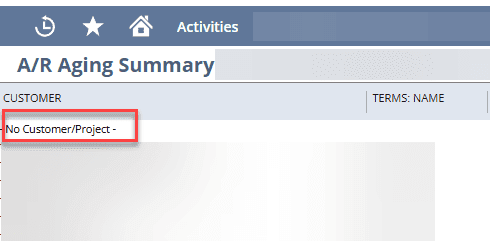
The issue wasn't necessarily that the transactions were missing from NetSuite. Instead, the report's filter configuration was preventing the expected balances from appearing.
Why the Account Filter Matters
NetSuite's report customization tools offer different account-related fields.
These fields don't necessarily evaluate transactions in the same way.
In this case, the report was using a general account-number filter that didn't return all the expected journal entry lines.
Changing the filter to Unpaid Receivables > Account (Line) allowed the report to evaluate the relevant account information at the transaction-line level.
This resolved the missing No Customer/Project balance in the original report.
How to Fix the Missing Balance
Step 1: Open the Custom A/R Aging Report
Navigate to the customized A/R Aging report where the balance is missing.
Review the report results and identify which amounts or groupings aren't appearing as expected.
Step 2: Select Customize
At the top of the report, select Customize to open the report customization options.
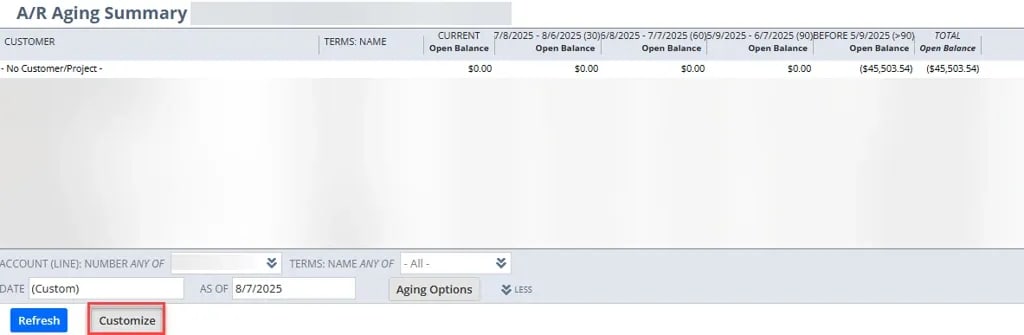
Step 3: Update the Account Filter
In the report customization interface, open the Filters tab.
Review the account field currently being used to filter the report.
For the implementation described here, the correct field was:
Unpaid Receivables > Account (Line)
Select this field instead of the generic account-number filter.
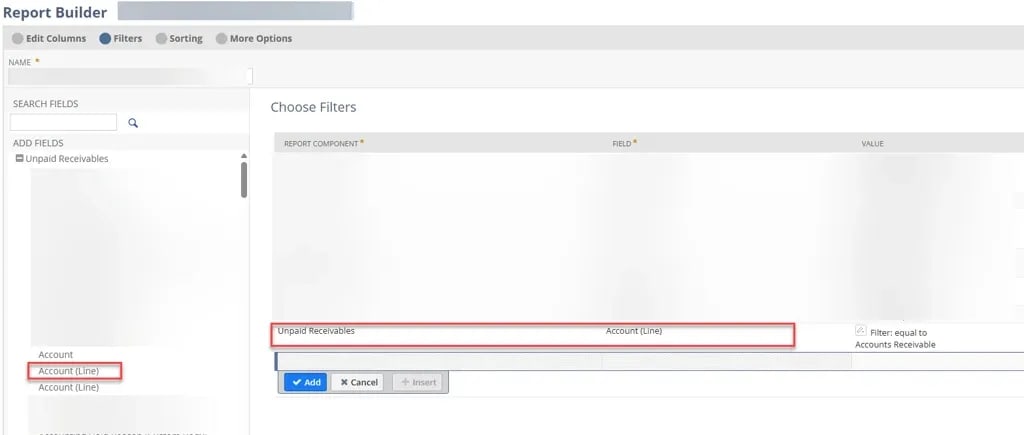
Keep the intended account values or restrictions consistent with the original report.
Step 4: Save and Review the Results
Select Save to apply the updated report configuration.
Run the report again and check whether the previously missing balances now appear.
In the original example, changing the account filter restored the No Customer/Project balance.
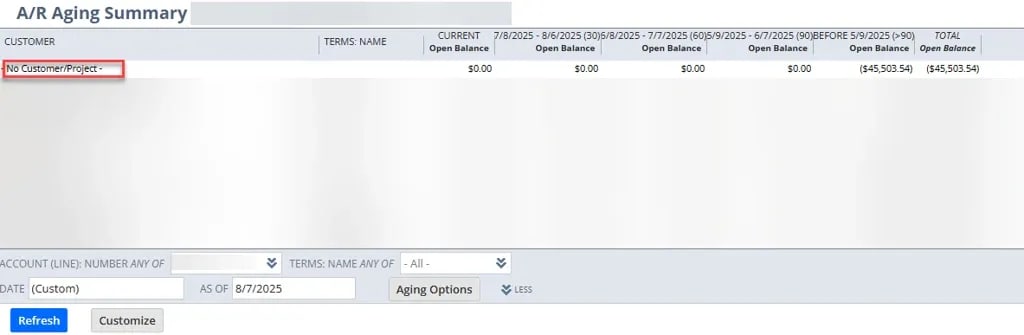
What if the Balance Is Still Missing?
If changing the account filter doesn't resolve the issue, review the report's remaining criteria.
Other factors worth investigating include:
- The report's date or aging period.
- Additional filters that may exclude transactions.
- The accounts included in the report.
- Whether the relevant transactions have been posted.
- How the report groups balances by Customer/Project.
The Account (Line) filter resolved this particular issue, but it shouldn't be treated as a universal fix for every missing balance in NetSuite A/R Aging reports.
Final Thoughts
When a customized NetSuite A/R Aging report excludes balances associated with No Customer/Project, the account filter is worth checking.
In this example, changing the filter to Unpaid Receivables > Account (Line) allowed the report to include the previously missing journal entry balances.
If you're troubleshooting a similar report, reviewing the field used for account filtering may be a useful first step.
Tagged with Troubleshooting, Financial Management