CHIPS Site Management Tools (SMT) Error | SuiteCommerce Help
Resolving the SMT CHIPS error: "Your browser does not support the Cookies Having Independent Partitioned State, CHIPS."
Read the Article

When adding or editing a content block in SuiteCommerce Site Management Tools (SMT), you may encounter a “CMS Record Invalid” error when attempting to save. This prevents the SMT content from being saved to the page.
This guide explains what caused the error in one SuiteCommerce environment and walks through the steps used to resolve it.
Screenshot of error:

Actual text of error(s):

This error is usually also accompanied by the error “Unable to save content”
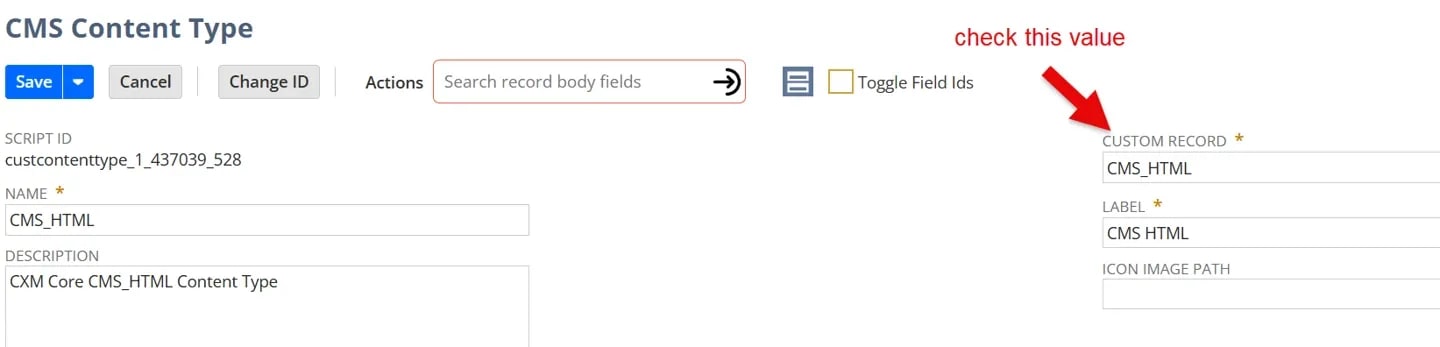
There may be many causes of this error, but in our case, it was a result of the CMS content type referencing an old CMS custom record. This was due to the environment previously having a SuiteCommerce instance installed and a new one being installed after a period of not using the previous instance so the SMT core content bundle did not fully replace the custom record references by the content types.
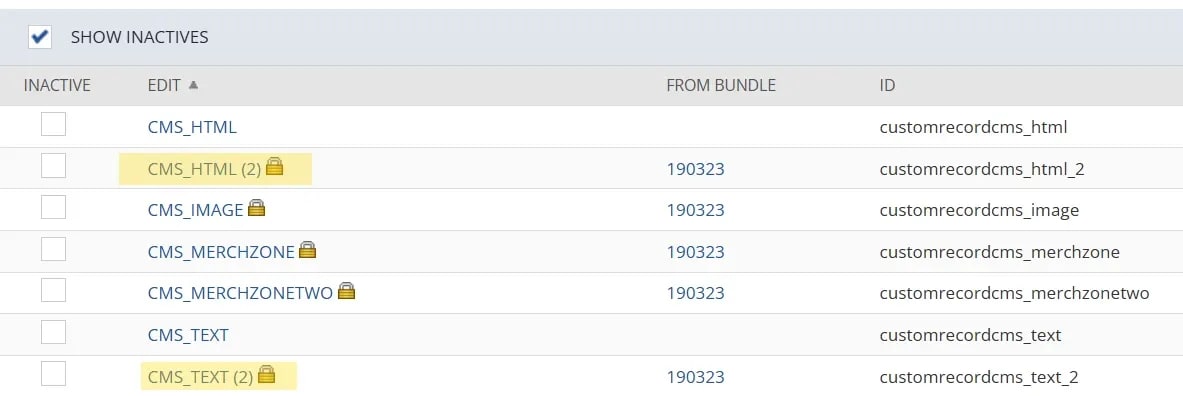
For SMT tools, the CMS content is controlled via “content types” as well as “content records”. Each CMS content section is saved as a custom record under the custom record that the CMS content type is referencing. Therefore, the content type needs to reference the correct content record in order to work properly.
To resolve this issue, complete the following steps:
When sorted by record name, scroll to where all the CMS records are, they should be grouped together (see image)
Look at the value in the “custom record” field.
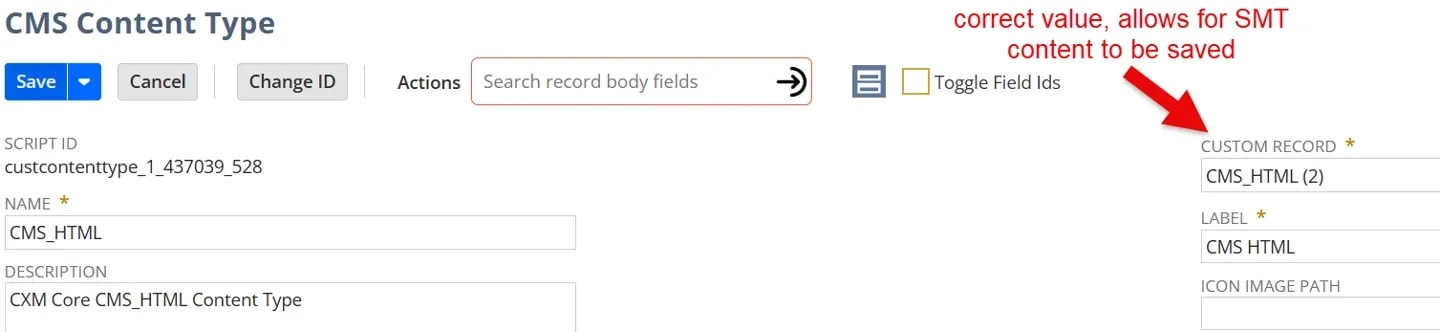
Click “save”
Attempt to create the SMT content on the website, you should now be able to save it.
If you are unable to save a CMS content type through SMT tools on a SuiteCommerce website, find out if the environment previously had a SuiteCommerce website installed, if so, the issue could be an incorrect reference on the content type to the CMS custom record. Changing the custom record reference on the content type should resolve the issue.
Related Articles
Tagged with Troubleshooting