NetSuite Field Explorer: How to Navigate Records, Fields & Scripts
NetSuite Field Explorer is a free Chrome extension that shows hidden field IDs on any NetSuite record in seconds. It helps administrators, developers, and finance teams build saved searches, workflows, and custom scripts faster.
Date
September 17, 2026
Read
17 min
Your saved search just failed. You used "Customer Name" instead of the internal field ID "entity." Now you're spending 15 minutes hunting through NetSuite's help to figure out what went wrong.
Sound familiar? This is the daily reality for teams working with NetSuite Services. Finding the right field ID can mean the difference between a smooth workflow and hours of frustration.
Tools like NetSuite Field Explorer exist to solve this problem. The extension has over 40,000 users. It has become the go-to solution for anyone who needs to peek under the hood of NetSuite records. This guide walks you through understanding NetSuite's record and field structure, using Field Explorer well, and knowing when scripting makes sense for your business.
Key Takeaways
NetSuite Field Explorer makes record field IDs easier to find and search
The extension shows all fields on a record, including hidden ones
Field Explorer can reduce repetitive manual field lookup work
Field Explorer is free with no data collection or external transmission
Understanding records, fields, and scripts is the foundation for all NetSuite work
Understanding NetSuite Records: Your Foundation for Business Management
Every piece of data in NetSuite lives on a record. Think of records as the building blocks that hold your entire business together. When you create a sales order, add a customer, or receive inventory, you're creating or updating a record.
What Are NetSuite Records?
Records in NetSuite fall into several main categories.
Entity Records include customers, vendors, employees, contacts, and partners.
Transaction Records include sales orders, invoices, purchase orders, payments, and journal entries.
Item Records include inventory items, non-inventory items, service items, and kits.
CRM Records include opportunities, cases, campaigns, and activities.
Custom Records are any record type your team creates for specific needs.
Each record type has its own set of fields, sublists, and behaviors. A sales order record contains header fields like customer and order date. It also contains line item sublists for the actual products being sold.
Why Record Structure Matters
When you build a saved search, create a workflow, or write a script, you need to reference records correctly. Using the wrong record type or field ID causes errors. These errors can take hours to debug. This is where understanding the structure pays off in real time savings.
For teams working on NetSuite Implementation projects, getting record relationships right from the start prevents costly rework later. A customer record connects to sales orders. Sales orders connect to invoices. Invoices connect to payments. Each connection relies on specific field IDs that link everything together.
Demystifying NetSuite Fields: Data Granularity and Customization
Fields are where the actual data lives within records. Every record contains dozens or even hundreds of fields. Knowing which ones to use is half the battle in NetSuite work.
Types of Fields You'll Encounter
NetSuite fields come in several varieties.
Field Type
What It Stores
Example
Text
Free-form text strings
Memo, Description
Number
Numeric values
Quantity, Amount
Date
Calendar dates
Order Date, Due Date
List/Record
References to other records
Customer, Subsidiary
Checkbox
True/false values
Is Taxable, Inactive
Currency
Money amounts with formatting
Total, Tax Amount
Custom
Any type you define
custbody_approval_status
Standard fields come built into NetSuite. Custom fields are ones your team creates. Custom field IDs always start with prefixes like "custbody_" for body fields or "custcol_" for column/line fields.
Using Field Explorer to Find What You Need
Field Explorer solves the problem of finding field IDs. It shows every field on a record in a searchable tree view. Instead of guessing or digging through documentation, you can open any NetSuite record, press Ctrl+Shift+E (or Cmd+Shift+E on Mac), search for the field you need, and copy the internal ID directly.
The tool shows fields that don't appear in standard views. This makes it more complete than native methods. For anyone building saved searches, this alone can cut development time significantly.
NetSuite Scripting Basics: When Automation Makes Sense
Not every problem needs a script. But when you hit the limits of saved searches, workflows, and native features, SuiteScript opens up possibilities that aren't available any other way.
What SuiteScript Can Do
SuiteScript is NetSuite's JavaScript-based programming language. It lets you automate tasks that would otherwise require manual work. It validates data before records save. It creates custom integrations with external systems. It builds complex business logic beyond what workflows support. It extends the NetSuite interface with custom buttons and fields.
A NetSuite Developer uses SuiteScript to solve problems that native features cannot handle. Common examples include automatically splitting large orders, calculating complex pricing rules, or syncing data with external systems in real time.
Script Types and When to Use Each
Script Type
Runs When
Best For
Client Script
User interacts with form
Field validation, auto-population
User Event
Record loads, saves, or deletes
Business rule enforcement
Scheduled
On a timer
Batch processing, nightly jobs
Map/Reduce
For large data sets
Mass updates, data transformations
Suitelet
User accesses custom page
Custom interfaces, portals
RESTlet
External API call
Integrations, webhooks
Understanding which script type fits your need is half the battle. Using a scheduled script when you need real-time validation creates problems that are hard to fix later.
Navigating NetSuite Effectively: Tips for Daily Work
Knowing where to find things in NetSuite saves more time than almost any other skill. The interface is powerful but can feel overwhelming until you learn the shortcuts.
Global Search and Keyboard Shortcuts
Global search (the magnifying glass at the top) finds records, transactions, reports, and setup pages. Type a customer name, invoice number, or even "saved search" to jump directly where you need to go.
Essential keyboard shortcuts include:
Alt+G: Move the cursor to NetSuite Global Search
Alt+Shift+G: Search the current page
Ctrl+Shift+E: Open Field Explorer with its default shortcut
Custom dashboards put the information you need front and center. Instead of navigating through menus, you can add saved search results as portlets, display KPIs and trend graphs, create quick links to frequently used pages, and set up reminders for overdue tasks.
The NetSuite Roles & Permissions setup determines what each user sees on their dashboard. Getting this right during setup prevents permission headaches down the road.
Advanced Field Management: Getting More from Your Data
Once you understand basic field concepts, you can use advanced features that make NetSuite work harder for your business.
Custom Fields and Form Customization
Creating custom fields lets you capture data specific to your business. A manufacturing company might add fields for production lot numbers, quality inspection dates, machine assignments, and operator IDs.
These fields can then feed into saved searches, reports, and workflows. The key is planning your field structure before creating dozens of custom fields that overlap or conflict.
Form customization hides irrelevant fields from users who don't need them. A sales rep's order entry form might look completely different from an operations manager's view of the same record type. Both see what they need without clutter.
Field Validation and Data Quality
Poor data quality causes problems across your entire system. Field-level validation helps by requiring certain fields before save, validating formats (phone numbers, email addresses), enforcing business rules (can't ship to inactive customers), and preventing duplicate entries.
Building these controls into your NetSuite Customization prevents garbage data from entering the system in the first place.
Scripting for Business Goals: Practical Applications
Scripts become valuable when you need to automate repetitive tasks or enforce complex rules that workflows cannot handle.
Common Automation Scenarios
Automatic Order Routing: A script can route sales orders to different fulfillment locations based on inventory levels, customer preferences, or shipping zones. This happens in real time as orders enter the system.
Complex Pricing Rules: When pricing depends on customer tier, quantity breaks, date ranges, and product combinations, native price levels may not work. A script can calculate the right price on the fly.
Integration Workflows: Connecting NetSuite to external systems like warehouses, shipping carriers, or ecommerce platforms often requires scripts. These scripts handle data transformation and error handling.
Scripts add maintenance work. Before writing custom code, ask these questions. Can a saved search or workflow do this? Does NetSuite have a native feature we're missing? Will this script require updates when NetSuite releases new versions? Who will maintain this code after the developer moves on?
The best NetSuite Consultant recommends scripting only when simpler solutions won't work. Over-customization leads to upgrade headaches and knowledge gaps when team members change.
Common Pitfalls and Best Practices
After working with hundreds of NetSuite environments, patterns emerge. Some mistakes show up again and again.
Field and Record Pitfalls to Avoid
Using Display Names Instead of Internal IDs: "Customer Name" looks right but the field ID is "entity." Field Explorer eliminates this guessing game entirely.
Ignoring Field Dependencies: Some fields only appear based on other field values. Testing in isolation misses these dependencies.
Skipping Documentation: Custom fields without descriptions become mysteries within months. Document what each field does and who uses it.
Creating Duplicate Fields: Check if a field already exists before creating a new one. Duplicate data causes reporting nightmares.
Script Development Best Practices
Test in Sandbox First: Production scripting without sandbox testing is asking for trouble. Always test thoroughly before deploying.
Handle Errors Gracefully: Scripts that fail silently cause bigger problems than scripts that fail loudly. Log errors and notify the right people.
Mind Governance Limits: NetSuite limits how much processing a script can do. Large data operations need Map/Reduce scripts, not brute-force loops.
Version Control Everything: Keep script history somewhere outside NetSuite. When something breaks, you need to know what changed.
For workflow-based automation (which often works better than scripts), see How to Create a NetSuite Workflow.
Field Explorer vs. Alternative Tools
Field Explorer isn't the only option, but it hits a sweet spot for most users.
Tool Comparison
Feature
Field Explorer
NetSuite Records Browser
Show Field IDs
Price
Free
Free (built-in)
Free
Setup
Quick extension install
None
Enable preference
Shows Hidden Fields
Yes
Yes
No
Searchable
Yes
Yes
No
Shows Current Values
Yes
No
No
Strong fit for Field Explorer:
Teams building saved searches and workflows regularly
Developers debugging SuiteScript field references
Administrators customizing forms across subsidiaries
Finance users creating custom reports
May not be the best fit:
Users who only need occasional field lookups (built-in help may work)
Organizations with strict Chrome extension policies
Teams needing to document entire record schemas (use Records Browser instead)
Why Partner with Anchor Group for NetSuite Success
Understanding records, fields, and scripts is foundational knowledge. But knowing the theory and executing cleanly in a production environment are two different things. That's where working with experienced NetSuite consultants makes a difference.
Anchor Group brings Midwestern practicality to NetSuite work. Our team doesn't just know the platform. We've solved the same problems you're facing across wholesale distribution, manufacturing, and ecommerce businesses. When your saved search isn't returning the right data or your workflow is firing when it shouldn't, having someone who's seen that exact issue before saves hours of frustration.
Our approach focuses on native features first. We recommend custom scripts only when simpler solutions won't work. We build clean architecture with proper field naming, documentation, and structure from day one. We transfer knowledge so your team learns the "why" behind decisions, not just the "what." We provide ongoing support through NetSuite Managed Services for when questions come up after go-live.
If you're stuck on a specific issue, our FREE 30-minute NetSuite fix session can often resolve problems in a single call. For larger projects, our NetSuite Support Services team provides the ongoing help growing businesses need.
Frequently Asked Questions
What is the NetSuite Field Explorer and how do I access it?
NetSuite Field Explorer is a free Chrome browser extension. It shows all fields on any NetSuite record. Install it from the Chrome Web Store. Then press Ctrl+Shift+E while viewing any record to open the field tree. You can search, filter, and copy field IDs directly. The extension works with standard and custom records. It requires no special NetSuite permissions beyond what you already have.
Can I create custom fields and records in NetSuite, and what are the limitations?
Yes, NetSuite supports custom fields on all standard record types. It also lets you create entirely new custom record types. Limitations include field count limits per record. These limits vary by edition. Naming rules must be followed. Custom fields can have dependencies on searches, workflows, sourcing rules, and other records. Oracle allows custom fields to be deleted when dependencies do not prevent deletion. However, deleting a field also deletes its associated data. Plan your field structure carefully before creating custom fields. Always document what each field does.
What are the different types of SuiteScript, and when should I use each one?
Client scripts run in the browser when users interact with forms. User event scripts run on the server when records load, save, or delete. Scheduled scripts run on a timer for batch processing. Map/Reduce scripts handle large data sets well. Suitelets create custom pages. RESTlets handle external API calls. Choose based on when you need the logic to run. Also consider how much data you're processing.
How do I ensure that my NetSuite customizations don't break during updates?
Use standard field IDs when possible instead of hardcoding display names. Test all customizations in sandbox after each NetSuite release. Document dependencies between scripts, workflows, and saved searches. Avoid deprecated features. Follow NetSuite's best practices for custom development. Consider NetSuite Optimization reviews periodically. This catches problems before they affect operations.
How can I tell if a field is a standard NetSuite field or a custom field?
Custom field IDs always start with specific prefixes. "custbody_" marks body fields. "custcol_" marks line/column fields. "custrecord_" marks custom record fields. "custentity_" marks entity fields. Standard fields use simple names like "entity," "trandate," or "memo." Field Explorer shows both types. It lets you see exactly which prefix (if any) applies to each field.
Are you trying to edit a NetSuite Advanced PDF and can’t get that ONE tricky field to pull through from the invoices into your payment record? Never fear; I struggled so you wouldn’t have to.
One of the more difficult fields to import in a CSV is Multi-select fields that have multiple entries. Learn how to do this in NetSuite, successfully every time!
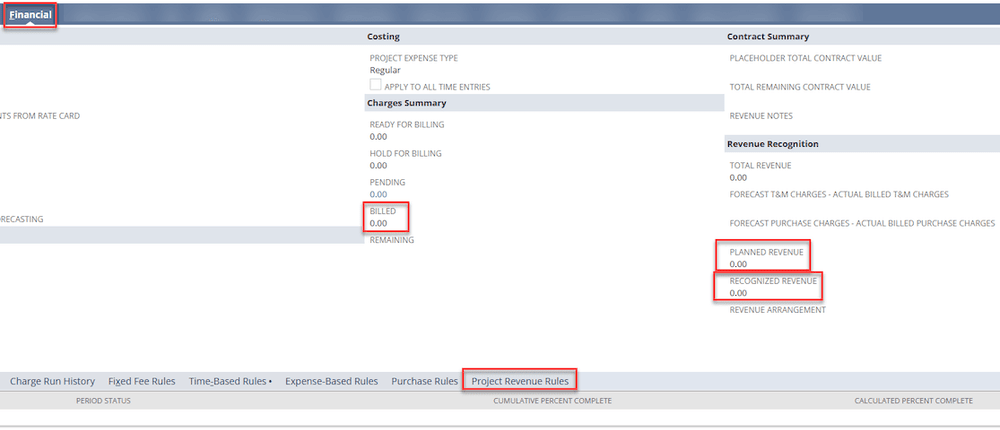
This article explains the population methods for the following revenue fields on NetSuite project records: Planned Revenue, Recognized Revenue, and Billed.