

The message "Internal Error has occurred" surfaces often and has caused many headaches for SuiteCommerce Webstore managers. Without using the developer tools or extensive SuiteCommerce experience, it can be challenging to understand why your page does not operate.
After the 2025.1 update to SuiteCommerce, additional permissions were added to some service files. This update requires that permissions be added to custom roles. This article will first provide the steps that trigger the problem, followed by a process to resolve it.
Trigger the SuiteCommerce Error
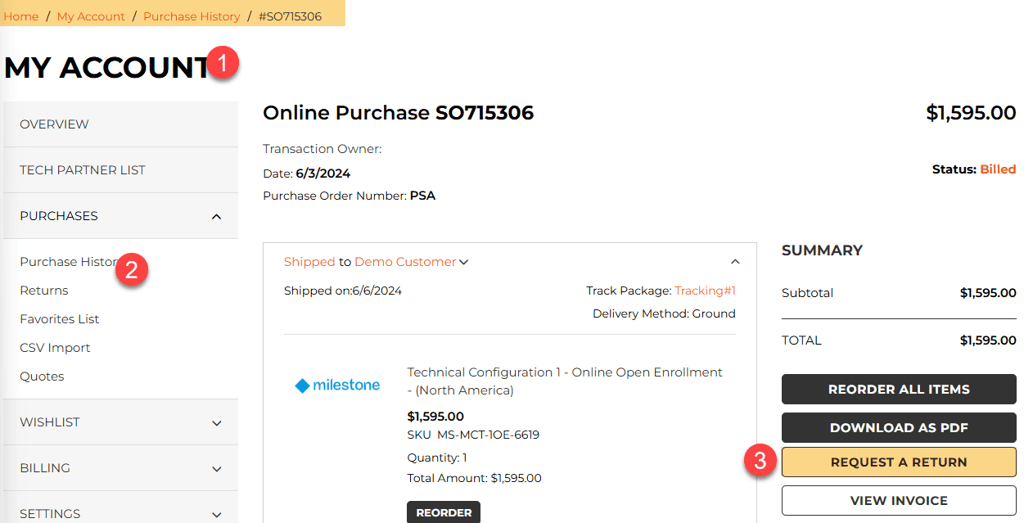
Step 1: Log in to your SuiteCommerce store and navigate to MyAccount > Purchase Order.
Step 2: Enter a sales order that has already been pushed and select Request a Return. Upon selecting this button, the “Internal Error has occurred” message surfaces.
Step 3: Hit F12 or right-click to inspect the page and enter the developer tools.
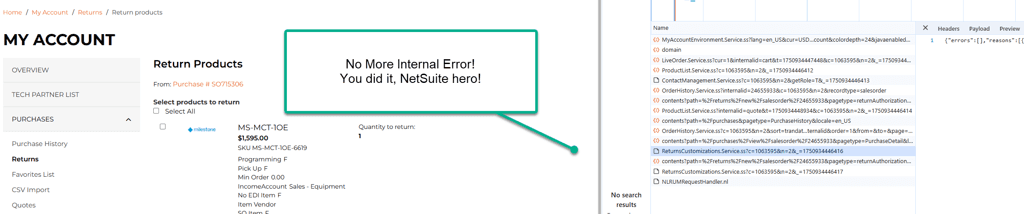
Step 4: Select the Network tab and select the erroring files. Click through the Payload, Preview, and Response tabs to learn more about the error.

Actual Error Text
INSUFFICIENT PERMISSIONS Violation: You need the 'Custom Lists' permission to access this page. Please contact your account Administrator.Resolve this SuiteCommerce Page Error
Notice the example file that is failing, titled ReturnsCustomizations.Service.ss. Complete the following steps to resolve the error.
Step 1: Copy the file name and paste it into the global search bar in NetSuite.

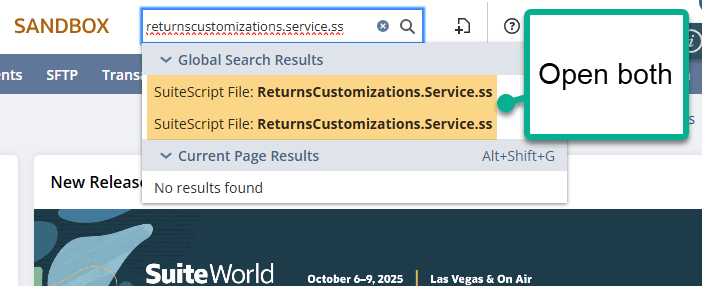
Step 2: After opening the file, review the folder structure. You may have different folder structures, but you are looking for the folders found in the Live Hosting Files.
Step 3: Select Edit on this file and go to the Permission tab.

Step 4: Make sure to select Enable checkbox. After checking, more permissions will drop down. Select the following:
- Enable = Checked.
- Execute as Role = CEO or Administrator.
- Run Script without login = Checked.
- Roles = Select All.

Step 5: Save the file and reactivate the extension manager.
Step 6: Return to the page, hard refresh (Ctrl + Shift + R), and you should be able to access the page!
Related Articles:
Tagged with Troubleshooting, Security & Permissions