Learn how to import budgets into NetSuite using CSV templates, manage budget categories, and compare planned spending against actual results with Budget vs. Actual reports.
Date
October 26, 2026
Read
7 min
Creating and maintaining a budget in NetSuite makes it easier to compare planned financial performance against actual results throughout the fiscal year.
Instead of managing budget figures separately in spreadsheets, you can import them into NetSuite and use financial reports to track performance by general ledger (GL) account, department, class, location, subsidiary, and other supported classifications.
NetSuite also supports budget categories, allowing businesses to maintain different budget versions, such as an original annual budget and a revised forecast.
Here's how to import a budget, review the resulting entries, and use the Budget vs. Actual report to monitor financial performance.
Why Maintain Budgets in NetSuite?
Maintaining budgets directly in NetSuite provides several advantages.
You can compare actual income and expenses against planned amounts, review performance across departments or subsidiaries, and investigate differences at the GL account level.
This is particularly useful for businesses that want to track spending throughout the year rather than waiting until year-end to evaluate their financial performance.
Budgeting in NetSuite can help with:
Comparing actual results against planned income and expenses.
Monitoring department-level spending.
Reviewing budgets by subsidiary, class, or location.
Identifying variances at the GL account level.
Maintaining multiple budget versions.
Supporting financial planning and reporting.
Step 1: Open the NetSuite Budget Import Tool
To begin, navigate to:
Transactions > Financial > Set Up Budgets > Import
You'll need an Administrator role or another role with the appropriate budgeting and import permissions.
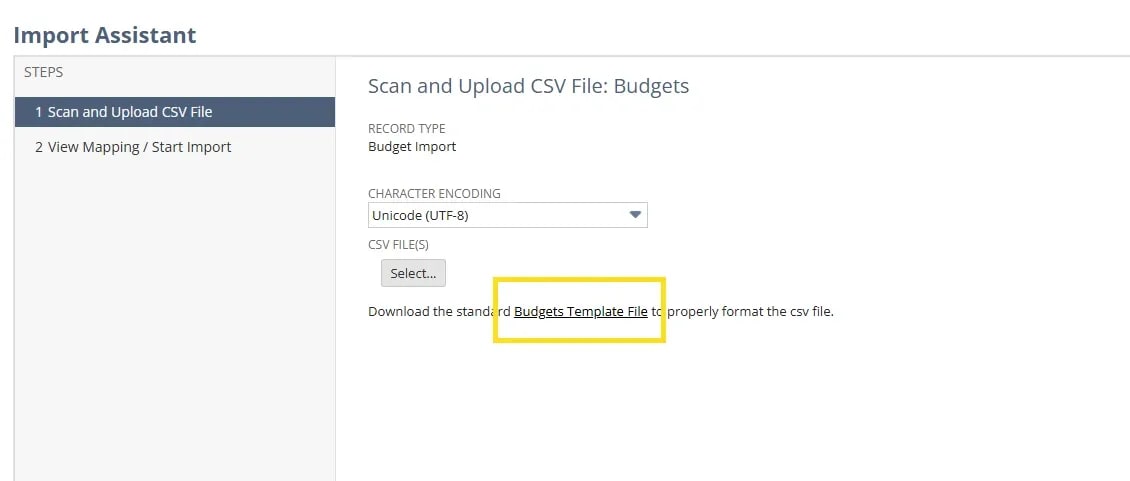
This opens NetSuite's budget import process, which uses a template designed for budget records.
Step 2: Prepare the Budget CSV Template
Download the budget import template and review the available fields.
Depending on the account configuration, the template may include fields such as:
Field
Purpose
Year
Identifies the fiscal year for the budget
Budget Category
Identifies the budget version
Account
Identifies the GL account receiving the budget amount
Subsidiary
Associates the budget with a subsidiary, where applicable
Department
Assigns the budget to a department
Class
Supports class-level budgeting
Location
Supports location-level budgeting
Customer
Supports customer-level classification where available
Item
Supports item-level classification where available
Period columns
Stores budget amounts for the corresponding accounting periods
The original template included 24 period columns. The periods and fields available depend on the budgeting setup and accounting calendar.
Not every business needs every classification field.
For example, if you only budget by GL account and department, your CSV may not need item-level or customer-level classifications.
Use Internal IDs Where Appropriate
When preparing the CSV, consider using Internal IDs for fields such as:
GL Account
Department
Class
Location
Subsidiary
Internal IDs can help reduce ambiguity when records have similar names or when naming conventions vary.
For example, two subsidiaries might use similarly named departments, making text-based matching more difficult.
The values in the CSV should match the identification method expected by the import mapping.
Step 3: Assign the Budget Year and Category
Each budget should be associated with the correct fiscal year.
You can also use a Budget Category to distinguish between different versions of a budget.
For example:
Budget category
Purpose
Original Budget
Initial approved annual budget
Revised Budget
Updated budget following changes in expectations
Mid-Year Forecast
Updated financial outlook prepared during the year
Budget categories make it possible to compare actual performance against different planning scenarios without treating every revision as the same budget.
This can be particularly helpful when leadership wants to compare actual results against both the original plan and a more recent forecast.
Step 4: Import the Budget into NetSuite
Once your CSV is prepared, return to:
Transactions > Financial > Set Up Budgets > Import
Upload the CSV file and proceed through the budget import process.
Review the field mappings to confirm that the CSV columns correspond to the correct NetSuite budget fields.
Pay particular attention to:
Fiscal year.
Budget category.
GL account.
Subsidiary and classification fields.
Accounting period amounts.
After confirming the mappings, run the import.
Review the import results for any errors or rejected records.
Common issues can include invalid record references, incorrect field formats, or budget amounts assigned to unintended periods.
Step 5: Review the Imported Budget Entries
After the import is complete, navigate to:
Transactions > Financial > Set Up Budgets > List
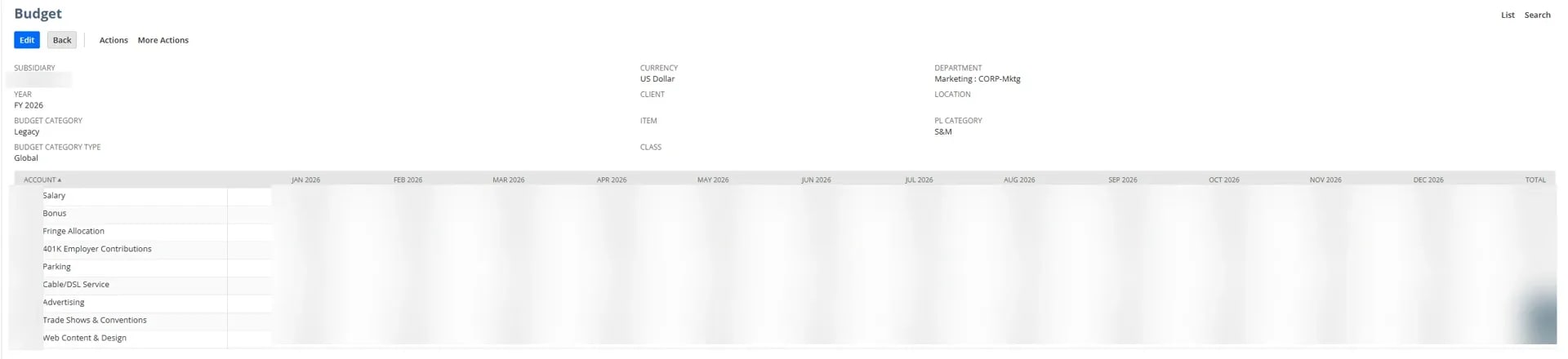
This displays the budget entries created in NetSuite.
Budget records may be grouped according to the classifications they share.
For example, multiple GL accounts may appear within the same budget entry when they share a subsidiary, department, and other applicable budget dimensions.
In the original example, the budget contained multiple accounts for a subsidiary's Marketing department under a Sales and Marketing profit-and-loss category.
Review the imported entries to confirm that the amounts are associated with the intended accounts, departments, and periods.
Step 6: Run the Budget vs. Actual Report
One of the main benefits of importing budgets into NetSuite is the ability to compare them against actual financial results.
Navigate to:
Reports > Banking/Budgeting > Budget vs. Actual
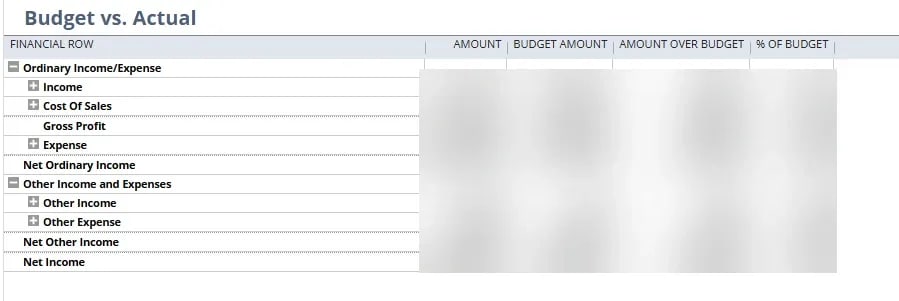
This report compares budgeted amounts against actual income and expenses.
Depending on the report configuration, you can review budget amounts, actual results, and differences between the two.
This makes it easier to identify areas where financial performance differs from the plan.
Review Results by GL Account
The report allows you to expand income and expense categories to review individual GL accounts.
You can also drill into supporting detail to investigate the transactions contributing to actual balances.
This helps answer questions such as:
Which expense accounts are over budget?
Which departments are spending less than expected?
Where is actual revenue different from the planned amount?
Which transactions contributed to a variance?
Filter by Budget Category
If your business maintains multiple budget categories, you can select the version you want to compare against actual results.
For example, you might review actual spending against the original annual budget, then switch to a mid-year forecast.
This allows you to evaluate performance against different planning assumptions.
Adjust the Reporting Period
You can also change the report's accounting period filters.
For example, you might compare actual and budgeted results through the end of the first quarter or review year-to-date performance through September.
Using consistent reporting periods helps make the comparisons meaningful.
Step 7: Maintain and Update Your Budgets
Budgets often change as business conditions, priorities, and expectations evolve.
NetSuite allows you to maintain budget records and use budget categories to organize different versions.
Update Existing Budget Amounts
When budget assumptions change, you may need to revise amounts for specific accounts or accounting periods.
Review the existing budget entries and update the applicable amounts using the supported editing or import process.
Preserve the Original Budget
If your business wants to compare performance against the original approved plan, consider maintaining revised amounts under a separate budget category.
For example, you might preserve the original annual budget while creating a mid-year forecast.
This provides a clearer distinction between the initial plan and subsequent changes.
Review Budget Performance Regularly
Running the Budget vs. Actual report throughout the year helps identify variances before they become larger issues.
Regular reviews also provide useful information when preparing future budgets or adjusting forecasts.
Common NetSuite Budget Import Issues
Budget Amounts Appear Under the Wrong Account
Review the account identifiers and field mappings in the CSV.
A Department or Subsidiary Is Missing
Check that the classification exists in NetSuite and that the CSV uses a valid reference.
Budget Amounts Appear in the Wrong Period
Review the accounting period columns and confirm that they correspond to the intended fiscal year.
The Budget Doesn't Appear in the Report
Confirm that the correct budget category, accounting period, and subsidiary or classification filters are selected.
Budget and Actual Results Don't Match Expectations
Review the reporting period, account classifications, and underlying transactions.
Budget and actual amounts need to be compared using consistent reporting dimensions.
Final Thoughts
Importing and maintaining budgets in NetSuite helps bring financial planning and performance reporting into the same system.
By preparing a budget CSV, assigning the correct GL accounts and classifications, and importing the data, you can create budgets that support more detailed financial reporting.
The Budget vs. Actual report then makes it easier to compare planned and actual results throughout the fiscal year, while budget categories provide a way to maintain different versions of your financial plan.
It's 11 PM on month-end close. Your board meeting is tomorrow, and you're still reconciling spreadsheets trying to explain why ARR growth slowed. Finance teams at growing SaaS companies spend countless hours maintaining Excel models to forecast revenue, calculate deferred revenue schedules, and produce investor-ready metrics. With proper NetSuite Planning and Budgeting configuration, subscription businesses can transform manual budgeting chaos into strategic growth engines by connecting financial plans, operational drivers, and ERP actuals in one collaborative planning environment.
Your finance team is stuck in the same cycle every quarter: pulling data from multiple spreadsheets, manually reconciling utilization numbers against revenue projections, and trying to answer the CFO's question about what happens to cash flow if you hire three new consultants next quarter. By the time you finish the analysis, the assumptions have already changed. If your professional services firm runs on NetSuite Services, there is a better way to handle financial planning that connects workforce plans directly to revenue forecasts without the spreadsheet chaos.
NetSuite Planning and Budgeting uses financial data from NetSuite ERP for budgets and forecasts. It fits nonprofits with many grants, programs, and budget owners. Grant tracking depends on how the accounts and planning dimensions are set up. Your grants manager asks a simple question. “How much budget is left on the HRSA grant?” You open three spreadsheets. You add up invoices by hand. Two hours later, you still are not sure the number is right. This happens at nonprofits every day. The problem gets worse as your nonprofit grows. More grants mean more restrictions. More programs mean more cost allocations. More funders mean more reporting deadlines. Spreadsheet-based budgeting breaks down fast. NetSuite Services can help nonprofits replace manual tracking with a shared planning process.
NetSuite budgeting helps your business shorten monthly variance reviews, tighten version control, and give your team a more reliable planning process inside the ERP. In 2026, the right NetSuite budgeting path is usually native budgets for stable annual planning, then NetSuite Planning and Budgeting when rolling forecasts, scenario modeling, and department collaboration become real requirements.
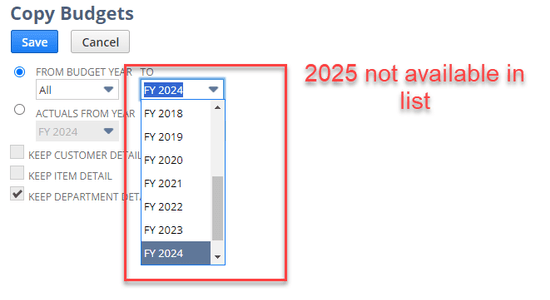
Copying fiscal year budgets in NetSuite allows you to easily create budgets based on previous years. This article covers a few questions I encountered.
Medical Innovations built the operational foundation to scale without adding headcount—and they're using automation, integrations, and AI to move faster than competitors hundreds of times their size. (Yes, really.)