Charge Credit Card Upon SuiteCommerce Order Submit
Sales Orders are non-posting transactions in NetSuite. Here's how to allow credit card payment to be gathered as a customer deposit on SuiteCommerce order submission.
Read the Article

Some businesses want to recover part of the cost of accepting credit card payments by adding a fee to eligible sales orders. They may also want to exclude certain customers and display the fee as part of the sales order total.
NetSuite workflows and custom fields can help automate this process. One approach uses a discount item with a negative percentage, a customer-level exclusion checkbox, and a sales order workflow that applies the item when specific conditions are met.
This tutorial explains how that configuration works, including its limitations and the testing needed before using it for customer transactions.
Before configuring a fee in NetSuite, it's important to distinguish between two types of charges.
A credit card surcharge is an additional charge associated with paying by credit card, generally intended to offset some of the cost of accepting card payments.
A convenience fee is a charge associated with certain qualifying alternative payment channels or arrangements, subject to applicable card-network rules.
These terms are not interchangeable. Whether a business can charge either type of fee depends on applicable laws, payment network requirements, processor agreements, and the circumstances of the transaction.
The configuration below demonstrates how to automate a conditional fee on a NetSuite sales order. It does not determine whether that fee is permitted for a particular transaction.
The original implementation was designed to accomplish three things:
The configuration uses a negative discount item to produce a positive adjustment to the transaction total.
A custom checkbox on the customer record controls whether the customer is excluded. A sales order workflow then determines when the item should be applied.
Start by creating a new discount item in NetSuite.
For this example, the item is configured with the following values:
| Field | Example configuration |
|---|---|
| Item Type | Discount |
| Name | Credit Card Fee |
| Rate | -3.0% |
| Description | Credit Card Fee |
| Account | Appropriate fee revenue account |
| Tax Schedule | Based on applicable tax treatment |
The negative percentage is intentional.
In this configuration, a negative discount can increase the transaction total rather than reduce it.
For example, when the applicable calculation base is $1,000, a negative 3% discount would produce a $30 positive adjustment.
Example calculation:
The actual calculation depends on where the discount item is applied and which amounts NetSuite includes in the calculation base.
Configuring the percentage on the item record also makes it easier to maintain the rate without editing the workflow each time.
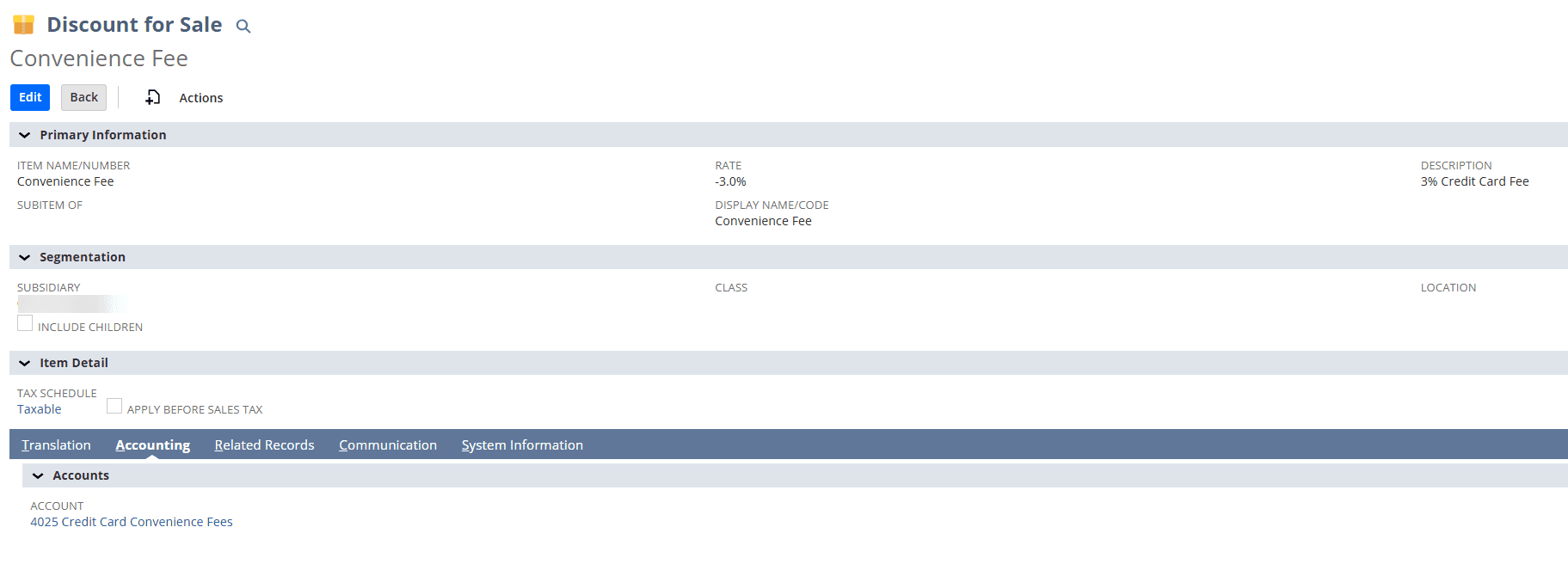
The original implementation used a discount item because it could affect the sales order's discount total and appear in the transaction totals area.
This differs from adding a regular charge item as a separate transaction line.
However, using a discount item for a positive fee also means NetSuite may treat the adjustment as a discount in certain fields, reports, integrations, and printed documents.
The item should therefore be evaluated for its effects on financial reporting, taxes, downstream transactions, and customer-facing documents.
Next, create a custom entity field that allows selected customers to be excluded from the fee.
Navigate to the custom entity field setup area in NetSuite and create a field with the following configuration:
| Field | Value |
|---|---|
| Label | No Credit Card Fee |
| Type | Check Box |
| Applies To | Customer |
| Display Subtab | Financial |
| Help Text | If checked, no credit card fee will be applied to the customer's sales orders. |
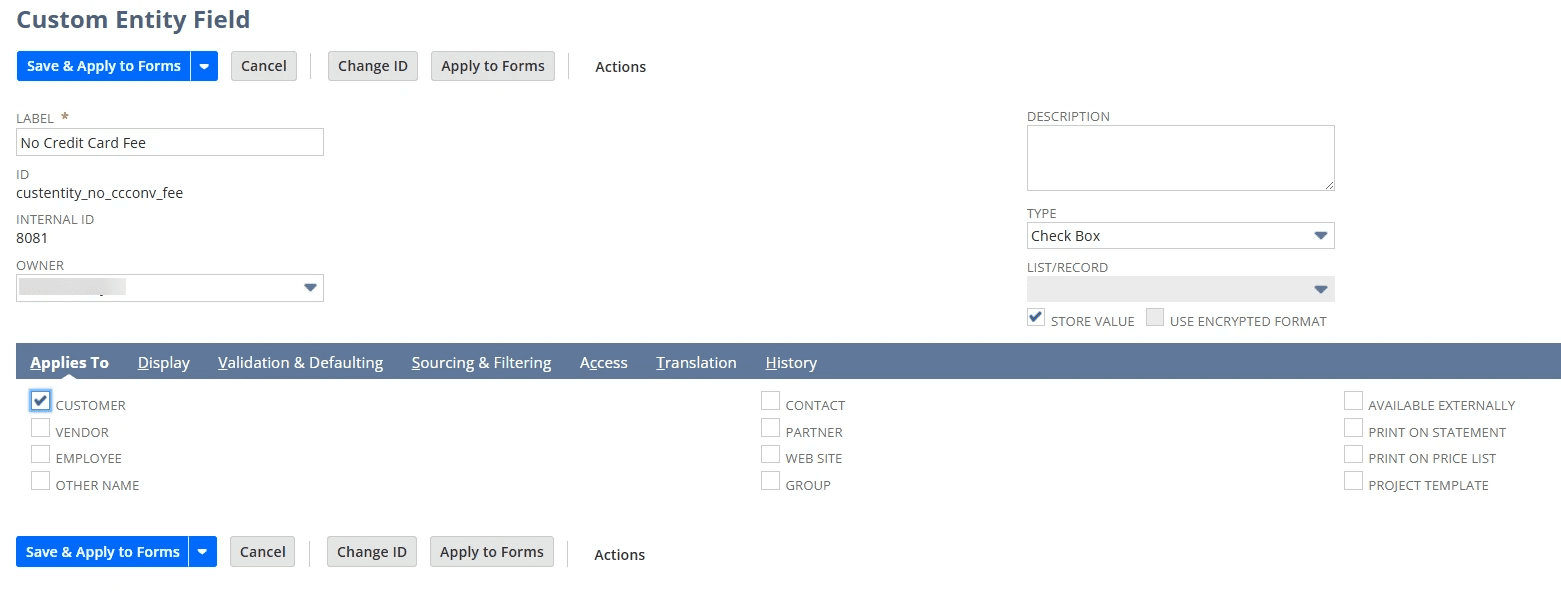
When the checkbox is selected, the workflow should not apply the fee to that customer's sales orders.
When the checkbox is not selected, the customer may be eligible for the fee if the remaining workflow conditions are satisfied.
For businesses with many customer records, the exclusion checkbox can also be managed through a saved search with inline editing, where supported.
CSV imports or mass updates may provide additional options for updating the field across multiple customers.
This makes it easier to maintain customer-specific exceptions without editing each record individually.
After creating the discount item and customer field, create a transaction workflow.
The original implementation used the following settings:
| Workflow field | Example value |
|---|---|
| Name | Credit Card Fee |
| ID | _creditcardcharge |
| Record Type | Sales Order |
| Purpose | Apply a conditional percentage fee to qualifying sales orders |
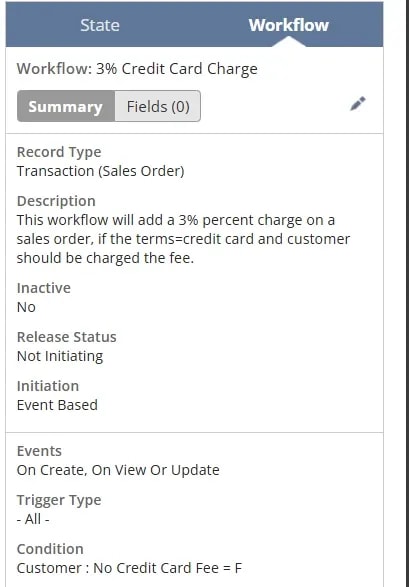
The workflow should evaluate whether the sales order meets the conditions for applying the fee.
These conditions include whether the customer is excluded and whether the transaction qualifies for the fee.
The original implementation checked the sales order's payment terms to determine whether the transaction was associated with a credit card payment.
It also used the customer-level exclusion field to prevent the fee from being applied to selected customers.
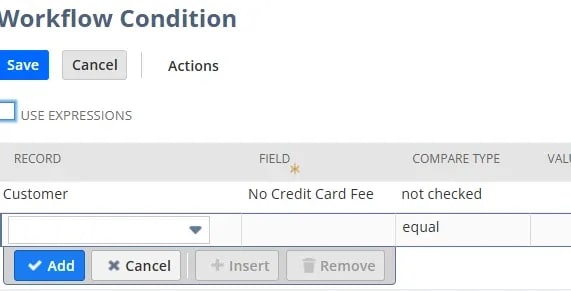
Payment terms can be useful in a particular NetSuite configuration, but they don't necessarily confirm how the customer will ultimately pay.
For example, a sales order might be created with one payment arrangement and later be settled using a different payment method.
The workflow logic should account for the actual payment process, especially if the fee is only permitted for particular card types or payment channels.
Next, create a workflow state containing the action that updates the sales order.
The original implementation used a Set Field Value action.
The purpose of this action was to populate the sales order's discount-related field with the fee item when the workflow conditions were satisfied.
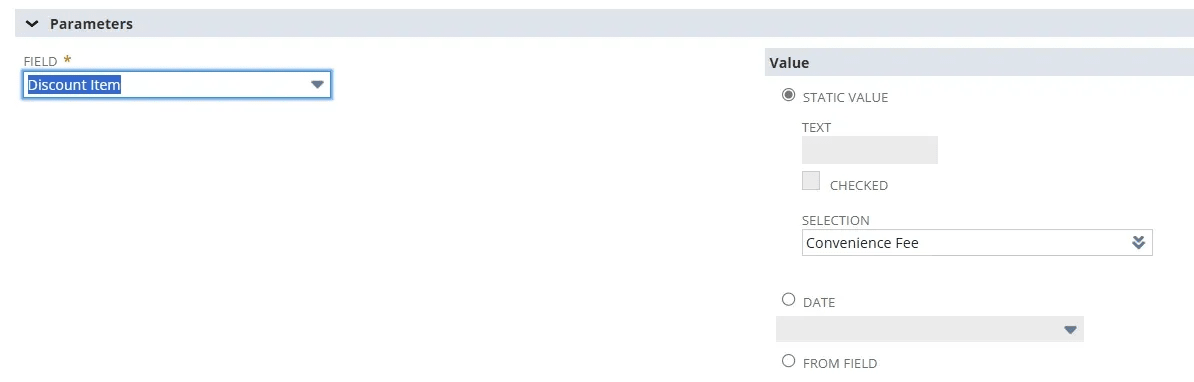
An additional condition limited the action to transactions with the designated credit card payment terms.
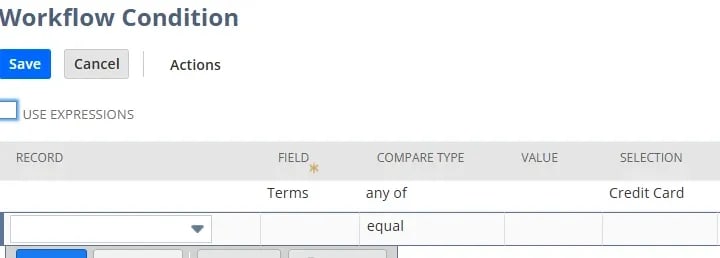
The workflow should also account for what happens when a sales order no longer qualifies for the fee.
For example, if the payment terms change or the customer becomes exempt, the previously applied fee should not remain on the transaction unintentionally.
The configuration should also avoid applying the same fee more than once when a sales order is edited or resaved.
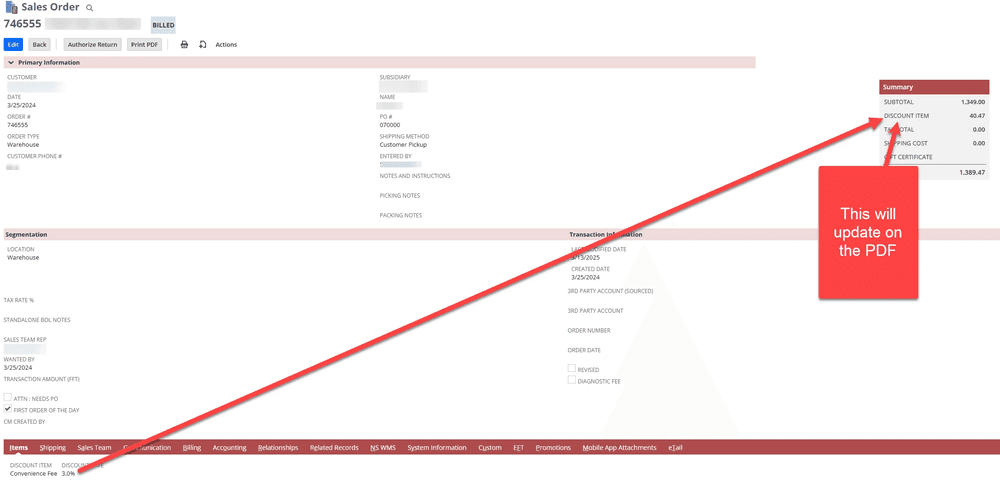
Because this approach uses a discount item, NetSuite may display the resulting adjustment under a label such as Discount.
That label can be confusing when the amount is actually an additional charge.
For sales orders that use an Advanced PDF/HTML template, the display label can be customized.
The original implementation used a conditional FreeMarker expression to check which discount item was applied and display either the fee label or the ordinary discount label.
A simplified example of the label logic is:
<#if record.discounttotal?has_content && record.discounttotal != "0.00">
  <#if record.discountitem?has_content && record.discountitem == "Credit Card Fee">
    Credit Card Fee
  <#else>
    Discount
  </#if>
</#if>
The corresponding amount can continue to be displayed using the template's discount total field.
This changes how the adjustment is labeled on the document. It does not change how NetSuite stores, calculates, or reports the underlying discount item.
Before using the workflow for customer transactions, test several scenarios.
Create a sales order for a customer whose No Credit Card Fee checkbox is not selected.
Use the payment terms that qualify for the fee.
Confirm that the workflow applies the intended item and calculates the expected amount.
Create a sales order for a customer whose No Credit Card Fee checkbox is selected.
Confirm that the workflow does not apply the fee.
Create a sales order using payment terms that should not trigger the fee.
Confirm that the fee is not added.
Edit a sales order after the fee has been applied.
Change the payment terms or customer eligibility and confirm that the fee behaves correctly.
Also verify that saving the transaction multiple times does not duplicate the charge.
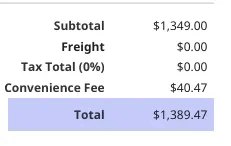
Review the transaction subtotal, fee amount, tax calculation, and total.
Then generate the sales order PDF and confirm that the fee is clearly identified.
Review how the fee behaves when the sales order is billed, partially billed, or otherwise processed.
Confirm that the intended amount carries through correctly and does not create unexpected adjustments.
A credit card surcharge or convenience fee isn't automatically taxable or nontaxable in every jurisdiction.
The applicable tax treatment can depend on state or local rules, the underlying sale, and the nature of the charge.
The NetSuite tax configuration should reflect the treatment applicable to the transaction.
Payment card networks and processors may impose restrictions on surcharges and convenience fees.
These can include limitations on eligible transactions, fee amounts, disclosures, and the types of cards to which a fee may apply.
A workflow that applies a fee based only on sales order terms may not capture all of these requirements.
A negative discount item may affect how the fee appears in sales reports, accounting records, and integrations.
Review the account assignment and the treatment of the adjustment throughout the transaction lifecycle.
Any applicable fee should be communicated clearly to the customer.
The description shown on the sales order, invoice, and payment interface should accurately represent the charge and align with the applicable requirements.
NetSuite workflows can automate conditional fees on sales orders, including customer-specific exclusions and adjustments that appear in transaction totals.
The approach demonstrated here uses a negative discount item, a customer checkbox, and a sales order workflow to control when the adjustment is applied.
While this can be a useful customization technique, the configuration needs to account for payment method, tax treatment, financial reporting, and applicable payment-card requirements.
Testing the complete transaction process helps ensure that the fee behaves as intended, from sales order creation through customer billing.
Related Articles
Tagged with Training, Automation