Edit the Standard Customer Center Access Email Template, NetSuite
At SuiteCommerce go live, clients should invite customers to access their accounts. Updating the email template ensures it aligns with the brand and avoids spam.
Read the Article

When multiple SuiteCommerce domains share the same NetSuite website setup record, they also share the system email templates assigned to that website.
These templates can include order confirmation emails, fulfillment notifications, and other transactional messages.
But what if each domain needs different messaging, branding, or contact information?
You can use FreeMarker conditional logic within the email template to display different content depending on the website domain.
System email templates for SuiteCommerce are configured on the website setup record.
If multiple domains are associated with that website, they reference the same system email template configuration.
For example, two storefront domains might share a website setup record but use different customer-facing branding.
Without conditional logic, both domains receive the same template content.
FreeMarker provides a way to customize selected sections of the email while keeping a shared template.

Navigate to:
Setup > Company > System Email Templates
Locate the system email template you want to customize.
Before making changes, create a copy of the existing template.
This preserves the original version so you can compare the changes or restore the previous configuration if needed.

Review the email template and identify the sections that need to be different for each storefront.
Examples include:
You don't need to duplicate the entire email template if only a few sections differ.
Instead, apply conditional logic around the content that needs to change.
Open the copied email template for editing.
Switch the editor to Source Code view so you can add FreeMarker conditional statements around the appropriate content.
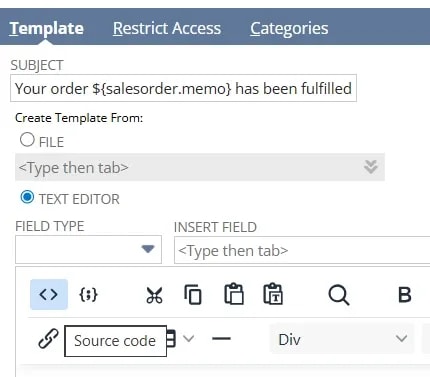
Use a FreeMarker if statement to check the website domain and determine which content to display.
For example:
<#if (website.domain)?has_content && (website.domain == "www.myscdomain.com")>
    Thank you for shopping with My SC Store!
<#else>
    Thank you for shopping with us!
</#if>
Here's how the conditional works:
website.domain references the website domain value available to the template.?has_content checks whether the value is present.== compares the domain against the specified domain name.<#if> displays the first block when the condition is true.<#else> provides fallback content when the condition is false.</#if> closes the conditional statement.With this configuration, customers associated with www.myscdomain.com receive the first message.
Other domains receive the fallback message.
If your SuiteCommerce website uses more than two domains, you can add additional conditions.
For example:
<#if (website.domain)?has_content && (website.domain == "www.storeone.com")>
    Thank you for shopping with Store One!
<#elseif (website.domain)?has_content && (website.domain == "www.storetwo.com")>
    Thank you for shopping with Store Two!
<#else>
    Thank you for your order!
</#if>
Each condition checks for a specific domain.
The else block provides content for domains that don't match either condition.
You can use the same approach for other sections of the email, such as customer service links or domain-specific instructions.
After adding the conditional logic, save the copied system email template.
When working with conditional FreeMarker content, the WYSIWYG editor may display multiple versions of the same section.
For example, it might appear that both storefront messages are included in the email.
This can make the template look as though it contains duplicate content.
However, when the FreeMarker conditions are evaluated during email generation, the intended result is that only the matching content is included.
The actual rendered email should be tested rather than relying solely on the editor preview.
Next, navigate to the website setup record.
Commerce > Websites > Website List
Open the appropriate website and select the Email tab.
Find the system email template you updated and replace the existing template reference with the newly created version.

Save the website setup record.
Because the domains share this website setup record, the updated template can be used across those domains.
The conditional logic determines which content appears in the generated email.
Before relying on the updated template, test it using the actual SuiteCommerce storefronts.
For an order confirmation email, submit a test order through each domain and review the email received.
Confirm that:
If the template is used for fulfillment notifications or other system emails, test those email types as well.
This may be normal in the WYSIWYG view.
Check the actual email output to confirm that the FreeMarker conditions are being evaluated.
Review the domain string used in the conditional statement.
For example, storeone.com and www.storeone.com are different strings.
The condition needs to match the domain value provided to the template.
Confirm that the template has access to the expected website.domain value and that the comparisons match the values returned during email generation.
Check that the copied template was saved and assigned to the correct email template field on the website setup record.
When multiple SuiteCommerce domains share a website setup record, FreeMarker conditional logic can help customize the content of their system email templates.
By checking the website domain, you can display different branding, messages, and links without maintaining a completely separate template for each storefront.
The important steps are to preserve the original template, update the appropriate content in Source Code view, assign the new template to the website, and test the rendered emails from every domain.
Related Articles
Tagged with Training