How to Automate Customer Payment Emails in NetSuite
Learn how to automate customer payment confirmation emails in NetSuite using a saved search, email template, custom checkbox, and scheduled SuiteFlow workflow.
Date
October 26, 2026
Read
6 min
When a customer makes a payment, sending a confirmation email is a useful way to acknowledge that the payment has been recorded and thank them for their business.
But manually sending these messages can become time-consuming, especially for businesses processing a large number of customer payments.
NetSuite saved searches and workflows can help automate the process. By identifying qualifying payment records, sending a customer-facing email, and tracking which records have already been processed, you can reduce repetitive work and make payment communication more consistent.
Here's how the original configuration works.
How the Customer Payment Notification Workflow Works
The automation uses four components:
A custom checkbox that tracks whether a notification has been sent.
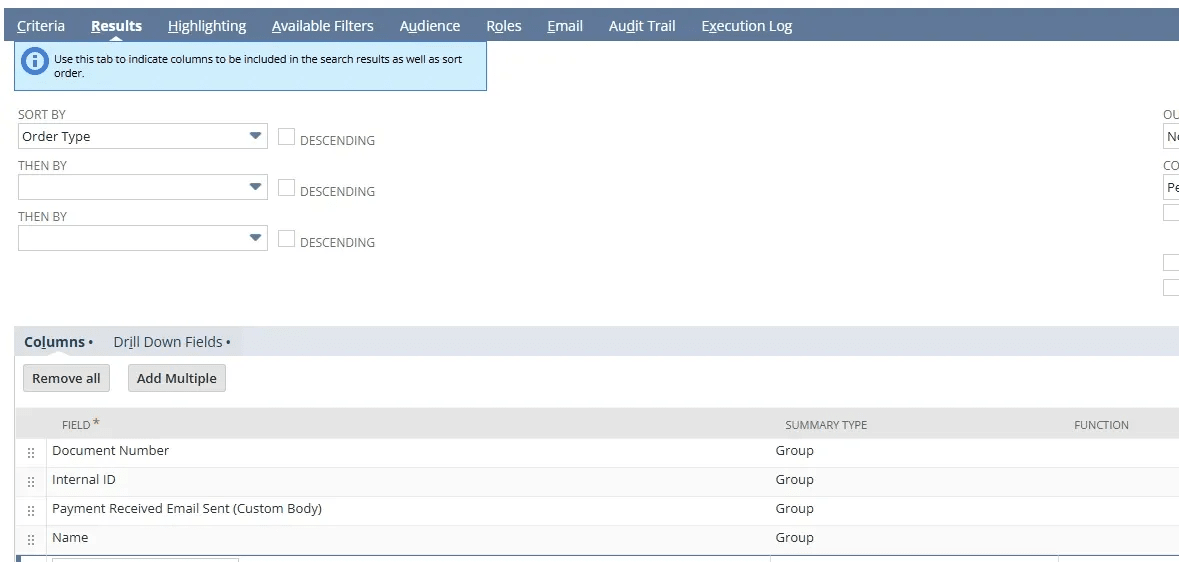
A saved search that identifies qualifying customer payments.
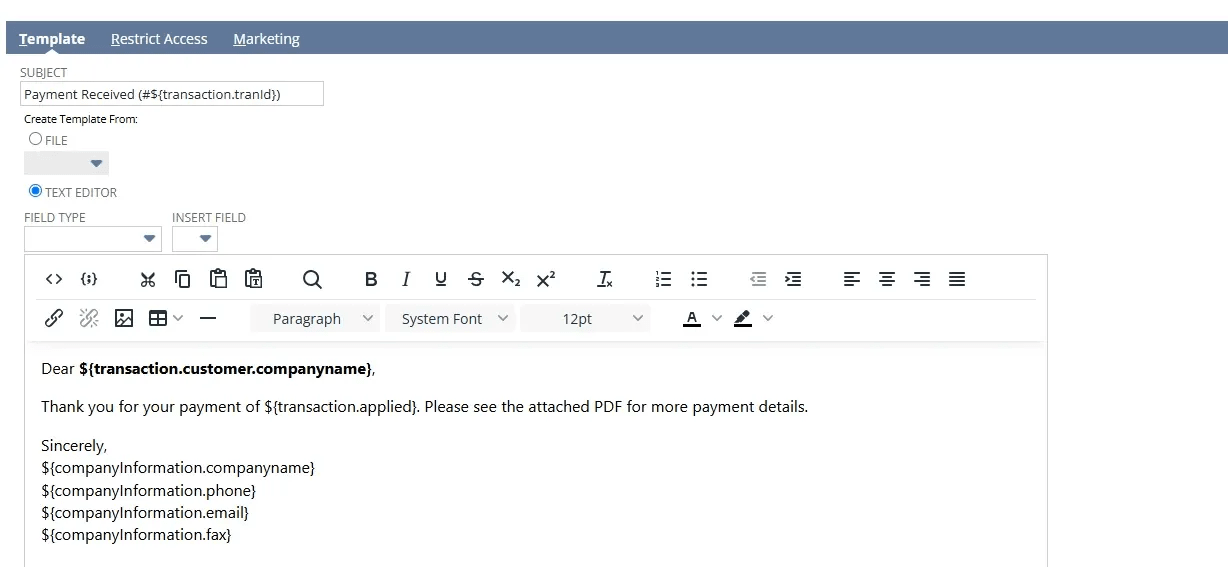
An email template containing the customer-facing message.
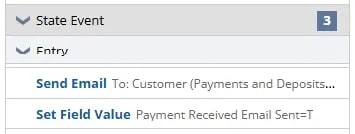
A scheduled workflow that sends the email and updates the checkbox.
In this configuration, the saved search identifies customer payments with a status of Deposited and an unchecked notification field.
The workflow then processes those records, sends an email, and marks them as notified.
Step 1: Create a Custom Payment Notification Checkbox
First, create a custom transaction body field for customer payment records.
Name the field:
Payment Received Email Sent
Set the field type to Check Box and configure it to apply to customer payment transactions.
The purpose of this field is to track whether the automated notification has already been processed for a payment.
When the checkbox is unchecked, the payment may qualify for a notification.
When the checkbox is checked, the saved search excludes that payment from future notification runs.
Step 2: Create a Saved Search for Qualifying Payments
Next, create a transaction saved search that identifies the customer payments requiring an email.
The original implementation used the following criteria:
Search criterion
Value
Transaction Type
Customer Payment
Status
Deposited
Payment Received Email Sent
False
These criteria limit the results to deposited customer payments that have not yet been marked as notified.
Review the search results to confirm that the correct payment records are included.
The results can also display useful information such as the customer, payment date, payment amount, and recipient email address.
Why Use the Deposited Status?
The original configuration used Deposited as the condition for sending the email.
That makes the workflow suitable for a process where the business wants to notify customers after their payments reach that status in NetSuite.
If your business wants to send a confirmation earlier in the payment lifecycle, the qualifying conditions may need to be different.
The notification wording should accurately reflect what has happened to the payment.
Step 3: Create a Customer Payment Email Template
Next, prepare the email that customers will receive.
Using a NetSuite email template makes it easier to maintain consistent wording and formatting across notifications.
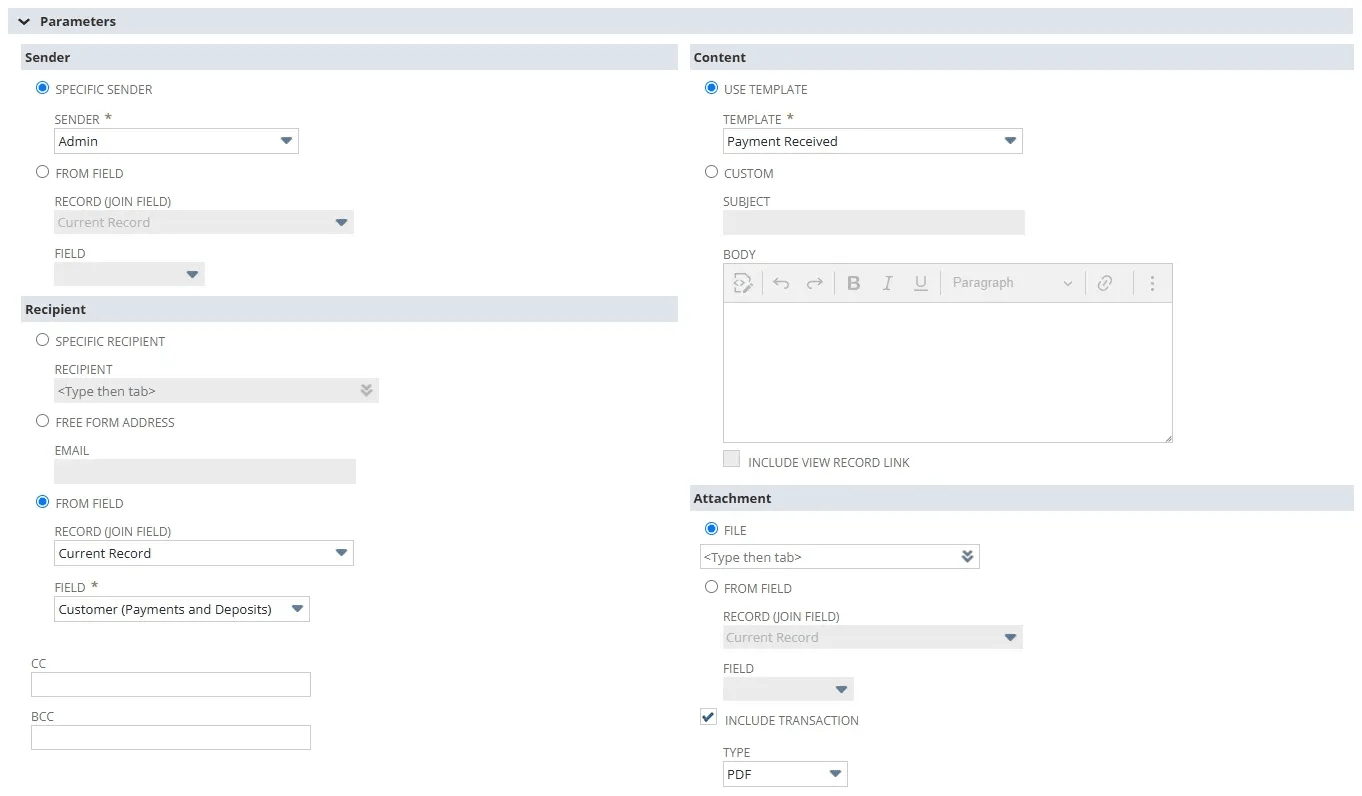
You can also enter the subject and message directly in the workflow's email action.
Example Payment Confirmation Email
Subject: We've Received Your Payment
Hi,
Thank you for your payment. We're writing to confirm that your payment has been recorded in our system.
We appreciate your business!
If you have any questions about your payment or account, please reply to this email.
Thank you, Your Team
The message can also include transaction details, such as a payment date or amount, when those values are available and appropriate to share.
Step 4: Create the Customer Payment Workflow
After preparing the saved search and email template, create a workflow for Customer Payment records.
The original implementation configured the workflow to run on a recurring schedule, checking the saved search approximately every 30 minutes.
The saved search determines which payment records qualify for processing.
For each qualifying payment, the workflow should perform two actions:
Send the payment confirmation email to the customer associated with the payment.
Set Payment Received Email Sent to True.
The checkbox update is important because the next saved search run excludes payments that have already been marked as notified.
This prevents the workflow from intentionally sending the same notification on every scheduled run.
Step 5: Test the Notification Workflow
Before relying on the automation, test the workflow with customer payment records representing different scenarios.
Test an Eligible Payment
Create or identify a test customer payment that meets the saved search criteria.
Confirm that the workflow sends the email to the intended recipient and marks the notification checkbox as checked.
Test a Payment That Has Already Been Notified
Use a payment where Payment Received Email Sent is already checked.
Confirm that the saved search excludes the record and the workflow does not send another notification.
Test a Payment with a Different Status
Use a customer payment that does not have the Deposited status.
Confirm that the workflow does not send a notification while the payment remains outside the saved search criteria.
Test Missing Recipient Information
Check what happens when the customer payment does not have a usable recipient email address.
The workflow should not send a message to an unintended recipient or mark the payment as successfully notified when the email action cannot be completed.
Review Workflow Errors
Review the workflow execution history and any available email logs.
If a notification fails, investigate whether the payment remains eligible for another attempt and whether the customer may have received the message before the failure occurred.
Common Issues with Customer Payment Notifications
The Email Isn't Being Sent
Check whether the payment meets the saved search criteria.
Also review the workflow schedule, email action, recipient settings, and execution history.
The Customer Receives Multiple Emails
Confirm that the notification checkbox is being updated and that the saved search excludes records where it is checked.
Review whether the workflow can run more than once for the same payment.
The Payment Doesn't Appear in the Saved Search
Check the payment status and the value of the custom notification field.
The original configuration only included payments with a Deposited status and an unchecked notification field.
The Email Goes to the Wrong Recipient
Review how the workflow identifies the customer email address.
A customer record may have multiple contacts, so the recipient selection should match the intended communication process.
Final Thoughts
Automating customer payment notifications in NetSuite can help businesses acknowledge payments without manually sending an email for every transaction.
By combining a custom checkbox, a saved search, an email template, and a scheduled workflow, you can identify qualifying payments and track which notifications have already been processed.
The key is to align the workflow conditions with your payment process and test the notification behavior before using it with customers.
A recent client had a highly structured, customer-centric order process that relied on employees manually recreating information already stored in NetSuite. Anchor Group transformed that process into an intelligent (automated) communication ecosystem spanning the entire customer journey—from order entry through production, fulfillment, change requests, samples, pro forma approvals, product reviews, and back orders—eliminating hours of repetitive work each day while improving customer visibility, consistency, and trust.
A recent client had a highly structured, customer-centric order process that relied on employees manually recreating information already stored in NetSuite. Anchor Group transformed that process into an intelligent (automated) communication ecosystem spanning the entire customer journey—from order entry through production, fulfillment, change requests, samples, pro forma approvals, product reviews, and back orders—eliminating hours of repetitive work each day while improving customer visibility, consistency, and trust.