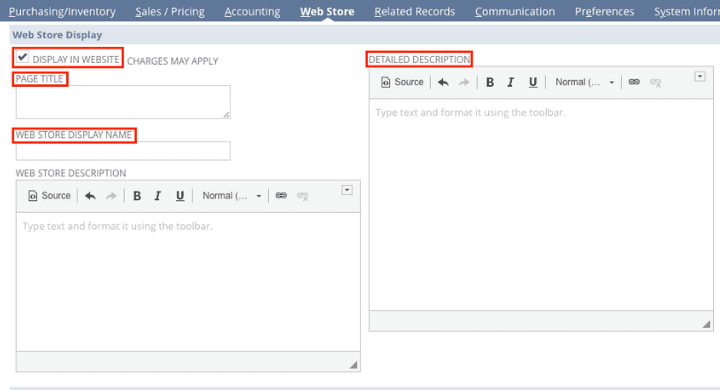
Adding Images to NetSuite Items | SuiteCommerce
For companies using SuiteCommerce, there is an additional step to consider while uploading images to NetSuite and having them automatically associated with the items.
Read the Article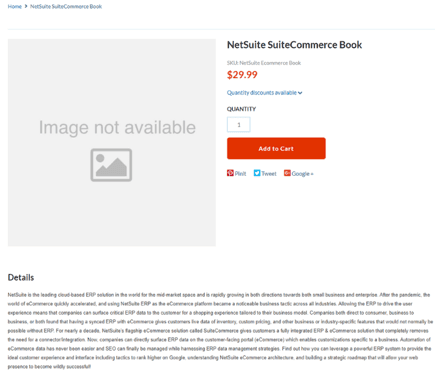

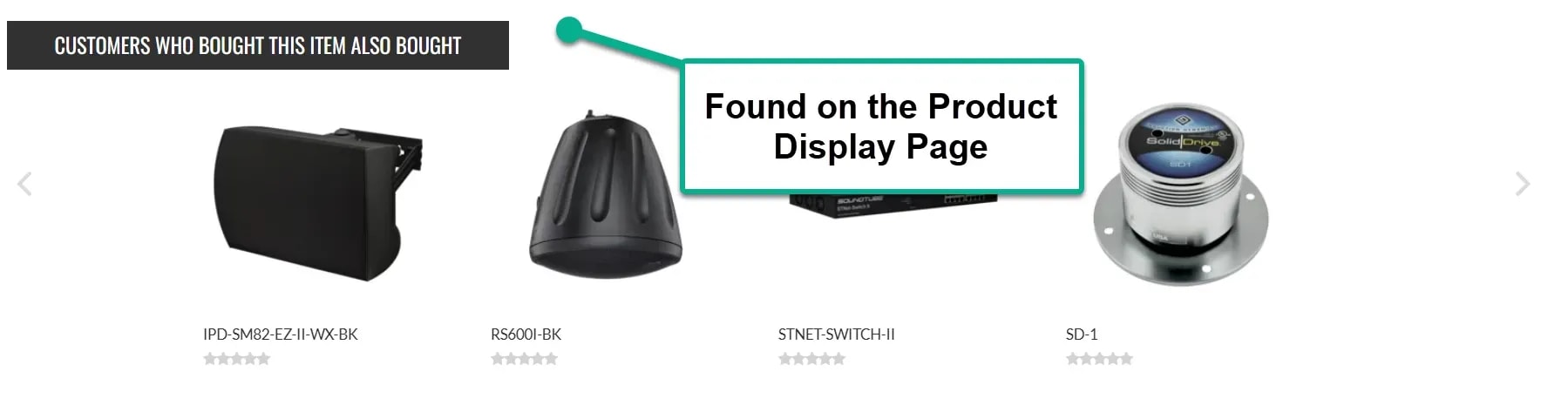
Product recommendations can help shoppers discover additional items while browsing your SuiteCommerce storefront.
For example, a customer viewing a particular product might also be interested in accessories or other items frequently purchased alongside it.
One Anchor Group customer wanted to display additional product recommendations on product detail pages and in the shopping cart.
SuiteCommerce offers several approaches to product recommendations, including Related Items, Correlated Items, and Intelligent Recommendations.
In this article, we'll compare these options and walk through the configuration of correlated items in SuiteCommerce.
Although these features can all help shoppers discover additional products, they work differently.
Related Items allow you to manually associate products with one another.
For example, you might recommend replacement parts or accessories that complement a particular product.
Advantages
Limitations
Related Items may be a good fit when you want precise control over which products appear together.
Correlated Items use purchasing relationships to identify products that customers tend to buy together.
Rather than manually selecting every recommendation, you can use purchasing activity to inform the recommended items.
Advantages
Limitations
Correlated Items may be useful when you want recommendations informed by actual customer purchasing behavior.
Intelligent Recommendations provide another approach to automated product suggestions.
Depending on the available configuration, these recommendations can incorporate additional criteria, such as diversity, freshness, or novelty.
Administrators may also have options to exclude particular products from recommendations.
Advantages
Limitations
Intelligent Recommendations may be worth considering when your business needs more advanced recommendation controls.
Correlated Items are calculated using purchasing relationships between products.
For example, if customers frequently purchase Product A and Product B together, NetSuite may identify a correlation between those items.
These relationships are evaluated using three measurements: Correlation, Lift, and Count.
Correlation indicates the strength of the purchasing relationship between two items.
A higher correlation generally indicates that the items are more closely associated through purchasing activity.
Lift compares the observed relationship between items with what would be expected from their overall purchasing frequency.
A higher lift suggests that the products are purchased together more frequently than their individual popularity alone would predict.
Count reflects how often the two products have been purchased together within the data used for the calculation.
These measurements help NetSuite identify which product relationships are meaningful enough to use for recommendations.
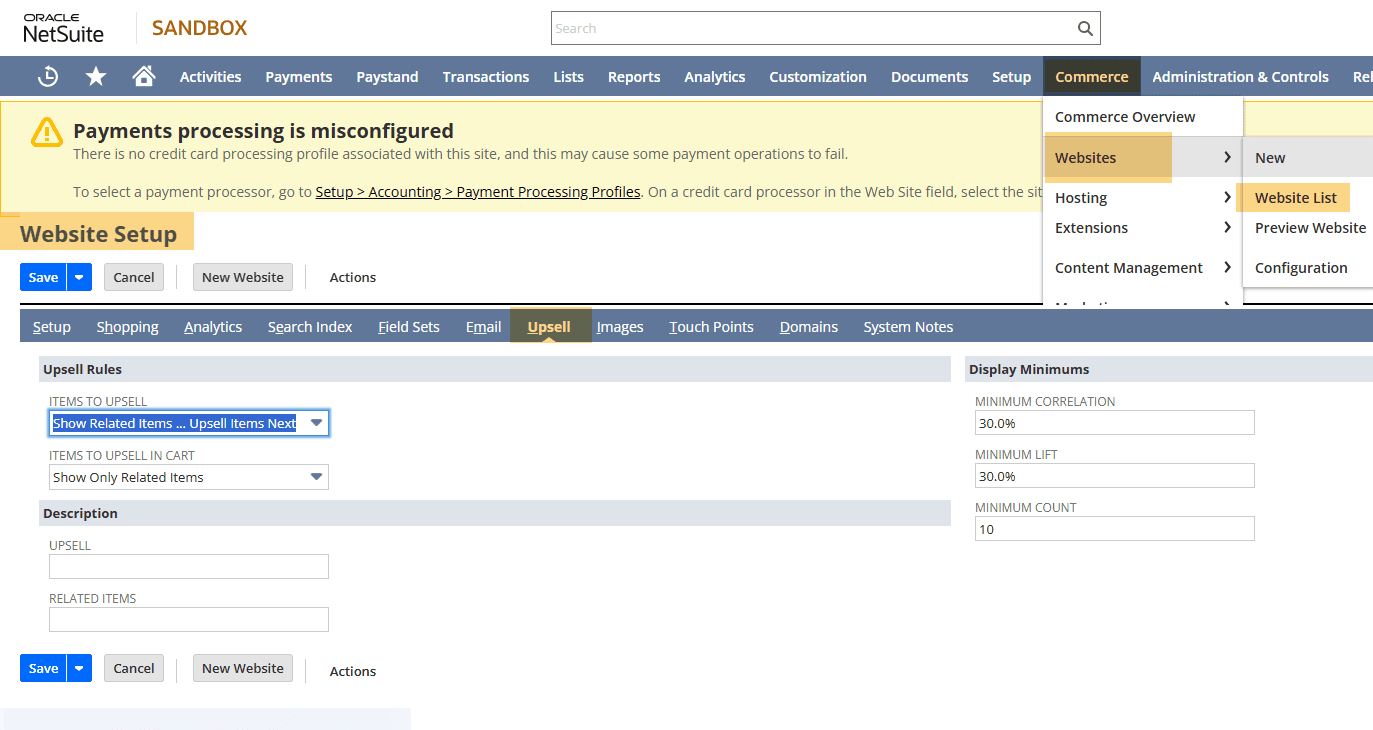
In NetSuite, navigate to:
Commerce > Websites > Website List
Open the Website Setup record for the relevant SuiteCommerce storefront.
Navigate to the Upsell tab.
This is where the correlated-item settings are managed in the implementation described here.
Review the available settings for:
These settings determine which calculated relationships meet the criteria for correlated-item recommendations.
For example, a higher minimum count may help exclude product relationships based on very few purchases.
Be aware that stricter criteria can also reduce the number of products eligible for recommendations.
Next, review the Field Sets tab in the Website Setup record.
Confirm that the relevant Correlated Items fields are available through the field sets used by your SuiteCommerce implementation.
In the original implementation, this included checking the Search field set and the Correlated Items field set.
Although these settings may already be configured as part of the storefront setup, they're worth reviewing if recommendations aren't appearing as expected.

Open an item record in NetSuite.
Navigate to:
Web Store > Correlated Items
Here, you can review the correlated products associated with the item and their calculated measurements.
The original implementation displayed the following information:
Correlated item
Correlation
Lift
Count
These values are generated from purchasing relationships rather than manually maintained as a static list.
Return to the SuiteCommerce storefront and open a product detail page.
If correlated recommendations are available and the storefront is configured to display them, you should be able to review the recommended products.
Depending on the implementation, correlated items may also appear in the shopping cart.

If the recommendations don't appear, review the Website Setup settings, field sets, available correlation data, and storefront configuration.
The display of correlated items may depend on the SuiteCommerce version, theme, or customizations used by the store.
If you've configured correlated items but don't see recommendations on the storefront, start with these checks:
These checks can help distinguish between missing recommendation data and a storefront display issue.
The best approach depends on how much control you need and what information is available.
Use Related Items when you want to manually determine which products should appear together.
Consider Correlated Items when you want recommendations informed by customers' purchasing patterns.
Explore Intelligent Recommendations when you need more advanced recommendation rules and controls.
These approaches serve different merchandising needs, and the right choice depends on your catalog, purchasing activity, and storefront requirements.
If you're unsure which approach fits your business, start by identifying what you want recommendations to accomplish and how much control you need over the products displayed.
Related Articles
Tagged with Training