How to Create a Monthly Consolidated Balance Sheet in NetSuite
Learn how to customize a NetSuite Consolidated Balance Sheet with monthly columns, accounting period ranges, and a reference balance for easier financial reporting.
Date
October 26, 2026
Read
3 min
A consolidated balance sheet shows a company's assets, liabilities, and equity across its consolidated subsidiaries at a particular point in time.
However, if you want to compare those balances month by month, the standard NetSuite balance sheet layout may not display every accounting period in separate columns.
You can customize the report to create a monthly comparison, making it easier to review changes in financial position across the year.
Why Create a Monthly Consolidated Balance Sheet?
A month-by-month balance sheet allows you to compare ending balances across accounting periods without running a separate report for every month.
This can be useful when reviewing:
Changes in cash and other asset balances.
Accounts receivable and accounts payable trends.
Changes in liabilities.
Equity balances across reporting periods.
Consolidated financial position throughout the fiscal year.
Unlike an income statement, which reports activity over a period, a balance sheet presents balances as of a particular date.
Each monthly column should therefore reflect the balance at the end of its respective accounting period.
Step 1: Open the Consolidated Balance Sheet
In NetSuite, navigate to the financial reports area and open the Consolidated Balance Sheet.
Open the report customization options.
The goal is to modify the report's columns so that each accounting period appears separately.
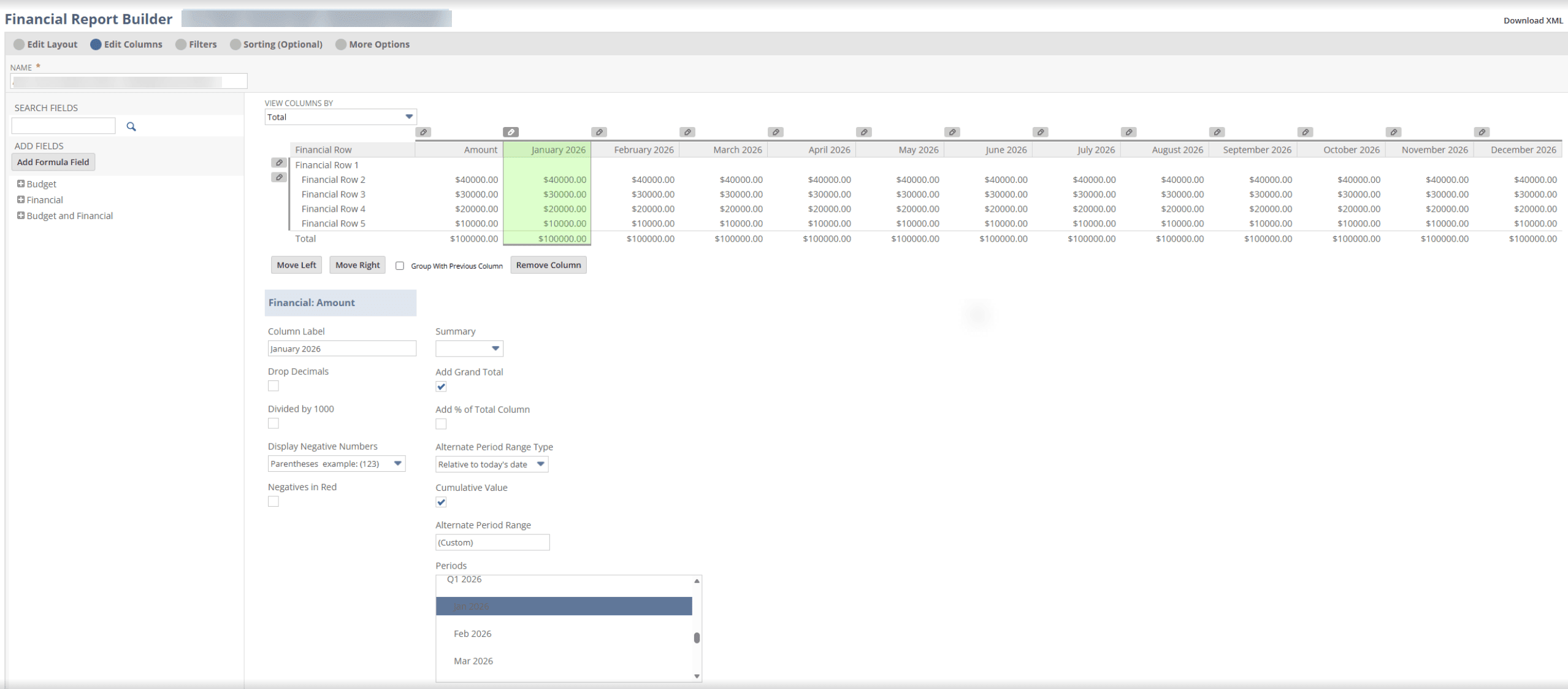
Step 2: Create a Column for Each Month
In the report customization interface, add a column for each month you want to display.
For each custom column, configure its Period Range to correspond to the intended accounting period.
Give the column a clear label so readers can easily identify the month it represents.
This creates a side-by-side view of the balance sheet across the selected periods.
Step 3: Configure the Overall Balance Column
The original report configuration also included a leftmost column controlled by the report's standard accounting period filter.
This column provides a reference balance for the selected reporting period.
For example, if the report is configured through December, the reference column can display the balance as of that reporting period.
It should not be interpreted as the sum of the monthly balance sheet columns.
Balance sheet accounts carry balances forward, so adding the monthly ending balances together would not produce a meaningful annual balance sheet total.
Step 4: Review the Custom Column Layout
After creating the monthly columns, review the report layout.
Confirm that each column is labeled correctly and points to the intended accounting period.
For consolidated reporting, also confirm that the selected subsidiary context and reporting settings are appropriate for the financial information being reviewed.
Step 5: Run and Validate the Report
Run the customized balance sheet and review the results.
Compare a few monthly columns against the balances produced by the standard Consolidated Balance Sheet for those same periods.
For example, you can compare the January column against a separate balance sheet run for January and repeat the comparison for December.
Check that:
Each column represents the intended accounting period.
Assets equal liabilities plus equity for each reporting period.
The correct subsidiaries are included.
The reference balance column reflects the selected period.
The report uses the intended consolidation settings.
Once the results are correct, save the customized report for future use.
Final Thoughts
A monthly consolidated balance sheet makes it easier to compare financial position across accounting periods in NetSuite.
By creating custom columns, labeling each month, and assigning the corresponding period range, you can display multiple balance sheet periods in one report.
The result is a more convenient way to review consolidated balances and identify changes throughout the fiscal year.
One of our clients wanted an easy and transparent way to view payments with unapplied balances in NetSuite, segmented by customer and document number. Here's the solution we found!
NetSuite bookkeeping works best for growing companies that need better control of daily accounting. It brings the general ledger, AP, AR, and reports into one system.
Your CFO just greenlit a NetSuite implementation, and now you're balancing month-end close duties with leading one of the most significant technology transformations your accounting department has ever faced. With many organizations targeting materially faster month-end close times after implementation and significant reductions in manual data entry, the payoff is substantial—but only if you execute correctly. This guide walks you through everything accounting managers need to know about NetSuite implementation, from initial planning through post-go-live optimization.
Your UK office closes the books in three days. Your US headquarters needs fifteen. Investors want consolidated financials in five. And somewhere in the middle, your finance team is maintaining separate spreadsheets for GAAP, IFRS, and local statutory requirements. If that sounds familiar, you are not alone. Professional services firms operating across multiple jurisdictions face a compounding problem: every new accounting standard adds another layer of manual reconciliation. NetSuite Services built around Multi-Book Accounting offer a way out of this mess, allowing firms to maintain parallel ledgers from a single transaction stream without the spreadsheet chaos.