Viewing Private NetSuite Saved Searches as an Account Admin
You’re bound to one day need to go back and find a NetSuite saved search you didn’t create and have never visited. Here's how to do that as an administrator.
Date
September 28, 2026
Read
3 min
When interacting with a NetSuite environment, you’re bound to one day need to go back and find a saved search that you didn’t create and have never visited. The purpose of this article is to help you find a search that you know exists but can’t find. (You will need to be in an Administrator role).
Public Saved Search vs. Private Saved Search in NetSuite
First and foremost, let’s discuss definitions. What is a public saved search vs. a private saved search?
Public
Available to and able to be run by everyone who has access to your NetSuite Environment
Only Administrators and users who have been given the “Publish Search” permission can make a search public.
Private
This is the default setting
This is available to be run only by you, administrators, and anyone who you have added to the audience tab of the saved search.
How to Find a Private NetSuite Saved Search You Didn't Create
Next, here’s how to find that elusive saved search.
First, you’re going to navigate to your list of saved searches by going to Lists > Search > Saved Searches
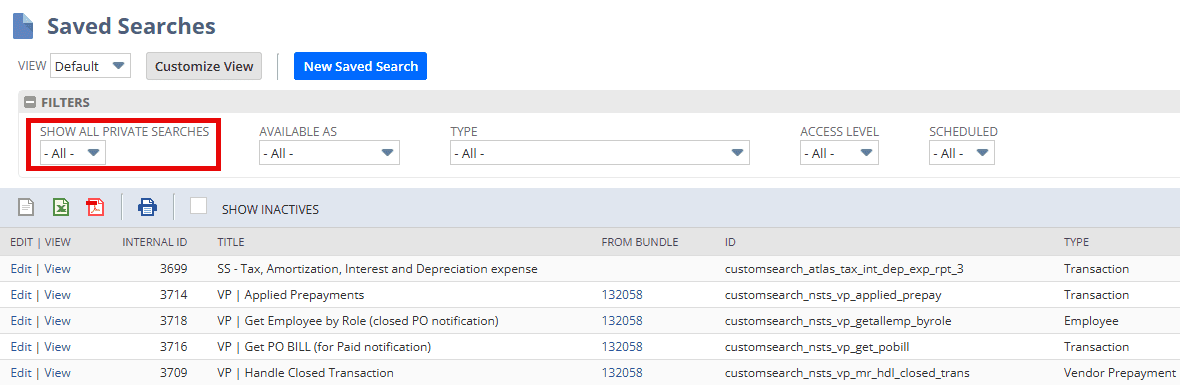
You should see something that looks similar to the one below.
As you can see, for one, you probably have “Show all Private Searches” set to “-All-”
This will show you “all” public saved searches, and YOUR private saved searches.
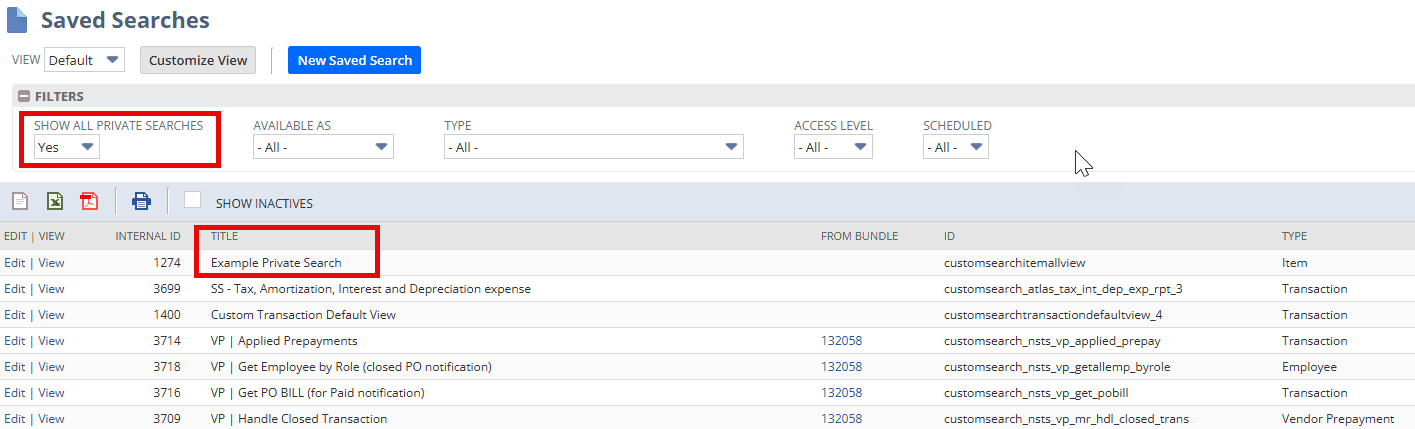
If you click the “Show All Private Searches” drop down, and select Yes, you will now be able to see everyone else’s private saved searches. See “Example Private Search” below, which wasn’t pictured before.
Got stuck on a step in this article?
We like to update our blogs and articles to make sure they help resolve any troubleshooting difficulties you are having. Sometimes, there is a related feature to enable or a field to fill out that we miss during the instructions. If this article didn't resolve the issue, please use the chat and let us know so that we can update this article!
If you have general questions about SuiteCommerce or more specific questions about how our team can support your business as you implement NetSuite or SuiteCommerce, feel free to contact us anytime. Anchor Group is a certified Oracle NetSuite Alliance Partner and Commerce Partner equipped to handle all kinds of NetSuite and SuiteCommerce projects, large or small!
Saving a SuiteQL Query is a built-in feature of Tim Dietrich’s SuiteQL Query Tool. Enabling this functionality requires a few simple customizations: you'll need to create a folder in the File Cabinet and make a minor edit to the SuiteQL Query Tool script. The steps to set this up are outlined below.
A client needed a NetSuite saved search that displayed all payment transactions month-to-day, with a column for a daily running total. Here's how we built it.
In this article, we'll look at NetSuite Saved Searches and show you how to create and use them. Plus, we'll provide some tips on getting the most out of this feature.
NetSuite saved searches are one of the most useful no-code reporting tools in NetSuite. They let you pull real-time data from transactions, customers, items, vendors, employees, and custom records using filters, result columns, formulas, and scheduled delivery. A well-built saved search can replace recurring manual reporting, support workflows, and surface live operational data on dashboards. If standard NetSuite reports do not give you the exact view you need, saved searches usually fill the gap. You can build searches for overdue invoices, inactive customers, inventory below reorder point, purchase orders past due, pending approvals, and many other use cases without writing code. This guide explains how to create a NetSuite saved search, customize it with formulas and joins, schedule it for email delivery, add it to a dashboard, and avoid common performance and configuration mistakes.
Medical Innovations built the operational foundation to scale without adding headcount—and they're using automation, integrations, and AI to move faster than competitors hundreds of times their size. (Yes, really.)