An Introduction to SuiteCommerce Themes
It is worth noting that the SuiteCommerce Theme is fundamentally the layout of the website, not the colors, although you can specify the colors right in the theme code.
Read the Article

Are your SuiteCommerce theme skins missing from Site Management Tools (SMT), even though you've installed and activated a theme?
We encountered this issue while setting up a SuiteCommerce Advanced storefront using NetSuite's Threads theme. Although the theme appeared to be installed correctly, the expected theme customization options did not appear in SMT.
In our case, updating the Extension Management bundle resolved the problem.
Here's how we identified the issue and the steps we used to fix it.
SuiteCommerce themes provide storefront styling options, including predefined theme skins.
These skins allow administrators to work with supported visual settings, such as colors and typography, without editing the underlying theme code for every change.
Normally, you can access the available theme customization options through Site Management Tools.
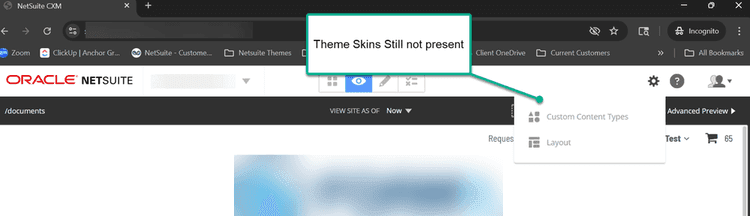
However, when we opened SMT for the affected storefront, the Themes option was missing.
If the expected Themes option is missing, you may be experiencing the same issue.
When investigating the problem, we also found the following error in the browser's developer console:
{
  "readyState": 4,
  "status": 404,
  "statusText": "error"
}
A 404 response indicates that a requested resource was not found. It doesn't identify the underlying cause on its own, but it provided an additional clue during troubleshooting.
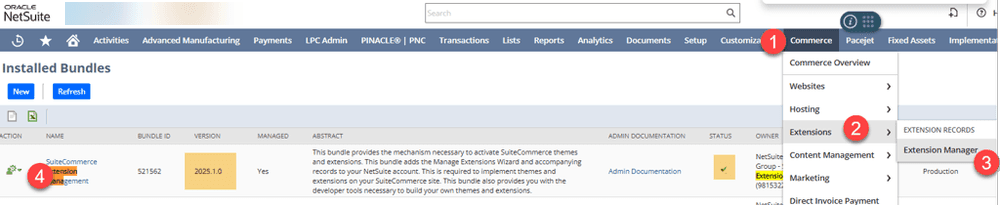
In our implementation, the missing theme skins were resolved by updating the Extension Management bundle.
In NetSuite, navigate to:
Customization > SuiteBundler > Search & Install Bundles > List
Locate the Extension Management bundle in the installed bundle list.
Check whether an update is available.
If an update is available, select the update option beside the Extension Management bundle.
Follow the prompts to complete the update.
Once the process finishes, confirm that the bundle shows a successful installation or update status.
After the bundle update, perform the appropriate cache invalidation for your SuiteCommerce website.
This helps ensure that the storefront retrieves updated resources rather than continuing to use cached files.
Open the storefront and perform a hard refresh.
For example:
Then return to Site Management Tools.
Press Esc to access SMT and sign in if prompted.
Select the pencil icon to enter editing mode, then open the gear icon menu.
In our case, the Themes option and available theme skins appeared after the Extension Management update and cache refresh.

If updating Extension Management doesn't resolve the issue, there are a few additional areas worth investigating.
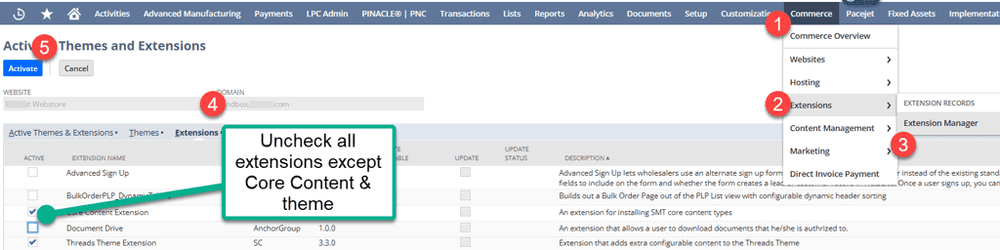
Other installed extensions may interfere with storefront behavior.
In a sandbox or other controlled testing environment, try activating the theme with only the extensions required for the test.
For example, our troubleshooting included testing the theme alongside its required Core Content components.
If the theme skins appear with nonessential extensions disabled, investigate which extension or configuration may be causing the conflict.
Check whether the relevant SuiteCommerce and SuiteCommerce Advanced bundles are compatible with the installed theme and extensions.
Outdated or incompatible components can cause unexpected behavior in Site Management Tools.
Before updating bundles, review the applicable release requirements and dependencies.

If the problem persists, try a different compatible NetSuite theme in a testing environment.
Depending on the themes available in your account, examples may include:
If theme skins appear for one theme but not another, that comparison can help narrow the issue to a specific theme or extension configuration.
Before changing bundles, themes, or extensions, preserve your existing SuiteCommerce configuration.
In particular, save a copy of the relevant Configuration JSON so you have a reference for the current settings.
Changes to extensions or theme configurations can affect storefront behavior, and restoring an earlier configuration may require more than simply reactivating a theme.
Testing in sandbox before making production changes can reduce the risk of disrupting the live storefront.
When SuiteCommerce theme skins fail to appear in Site Management Tools, the issue may involve the installed theme, Extension Management bundle, or another storefront component.
In our case, updating the Extension Management bundle, invalidating the cache, and refreshing the storefront restored the missing theme customization options.
If the same steps don't resolve your issue, compare bundle versions, review extension compatibility, and test the theme in a controlled environment to narrow down the cause.
Related Articles
Tagged with Troubleshooting