Exporting SuiteAnalytics Dataset as SQL
Learn how to export NetSuite datasets as SQL queries to uncover complex joins, field relationships, and improve script performance.
Read the Article

If you've worked extensively with NetSuite saved searches, you may have encountered situations where writing a SQL query would be easier than configuring a saved search.
Maybe you need to investigate relationships between multiple record types, validate data, or test a query before incorporating it into a SuiteScript.
With SuiteAnalytics Connect and DBeaver, you can establish a local JDBC connection to NetSuite's analytics data source and run read-only SQL queries.
This guide walks through the setup process, from enabling SuiteAnalytics Connect to running your first query in DBeaver.
NetSuite saved searches are useful for reporting and retrieving information without writing SQL. However, some tasks are easier to approach through a SQL interface.
For example, SQL can help you:
N/query logic.SuiteAnalytics Connect provides access to the NetSuite2.com analytics data source, not unrestricted access to NetSuite's underlying application database.
The connection is read-only, and available data depends on the records exposed through the data source and the permissions assigned to your role.
Before starting, make sure you have:
SuiteAnalytics Connect is a separately provisioned feature. If it isn't available in your account, contact your NetSuite account representative.
Start by downloading https://dbeaver.io/.
DBeaver is a database management application that supports JDBC connections and provides a SQL editor for writing and running queries.
Install the application for your operating system.
Once installed, you'll configure it to use NetSuite's JDBC driver.
Before connecting DBeaver, confirm that SuiteAnalytics Connect is enabled in your NetSuite account.
In NetSuite, navigate to:
Setup > Company > Enable Features
Open the Analytics subtab and locate SuiteAnalytics Connect.
If the feature is available but not enabled, an authorized administrator can enable it.
If the feature isn't listed, it may not be provisioned for your account.
Oracle provides additional instructions in its SuiteAnalytics Connect feature documentation.
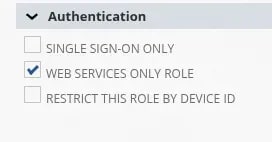
Next, configure a NetSuite role that has the permissions required to access the analytics data source.
The role determines which data the connection can access.
At a minimum, review the appropriate SuiteAnalytics Connect permission and the permissions for the record types you need to query.
For example, querying customer and transaction data may require different permissions than querying item records.
Assign the role to the authorized user who will establish the connection.
Security note: Follow your organization's access-control and authentication requirements. Avoid disabling two-factor authentication or broadly increasing role permissions solely to make a database connection work.
Once the role has been configured, record its internal ID. You'll need that value when creating the JDBC connection.
The JDBC driver allows DBeaver to communicate with SuiteAnalytics Connect.
In NetSuite, locate the Set Up SuiteAnalytics Connect link in the Settings portlet.
Open the driver download page and select the appropriate JDBC driver for your operating system.
The page also displays connection details, including:
You'll use these values when configuring DBeaver.
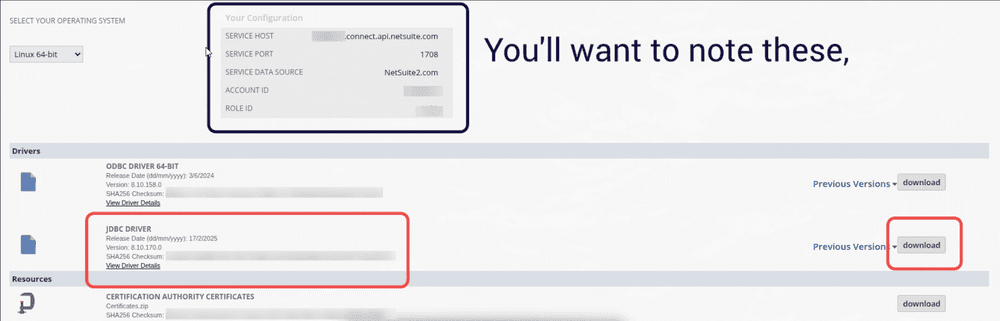
Download and install or extract the driver according to Oracle's instructions.
Locate the NQjc.jar file included with the driver. Keep it in a location where it won't be accidentally moved or deleted.
Open DBeaver.
Navigate to:
Database > Driver Manager
Create a new driver configuration.
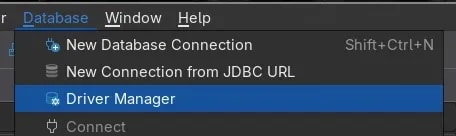
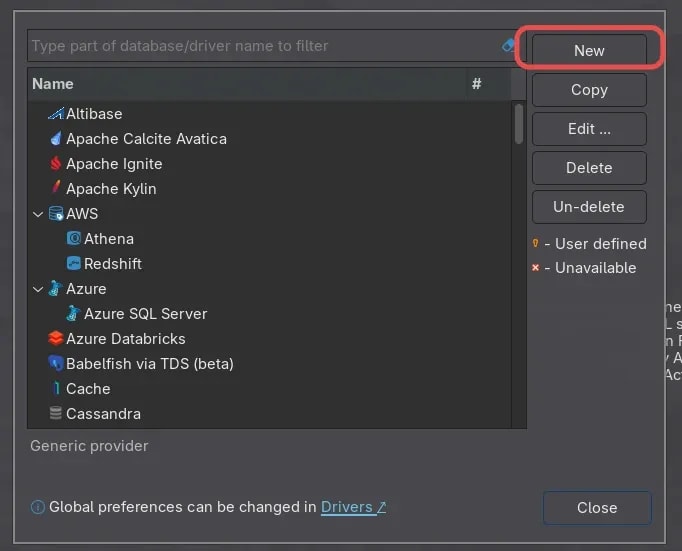
Under the Libraries tab, choose Add File and select the NQjc.jar file downloaded from NetSuite.

Next, select Find Class to identify the driver class.
Oracle documents the following class for the SuiteAnalytics Connect JDBC driver:
com.netsuite.jdbc.openaccess.OpenAccessDriver

Give the driver a recognizable name, such as NetSuite SuiteAnalytics Connect.
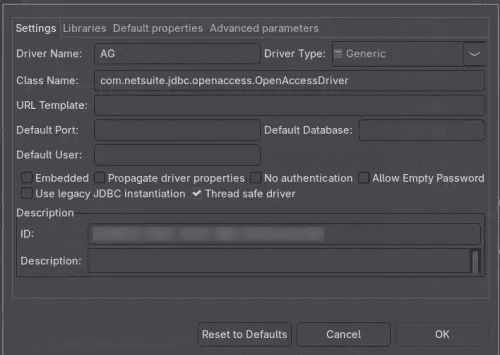
Save the driver configuration.
If you're working with multiple NetSuite accounts, use descriptive connection names to distinguish them. Follow Oracle's driver compatibility guidance when deciding whether different environments require different driver configurations.
In DBeaver, create a new database connection using the driver you just configured.
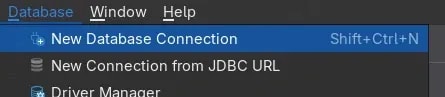
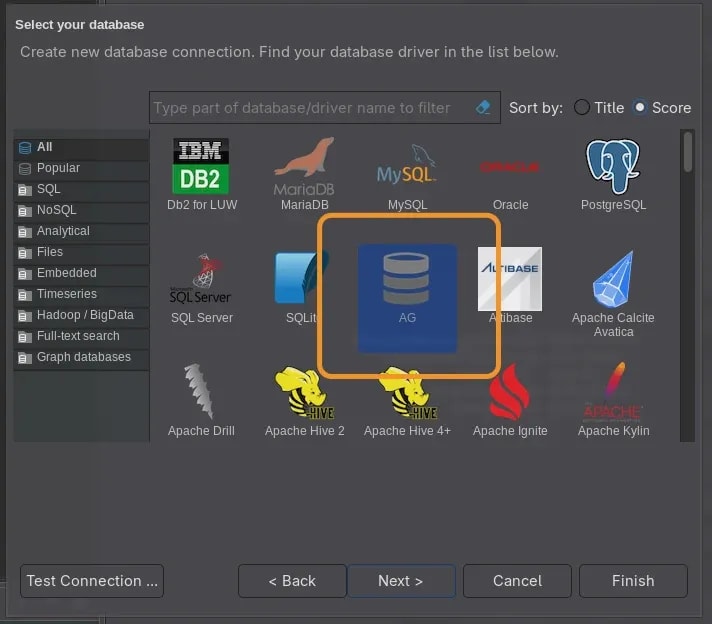
In the JDBC URL field, enter a connection string using the values from your SuiteAnalytics Connect configuration.
Oracle documents the following connection URL format:
jdbc:ns://<ServiceHost>:1708;ServerDataSource=NetSuite2.com;Encrypted=1;NegotiateSSLClose=false;CustomProperties=(AccountID=<AccountID>;RoleID=<RoleID>);Replace the placeholders with your environment's values:
Use the service host supplied by NetSuite rather than assuming that the hostname follows a particular pattern.
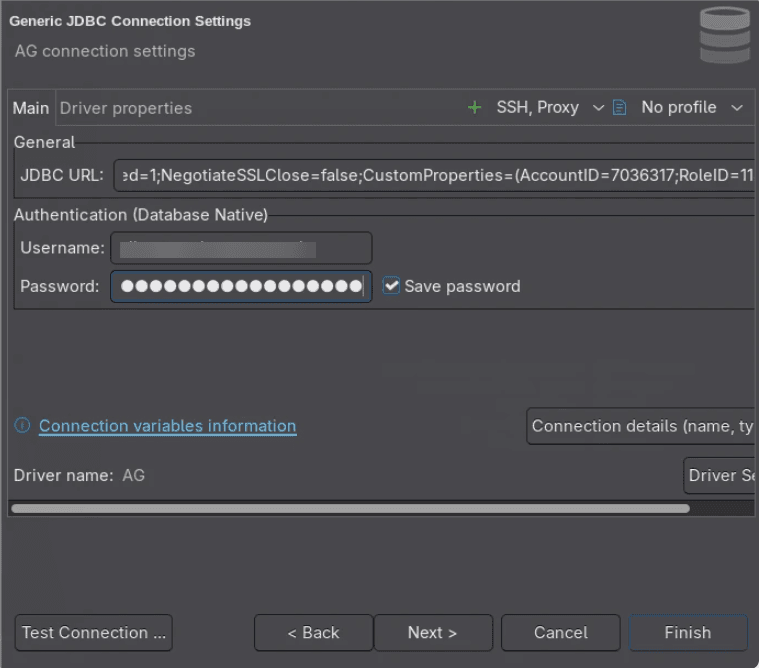
Supply the authentication details required by your NetSuite environment.
Oracle's JDBC documentation includes username-and-password connection properties. However, your organization's security configuration may determine which authentication approaches are permitted.
Do not include passwords or authentication tokens directly in screenshots, shared SQL files, or published connection strings.
For the connection properties and supported configuration details, refer to Oracle's JDBC connection documentation.
Select Test Connection in DBeaver.
If the connection succeeds, save it.
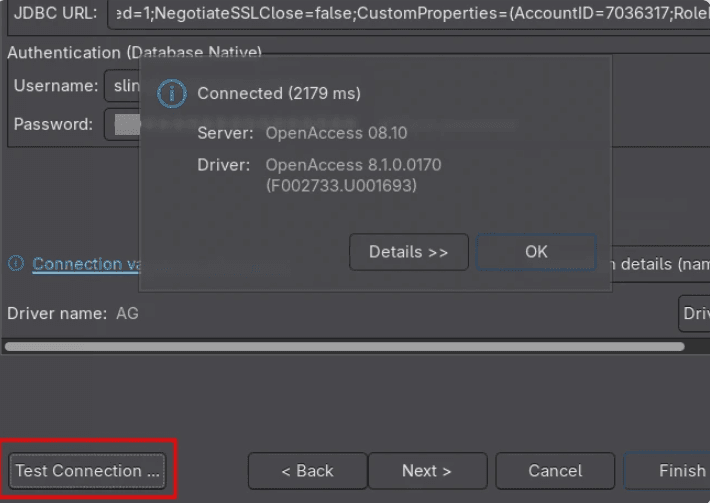
You should now see the NetSuite connection in DBeaver's database navigator.
If the connection fails, review the driver configuration, service host, account ID, role ID, authentication details, and required permissions.
Once the connection is established, open a SQL editor in DBeaver.
You can now write and execute SQL queries against the records available through SuiteAnalytics Connect.
For example, a basic query might retrieve a limited number of customer records:
SELECT
    id,
    entityid
FROM
    customer
FETCH FIRST 10 ROWS ONLY
This example assumes that the customer record type and selected fields are available to your role.
The exact records and fields you can query depend on the NetSuite2.com data source and your account permissions.
You can also use DBeaver to inspect available data, develop more complex queries, and export query results.
Remember that SuiteAnalytics Connect is read-only. SQL queries through this connection cannot directly insert, update, or delete NetSuite records.
A few practices can make the experience more useful:
Start with small queries. Limit the number of returned records while developing or troubleshooting a query.
Check record and field availability. Not every NetSuite field is exposed through SuiteAnalytics Connect, and permissions affect what you can retrieve.
Validate joins carefully. Make sure the relationships between records produce the expected results, particularly when joining transaction-related data.
Protect exported information. Read-only access doesn't mean the information is non-sensitive. Apply your organization's data-handling requirements to query results and exports.
Test before reusing SQL in SuiteScript. A query that works through SuiteAnalytics Connect may need adjustments before it can be used with the SuiteScript N/query module.
DBeaver and SuiteAnalytics Connect provide a useful way to explore NetSuite data using SQL.
For developers, consultants, and administrators who regularly work with saved searches, SuiteScript queries, or data validation, a local SQL editor can make certain investigations more convenient.
The important distinction is that you're accessing a supported, read-only analytics data source rather than connecting directly to NetSuite's underlying application database.
With the appropriate permissions, JDBC driver, and connection settings, you can use DBeaver to investigate records and develop queries without relying exclusively on the NetSuite interface.
Related Articles
Tagged with Training