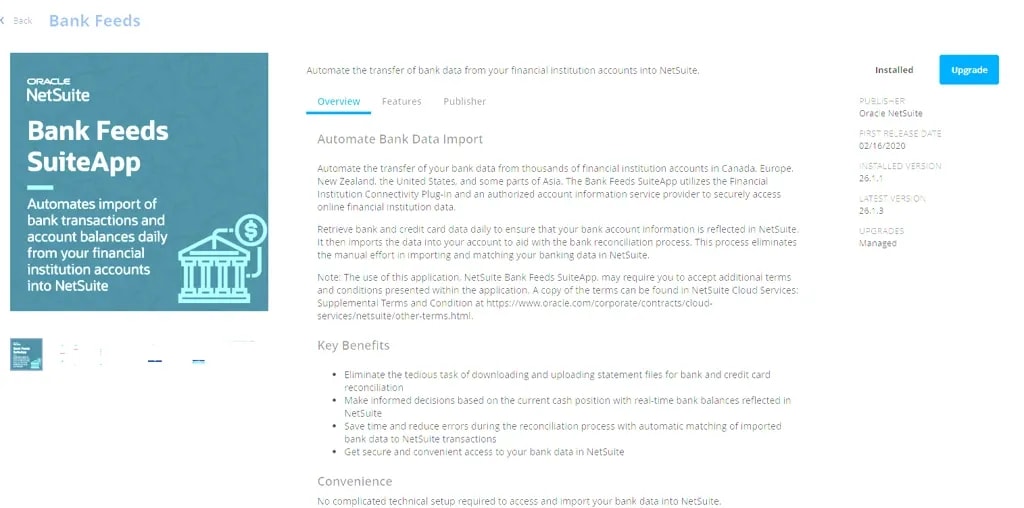
The Bank Feeds SuiteApp automates the daily import of bank transactions and account balances from your financial institution accounts into NetSuite. This guide covers the U.S./Canada MX setup, account mapping, import timing, and troubleshooting.
Date
November 20, 2026
Read
7 min
How to Set Up NetSuite Bank Feeds
What the Bank Feeds SuiteApp Does
The Bank Feeds SuiteApp automates the daily import of bank transactions and account balances from your financial institution accounts into NetSuite. The import runs on an automated daily schedule via NetSuite's authorized Account Information Service Provider (AISP). Depending on transaction volume and how fast the bank responds, not all transactions may import in a single run; the remainder picks up on the next scheduled or manual run.
It provides one generic framework to connect to a broad set of financial institutions, as opposed to SFTP file delivery (Auto Bank Statement Import), which is file based and relies on bank-provided formatting, or single-provider apps, which are tied to one institution. Bank Feeds avoids both limitations: broad coverage through a single framework, without per-bank file setup or single-provider lock-in.
When Bank Feeds May Help
If any of these sound familiar, you might need bank feeds:
“We download statements and import them manually”
“Reconciliation takes forever”
“We want daily cash visibility”
“We have many bank accounts to watch”
“Credit card charges aren’t in NetSuite”
Limitations
SMB-focused — For U.S. and Canada, the SuiteApp is mainly designed for small and medium-sized companies. Larger volumes should use the Auto Bank Statement Import (ABSI) or Bank Statement Parsers SuiteApps instead.
Supported countries only — Connections are limited to: United States, Canada, Europe (incl. UK), New Zealand, Philippines, Singapore, and Thailand.
Account types — Only certain bank/payment accounts are supported. Loan, mortgage, and investment accounts may not work.
Connection reliability — Not all institutions can be accessed reliably; some factors are outside NetSuite's control.
U.S./Canada (MX) profile limits — Up to 100 accounts across a maximum of 25 credentials. Uses OAuth for more stable connections and less frequent reauthorization. (This is the profile used in the setup below.)
U.S./Canada (Yodlee) profile limits — Up to 20 accounts or 10,000 transactions per login credential. No longer available to new customers as a preinstalled option (only installs predating Feb 4, 2026).
Europe & other countries — Up to 100 financial institutions and 450 linked accounts across all connections. The AISP takes up to ~20 minutes to retrieve data; slow bank response can cause import errors or missed transactions.
Transaction ceiling — Keep each import under 10,000 transactions to avoid performance degradation. Overflow imports on the next run.
Account linking cap — On a Bank Feeds–provisioned format profile, the Account Linking subtab supports up to 20 accounts (vs. 500 without a SuiteApp profile) as the conservative performance ceiling.
Manual refresh throttle — Manual import can only be triggered once every 60 minutes per format profile.
Permissions — Only Administrator or a custom role with the Financial Institution Records permission can set up the integration.
Before creating the Financial Institution record, confirm the following are in place:
Inform Bank — Contact the bank for the account(s) you wish to link, ensure there are no known compatibility issues beforehand, and give a general heads-up that you are connecting the account(s) to NetSuite.
Bank Feeds SuiteApp installed — Go to Customization > SuiteBundler > Search & Install Bundles (or SuiteApps) and confirm the Bank Feeds SuiteApp is installed in the account. The Financial Institution menu path will not appear without it.
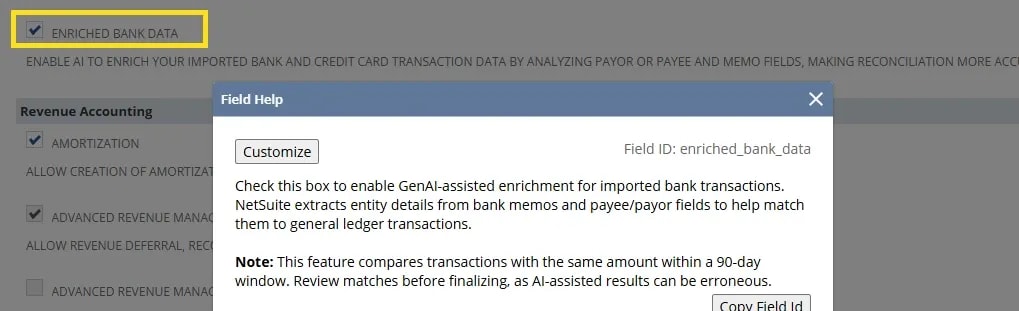
Enriched Bank Data enabled — At Setup > Company > Enable Features > Accounting, confirm the Enriched Bank Data feature is enabled.
Role and permissions — The user performing setup needs access to the Financial Institution record and the Format Profile. Administrator works out of the box; for a custom role, grant the Bank Feeds / Financial Institution permissions and access to the bank GL account.
GL bank account exists — The NetSuite Bank-type account you intend to feed should already exist in the Chart of Accounts before mapping.
Linking the Feed to a NetSuite GL Account (Account Mapping)
Connecting the institution pulls in the bank's accounts, but each connected bank account must be mapped to a NetSuite GL Bank account before transactions can flow to Match Bank Data.
To add your bank, navigate to Setup > Accounting > Financial Institution > List. From there, you will see a "Bank Feeds" Setup, but I suggest creating a new Financial Institution record and naming it after your bank. Once created, press edit and navigate to the "Format Profile: Configuration" subtab.
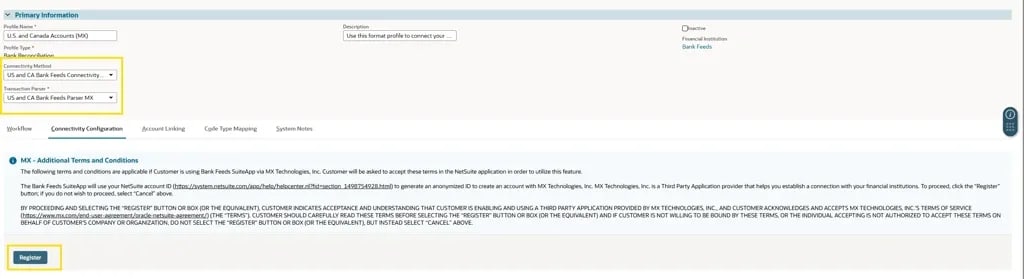
On the format profile, make sure "US and CA Bank Feeds Connectivity MX" is selected as the Connectivity Method, and "US and CA Bank Feeds Parser MX" is selected as the Transaction Parser. On the Connectivity Configuration Subtab, read the Terms and Conditions and press the "Register" button. Then, you will see a "Connect New Institution" button. Click this, and you will be able to connect your account. If you have used Plaid before, it works in a similar manner. If you have more than one account you wish to connect, you can add more than one institution. It is also a good idea to inform your bank that you are connecting the account to NetSuite, so they are aware and can better assist in case anything isn't working as it should from the bank's end (most commonly, issues with MFA security).
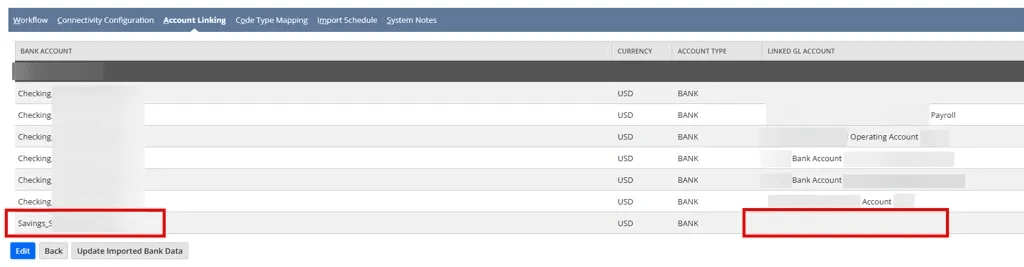
On the Financial Institution / Format Profile, open the Account Linking (Bank Accounts) subtab.
For each account returned by the bank, select the corresponding NetSuite GL Bank account from the dropdown.
Confirm the currency and account number match the real bank account — mapping to the wrong GL account is the most common cause of reconciliation differences downstream.
Save. Only mapped accounts will import data. For example, the account highlighted in red below will not import because it is not linked to a corresponding GL account.
Import and Refresh Timing: Where Data Lands
Automatic refresh — Once connected, Bank Feeds pulls transactions on a scheduled basis (via the MX connectivity layer). Most institutions refresh roughly daily, though timing depends on the bank.
Manual refresh — You can trigger a pull from the Financial Institution record / Bank Feeds rather than waiting for the scheduled run. Manual import is limited to once every 60 minutes per profile. Editing and saving the format profile (without changes) restarts the retrieval and import process.
Where data lands — Imported lines flow to Transactions > Bank > Match Bank Data for matching and categorization, then to Reconcile Account Statement for formal reconciliation.
Troubleshooting
MFA / re-authentication — The most common issue. If the feed stops importing, the bank's MFA token has usually expired. Re-open the connection (Connect New Institution / manage connection) and re-authenticate. Letting the bank know the account is linked to NetSuite helps here.
Stale or broken connection — If no new lines appear despite activity at the bank, check the connection status on the Financial Institution record. Disconnect and reconnect the institution if it shows an error state. If the bank posts transactions after the scheduled import finishes, they won't appear until the next run unless you rebuild the connection.
Missing accounts — If an account didn't come through, confirm it's included in the connected institution and mapped on the Account Mapping subtab.
Duplicate or missing transactions — Verify only one Financial Institution record is connected per bank account; multiple connections to the same account can cause duplicates.
Connectivity/Parser mismatch — If parsing looks wrong, re-confirm "US and CA Bank Feeds Connectivity MX" and "US and CA Bank Feeds Parser MX" are both selected on the format profile.
NetSuite bank reconciliation works well for growing companies with many bank transactions. Bank Feeds and matching rules can cut manual work and make monthly reconciliation easier.
NetSuite Electronic Bank Payments (EBP) works best for mid-market companies that want to stop printing checks and automate vendor payments through ACH, SEPA, or BACS file generation.
NetSuite reconciliation works well for mid-sized companies with too much manual bank work. Bank Feeds and matching rules can cut repeat tasks and make month-end easier.