Personalize your NetSuite preferences to better fit your time-zone and location, country, currency, and language, and more!
Date
September 14, 2026
Read
13 min
This article covers personalized (user-level) preferences in NetSuite. To learn about setting up company-wide preferences in NetSuite, check out our article Company Information and Preferences in NetSuite.
NetSuite Tutorial | Set Personalized Preferences
In this lesson, we will discuss setting your preferences for your NetSuite account. There are company-wide preferences that you set for your NetSuite Account, but you can also override some of those within your personal preferences. Often, users can override things like formatting dates. However, you may see some things in this tutorial that are not available to you, and that's because your company has set up its NetSuite system to make it so that you can't override those preferences.
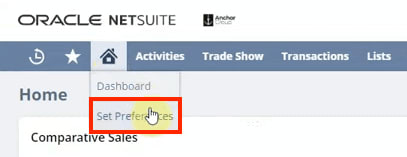
First of all, we're going to go to the Home button and go to Set Preferences.
This is where you will go when you're setting your preferences. You will notice there are several tabs on this page, and each one contains a number of preferences that can be customized. Most of these preference options are pretty intuitive to use. So in this lesson, we'll touch on just a few personal preferences to give you an idea of what's possible!
Setting the Number of Rows in a List
One of the more important things we often end up doing is setting the number of rows in list segments to more than the default. This setting can be adjusted from the Optimizing NetSuite section on the General tab.
Sometimes the number of rows in a list is set to only 50, but it's usually best to have at least 100, sometimes even 200 results surface in a list. Let's take a minute to look at what this does.
First, go into a list, let's say, Lists > Accounting > Items.
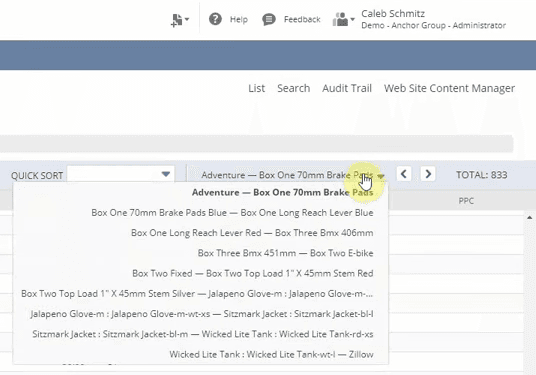
Here you can see that it allows you to scroll through more items before having to use the dropdown navigation or click through to the next page.
So instead of having whatever the company default is, which may be only 50, you can have 100 items to scroll through. And that can make it a little more user-friendly because many people find that they don't really like this dropdown to navigate between pages.
Time Zone Settings
Another applicable personal preference is that the company is set up and in its time zone. Still, you want to set it here if you live in a different time zone. The reason is that it'll put different timestamps and convert them on various logs. So, for example, let's say a sales order goes through Pacific Time, and down here, you can see that I'm in central. So at noon in the NetSuite system, for a sales order that goes in right now, it would show up as 1014, and that can be a little confusing if you are in a different time zone than your company is set up in. So go ahead and change it to your time zone because it makes it much easier to understand the data when you're reading through it and seeing one thing appear.
You can set things like your first day of the week, which is pretty good, too, especially if you're using the calendar. Still, generally, you will go with whatever the company initially set up.
These preferences can be adjusted from the Localization section under the General tab on the NetSuite Set Preferences page.
NetSuite Internal IDs
In the Defaults section of the General tab, you will almost always want this Show Internal IDs box checked.
This will show the internal ID for a particular field when you click into its field help. Here is an example of the field help for this checkbox field when it is turned on.
This is useful because you will need to reference NetSuite fields more and more as you continue working in the system. So being able to find the field IDs quickly can save you a lot of time and effort later on.
Adjusting Appearance and Colors
Most people like to set their appearance to something other than the default theme to match your company's color palette. You can adjust this setting from the Color section under the Appearance tab.
For example, let's say you have a purple logo. Then you may want to change your color preference to a purple setting. It's an excellent way to brand your NetSuite account specific to your business.
The rest of these appearance fields are self-explanatory, like fonts and accessibility, so we will go ahead and move beyond this. If you have other specific questions about the Appearance tab or the fields it contains, we recommend a quick search on SuiteAnswers to learn more. You can also view this example list of Appearance tab fields at the bottom of this article.
Transaction Tab
You may have access to this transaction tab, but if you don't see it, remember it's likely because of your permissions.
One of the fields that may be handy for you is if you want to alphabetize your items regardless of the type that might be one that you want to. Printing options can also be convenient when working with invoices and sales orders.
Activity Priority Preferences
Activities are used for things like your calendar, and they can also be used for your tasks and phone calls. One thing that we like to make sure is changed is this default priority for tasks. Most of the time, we have it set as medium or low and never at high. But let's say you only work with high-priority tasks because of the specific role. You may want to go into the Activities tab and, under the Tasks & Phone Calls section, set the Default Priority for Tasks to High.
Alert Preferences
In the Alert tab, you can define when you want the alerts sent to you, and then you can determine when you want them sent. You can set up to three of them throughout the day if you need to.
Restrict View
Finally, we're going to talk about this Restrict View tab. The Restricted view can be instrumental when working with several subsidiaries. For example, let's say you set up NetSuite within a parent company, and then you want to view companies inside of NetSuite by the subsidiary. You may be only involved with one of the subsidiaries, so you would set that preference on this tab, and it would restrict the view throughout NetSuite to just that specific Subsidiary.
The important thing to know is that you may have to reset this subsidiary view at the end of the day or when you re-log back into NetSuite.
Set Preference Tabs: Preference Fields List
Looking for a preference in NetSuite but unsure where to find it? Here is a list of preference fields that you may be able to find and adjust on each of the Set Preferences tabs in your NetSuite Account.
Example Preference Fields: General Tab
User Profile
Nickname
From Email Address
Signature
Add Signature to Messages
Localization
Search Sorting
Time Zone
Calendar System
First Day of Week
Formatting
Date Format
Long Date Format
Time Format
Number Format
Negative Number Format
Phone Number Format
Auto Place Decimal
CSV Column Delimiter
CSV Decimal Delimiter
Defaults
Download PDF Files
Use Multicurrency Expense Reports
Address Mapping Type
Show Internal IDs
Only Show Last Subaccount
Only Show Last Subentity
Only Show Last Subitem
Messages
Submit Warnings
Limit CC Field To Contacts & Employees
Optimizing NetSuite
Delay Loading of Sublists
Number of Rows in List Segments
Maximum Entries in Dropdowns
Type-Ahead on List Fields
Require Exact Match on Item Type-Ahead
Show Quick Add Row on Lists
Prefer Native Select Fields Over NS Dropdowns in Internet Explorer
SuiteCloud Development Framework
Show App ID Field
Show ID Field on Sublists
Example Preference Fields: Appearance Tab
Colors
Color Theme
Styles
Screen Font
Compensate for Large Fonts
Density Setting For Internet Explorer
Chart Themes
Chart Theme
Chart Background
Centers & Dashboards
Landing Page
Show Portlet Hint
Set Customer Dashboard as Default View on Customer Record
Entry Forms
Limit Entry Forms to Two Columns
Expand Tabs on Entry Forms
Enable Rich Text Editing
Default Rich Text Editor Font
Default Rich Text Editor Font Size
Accessibility
Display Default Theme With Optimal Color Contrast
Example Preference Fields: Transactions Tab
Basic
Auto Fill Transactions
Alphabetize Items Regardless of Type
Warnings
Duplicate Number Warnings
Inventory Level Warnings
Customer Credit Limit Handling
Vendor Credit Limit Warnings
Printing
Print Using HTML
Transaction Email Attachment Format
Horizontal Print Offset
Vertical Print Offset
Example Preference Fields: Analytics Tab
Reporting
Report by Period
Show Reports in Grid
Customize Font on Financial Reports
Print Company Logo
Display Report Title on Screen
Display Report Description
Default Bank Account
Calculate Forecasts as Weighted
Search
Show List When Only One Result
Quick Search Uses Keywords
Popup Search Uses Keywords
Include Inactives in Global & Quick Search
Popup Auto Suggest
Global Search Auto Suggest
Global Search Sort By Name/ID
Global Search Customer Prefix Includes Leads and Prospects
Global Search Includes Transaction Numbers
PDF
PDF Page Orientation
PDF Font Size
Export
CSV Export Character Encoding
KPI and Snapshot
KPI Scorecard with Period-Specific Consolidation Rates
Example Preference Fields: Activities Tab
Calendar
Edit Activities from Calendar
Send Invitation Emails
Restrict Invitees to Employees
Default Event Access Setting for New Events
Default Reminder Type
Default Reminder Time
Play Audio with Popup Event Reminders
Tasks & Phone Calls
Default Priority For Tasks
Default New Tasks Public
Default New Phone Calls Public
Example Preference Fields: Alerts Tab
Include Links in HTML Alerts
Respect Quick Date Portlet Settings
E-Mail
Send an On-Demand Alert From this Role
Example Preference Fields: Restrict View Tab
Subsidiary
Include Sub-subsidiaries
Location
Include Sub-locations
Include Unassigned
Class
Include Sub-classes
Include Unassigned
That's all for now! Hopefully, this post gives you something to work with while trying to understand NetSuite and what it can do for your business. If you have any questions and want some free consulting advice, feel free to contact our team at Anchor Group.
Get stuck in a step during this article?
We like to update our blogs and articles to make sure they help resolve any troubleshooting difficulties you are having. Sometimes there is a related feature to enable or a field to fill out that we miss during the instructions. If this article didn't resolve the issue, please use the chat and let us know so that we can update this article!
Note: This is not an exhaustive summary of the NetSuite preferences that could be available for you to override. Remember also that the preference options that you can set may differ depending on what company-wide preferences you have permission to override in your NetSuite Account. If you cannot find or adjust a preference you need to, contact your NetSuite administrator about your NetSuite account's preference override settings.
CSV imports are a great way to load large amounts of data into NetSuite with minimal effort. All you need is a CSV file containing the required information, and you can follow the NetSuite Import Assistant steps to upload your data.